Desktop App
Install the ScrambleID desktop app and sign in with a QR code, type code, or passkey.
Updated September 1, 2026


Getting started
ScrambleID lets you securely sign in using your trusted device, with no usernames or passwords required. Simply scan and sign in for a fast, seamless authentication experience.
This user guide will walk you through installing the ScrambleID Desktop app on Windows and using it to register and log in.
Note: If you are using an iOS or Android device for registration or login, please refer to the Mobile App guide.
Platform note (June 2026): the Desktop App ships for Windows today; macOS support is planned. If you are on a Mac, you do not need the desktop app to use ScrambleID: web login with the mobile app works everywhere. See the Mobile App guide for the QR sign-in flow.
Installing the Desktop App
What you’ll need
- A Windows PC and the app installer
- Access to your organization’s invitation email
- Microsoft .NET v 8.0 x64 or later installed on your computer
Prerequisites
Installer
Your organization's ScrambleID administrator provides the Desktop App installer. If you don't have it yet, ask your IT team for the current release.
.NET Installation
Before installing the ScrambleID Desktop App, please ensure you have .NET 8.0 x64 or later installed on your computer. To verify your current version, open the Windows Command Prompt.
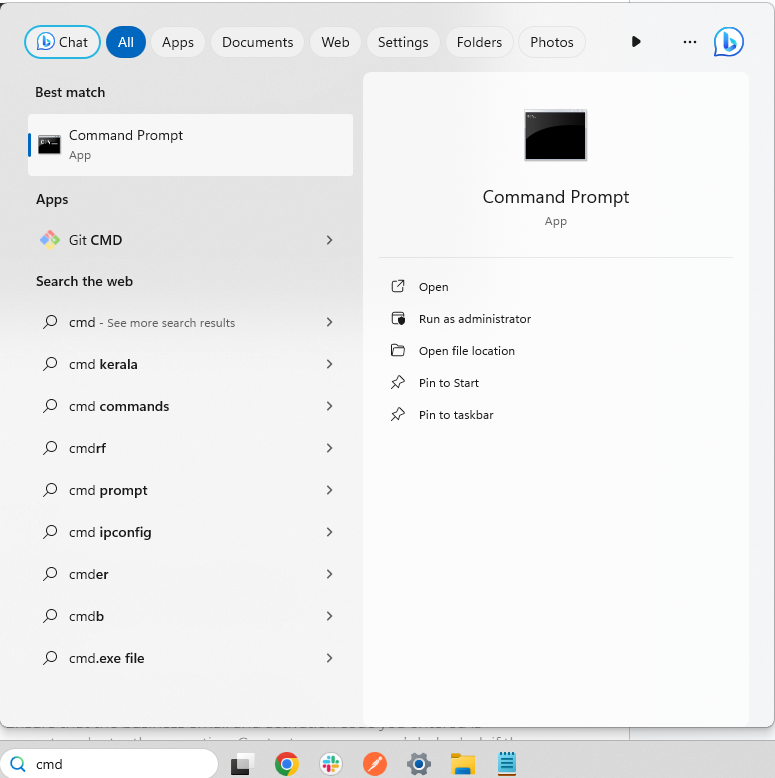


Type the following command into the command prompt and press Enter: “dotnet --list-runtimes”
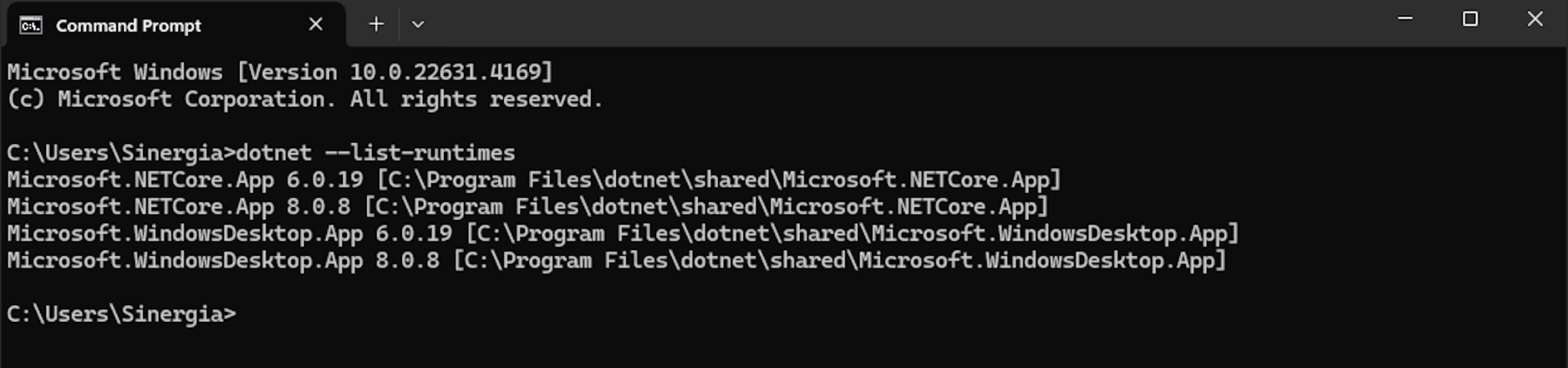

If your .NET version is below 8.0 x64, please update it by visiting the official Microsoft .NET Website.
Firewall Configuration
Ensure HTTPS (TLS over port 443) is permitted for the following domains:
- prod.scrambleid.com
- login.prod.scrambleid.com
Once done, you can use the below heartbeat URL to test whether the ScrambleID server is accessible through the firewall.
https://prod.scrambleid.com/api/v1/ping
Certificate Configuration
ScrambleID servers use public domains and are natively trusted by most clients. However, if your organization utilizes a custom certificate store for trust management, you will need to add our certificates to your store.
Certificates can be downloaded from:
https://files.scrambleid.com/windows-app/certificates.zip
Installation Steps
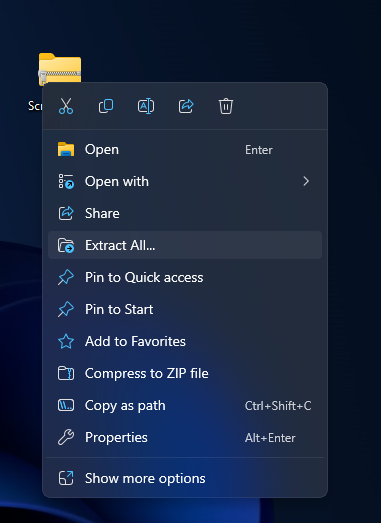
- Download the latest version of the ScrambleID Desktop App installation file, extract (unzip) the contents and open the folder.
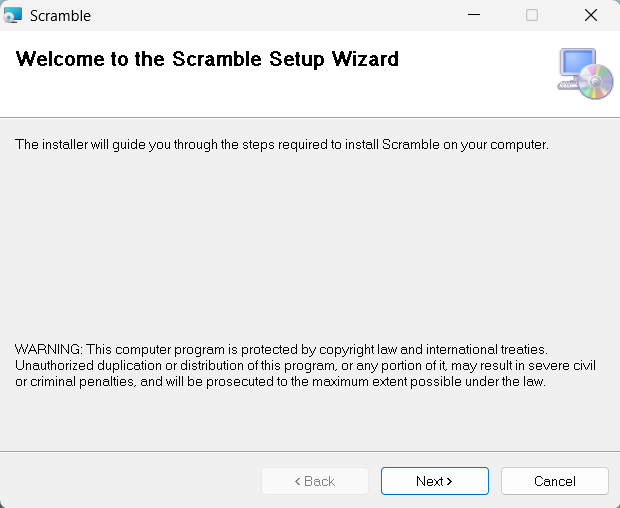
- Launch the installer and follow the on-screen Setup Wizard instructions.
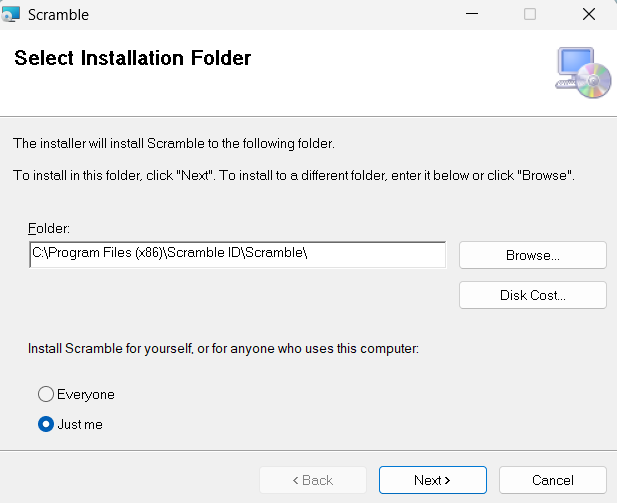
- Choose your preferred installation path and select whether the application should be available for all users on the PC ("Everyone") or just yourself ("Just me").
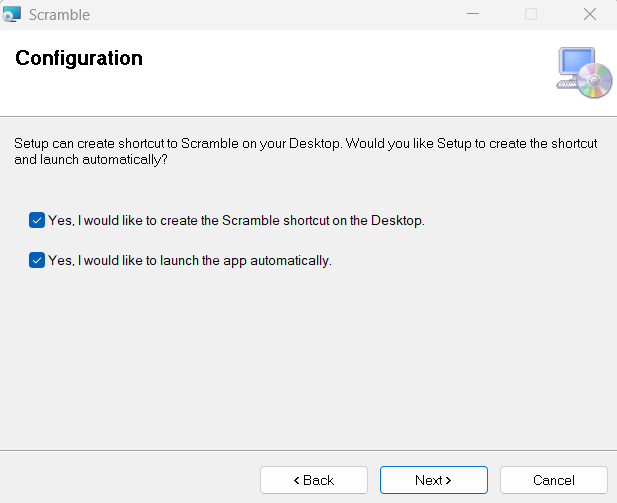
- Choose whether to create a Desktop shortcut and select the option to automatically launch the application once setup is complete.
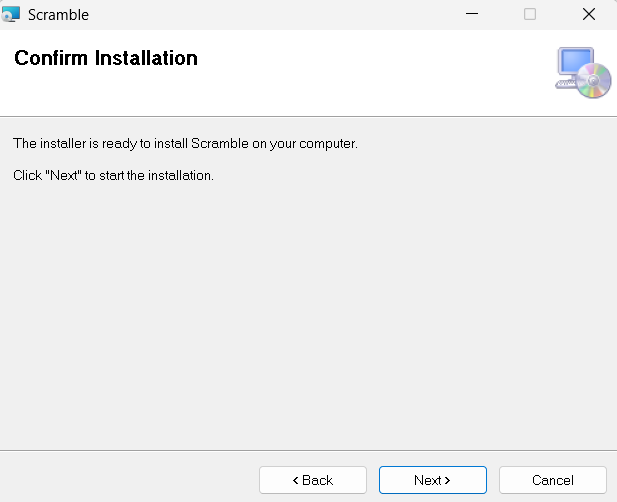
- Confirm the installation and complete it.
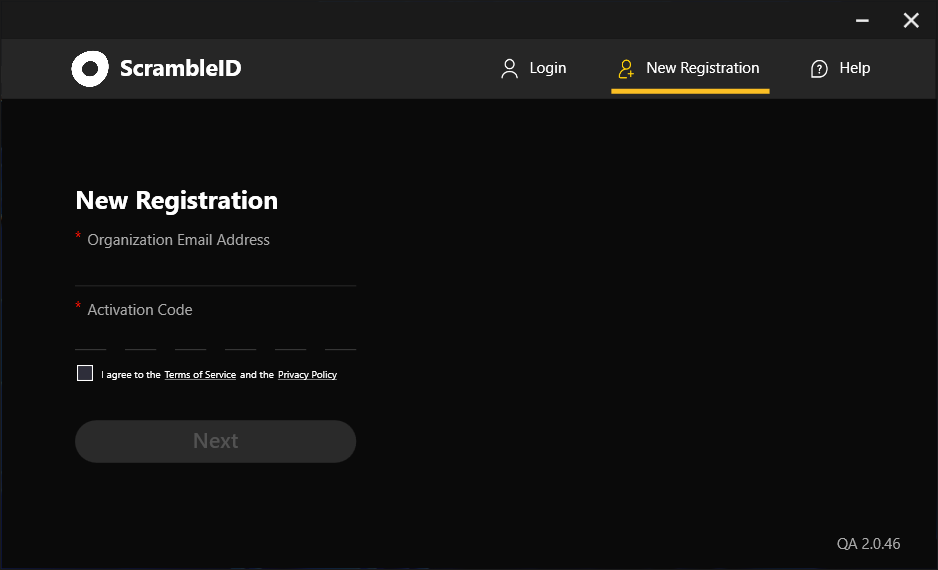
The ScrambleID App will be launched.
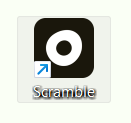
A shortcut will be placed on your Desktop.
Register as a New User
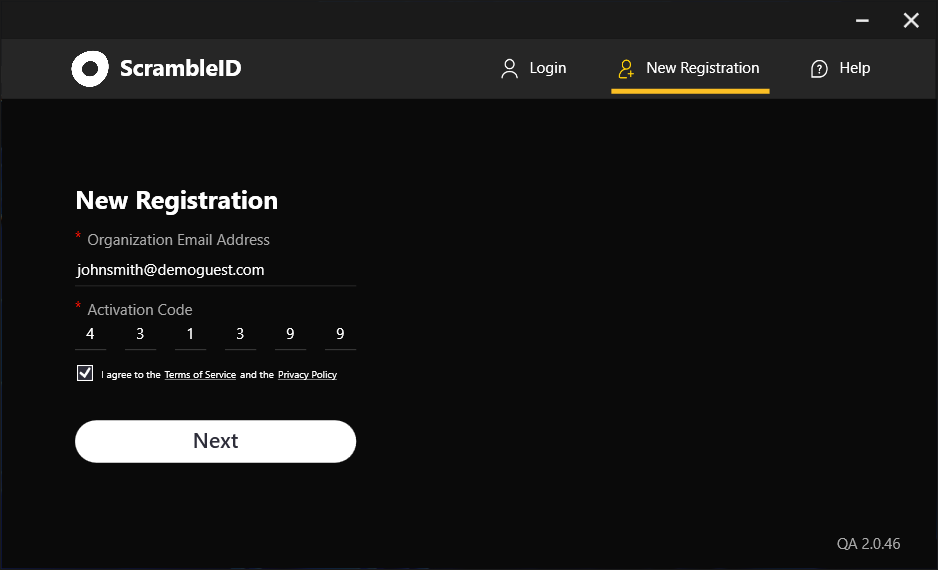
- Open the app, navigate to the New Registration tab, and enter your Work Email Address and Activation Code. Check the box to agree to the Terms of Service and Privacy Policy, then click Next.
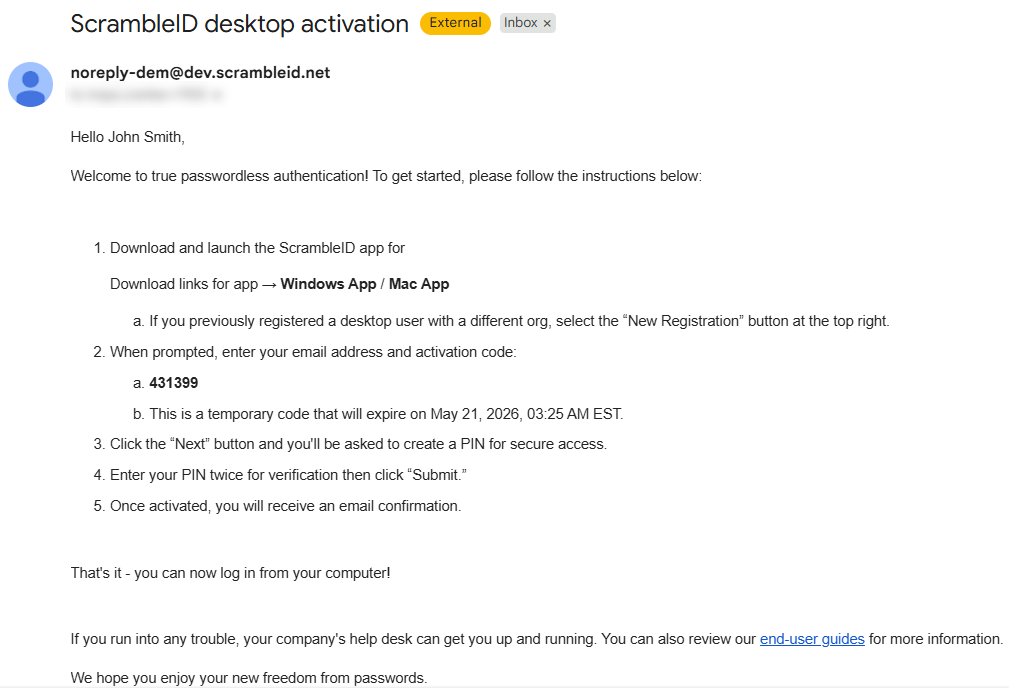
Note: Your unique activation code can be found in your welcome email with the subject line: “Activate your ScrambleID account”
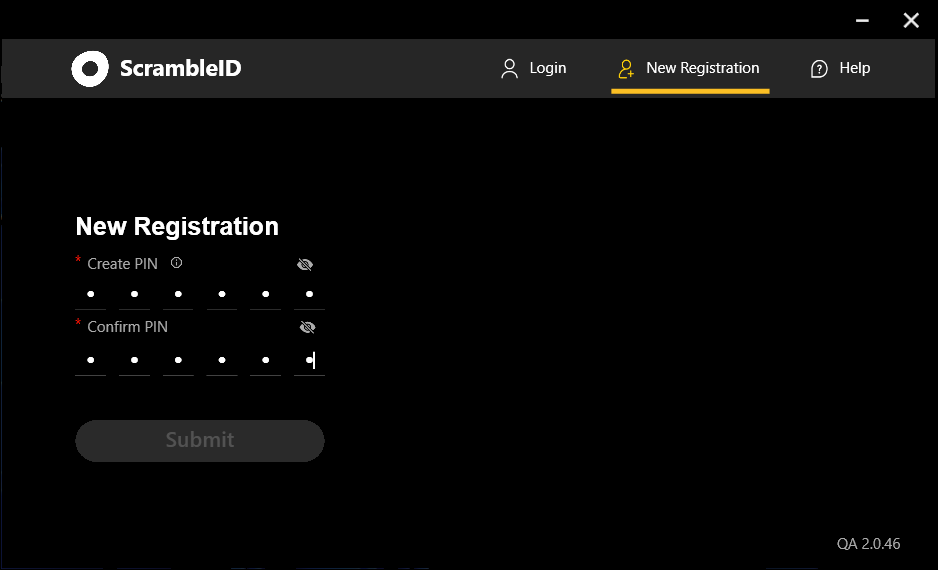
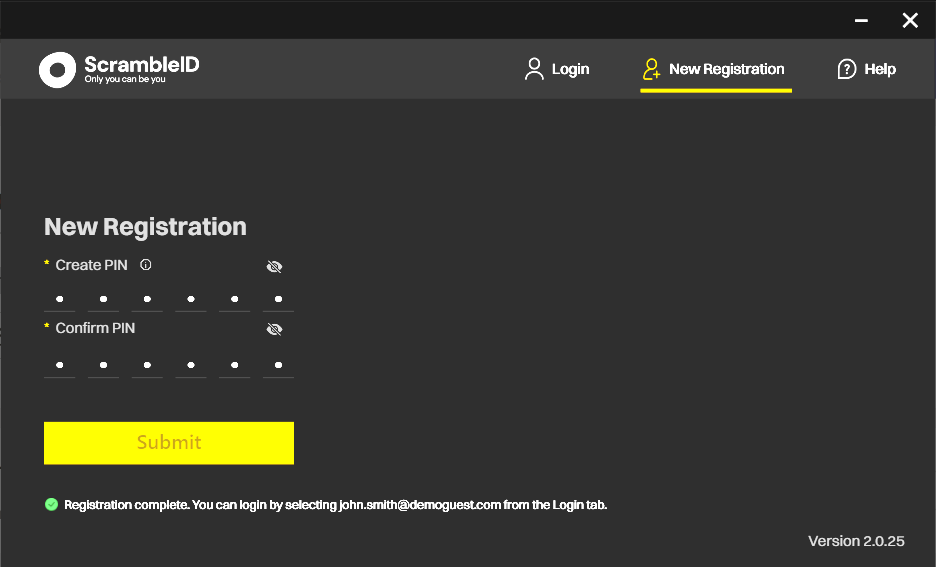
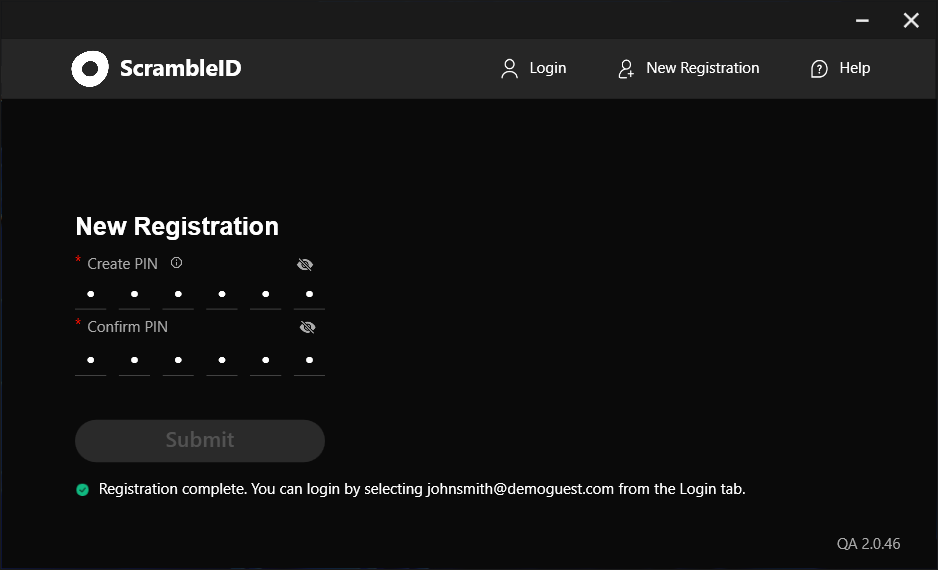
- Create a PIN to secure your Desktop App.
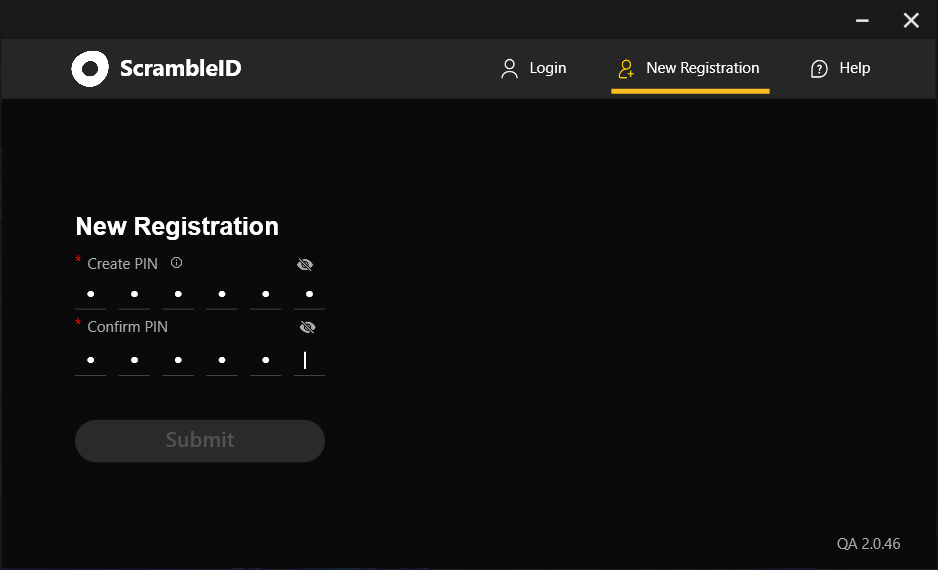
- Upon entering the final digit of your confirmed PIN, the system will automatically submit your request. You will see a confirmation message indicating registration is complete.
Using the App
Once registered using the steps in the above section, your account is fully authenticated and ready to use.
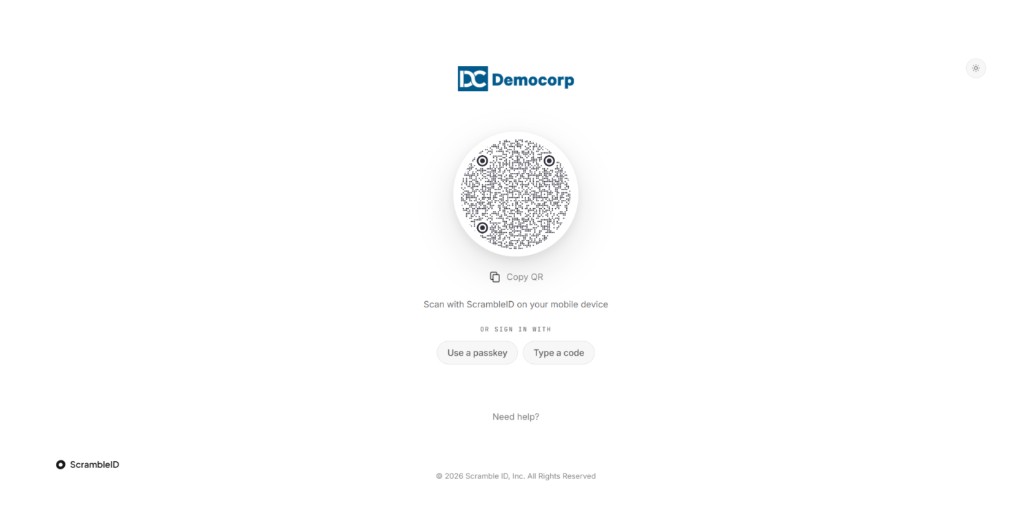
Accessing a ScrambleID-compatible business application will redirect you to the ScrambleID login page. On this page you can choose your preferred login method.
To access your business application via ScrambleID, launch the desktop app on your workstation. Proceed by selecting your profile and providing your secure PIN to unlock the application.
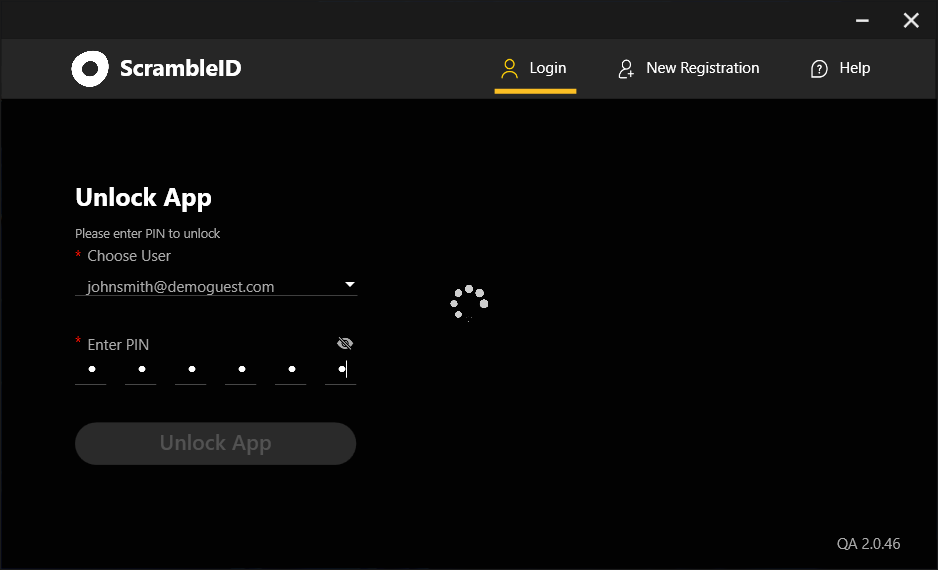
You will be redirected to a screen where you will have to enter a code to login.
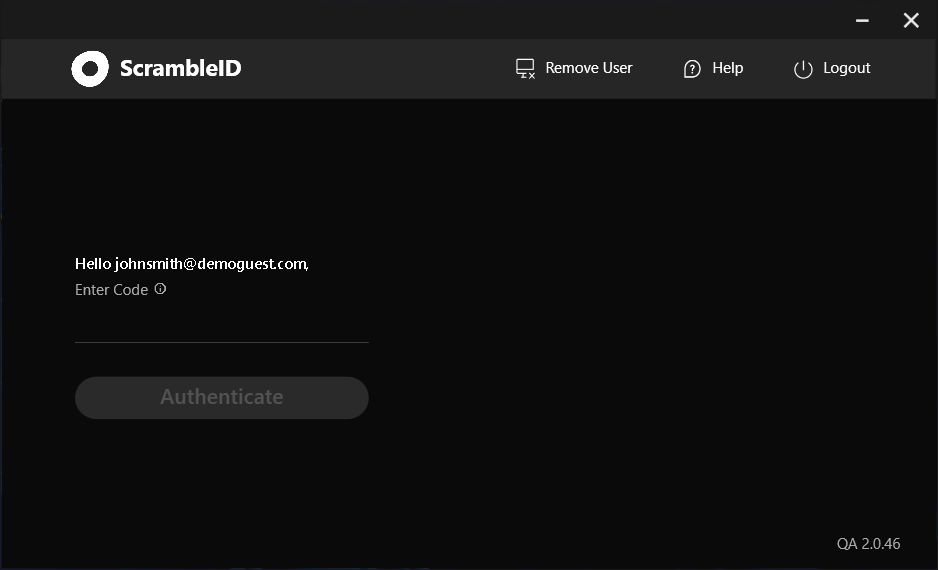
Log In Using a QR Code
On the ScrambleID login page, click the Copy QR button to copy the secure authorization string to your clipboard.
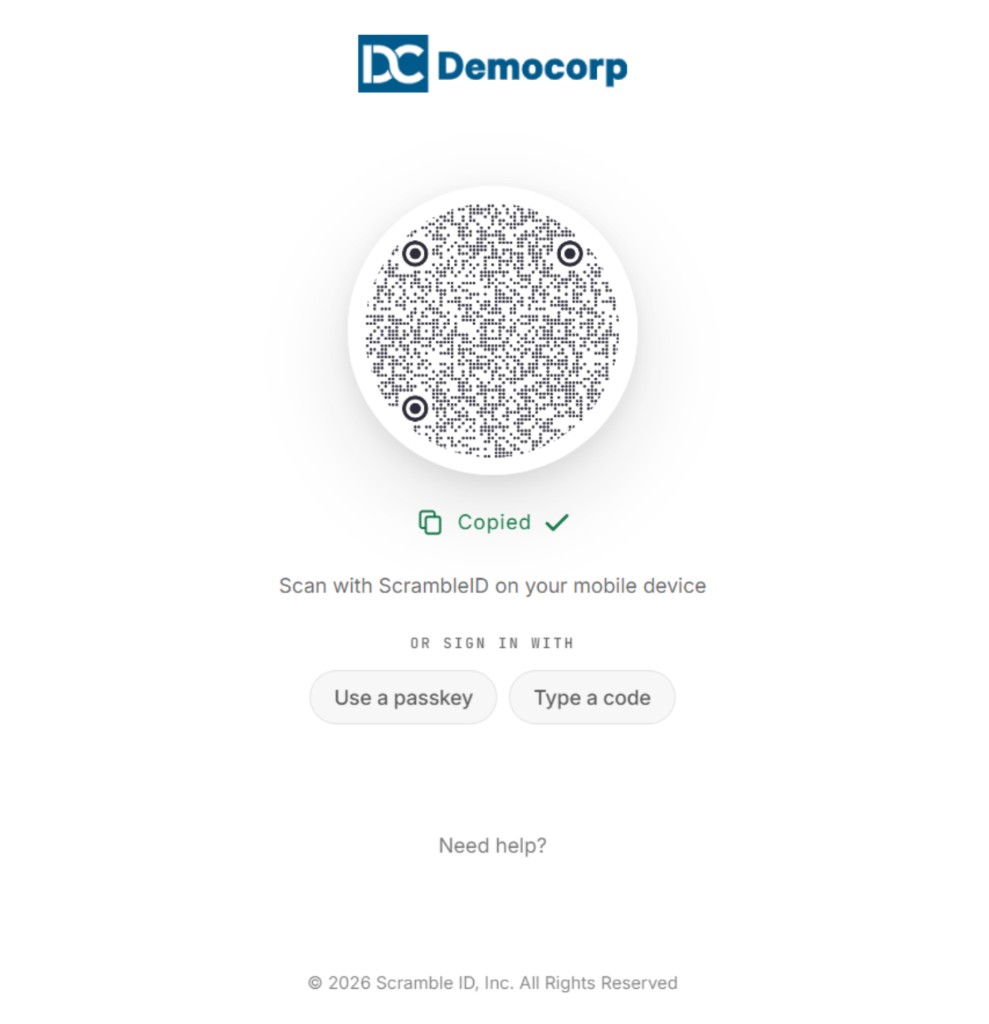
Paste the string into the Enter Code field, and click Authenticate.
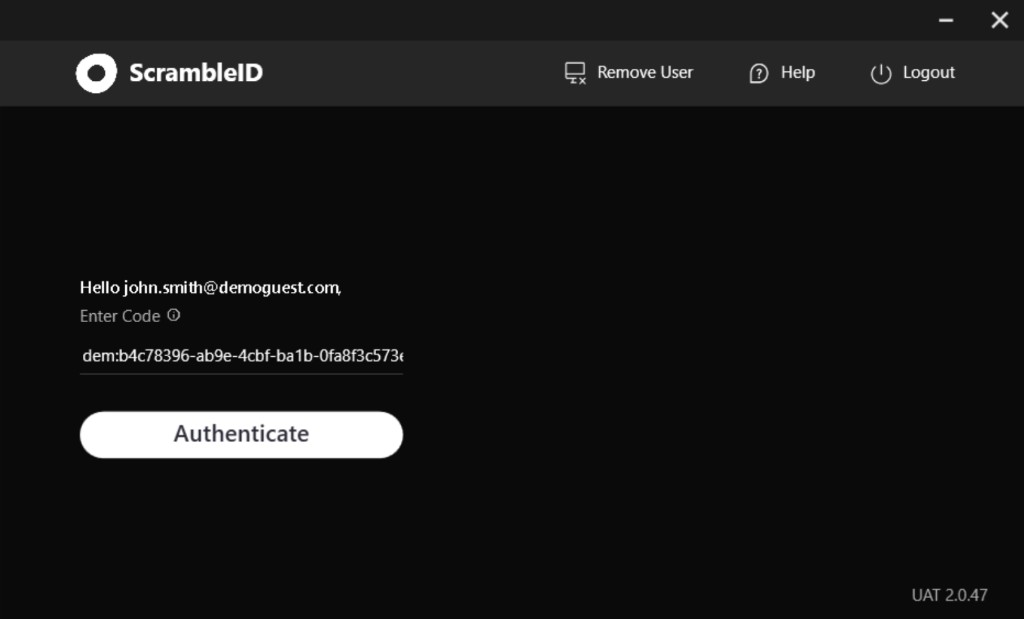
Log In Using Type Code
If you cannot copy and paste text (for example, if clipboard sharing is disabled across a Secure Remote Desktop/RDP connection), you can enter a manual code:
- Select Type Code from the left-hand menu on the login screen.
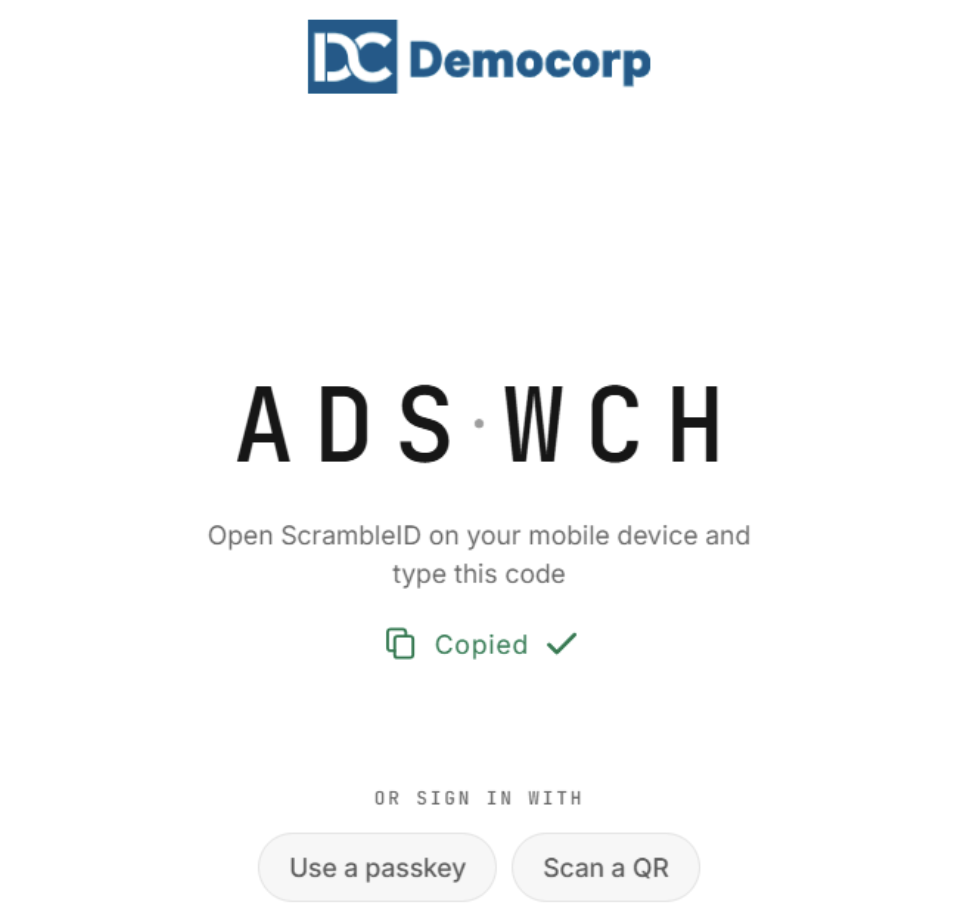
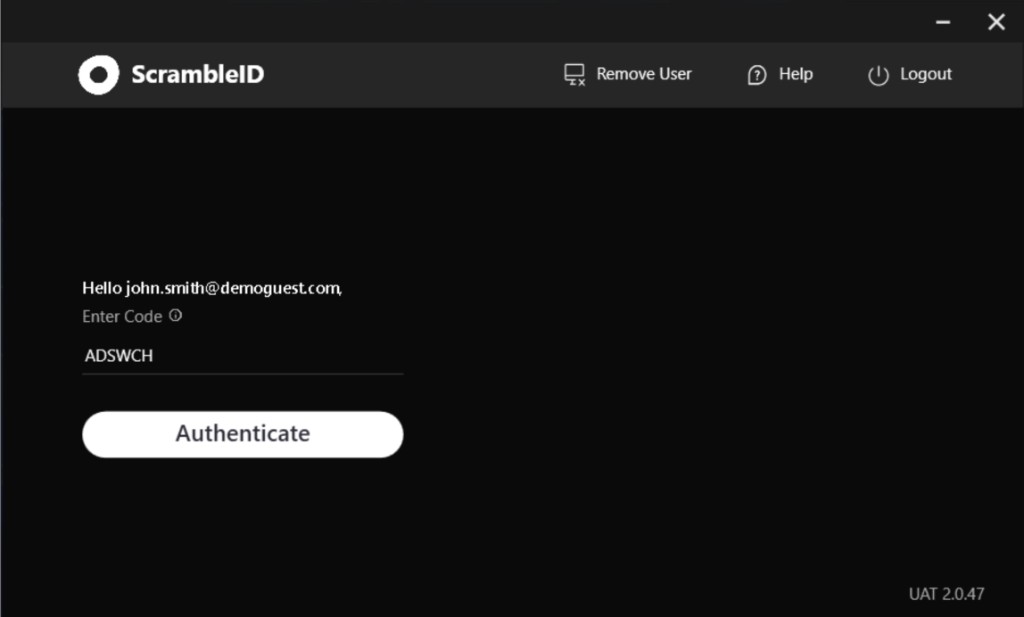
- Manually type the characters displayed on your screen into the “Enter Code” section of the desktop app and click “Authenticate”.
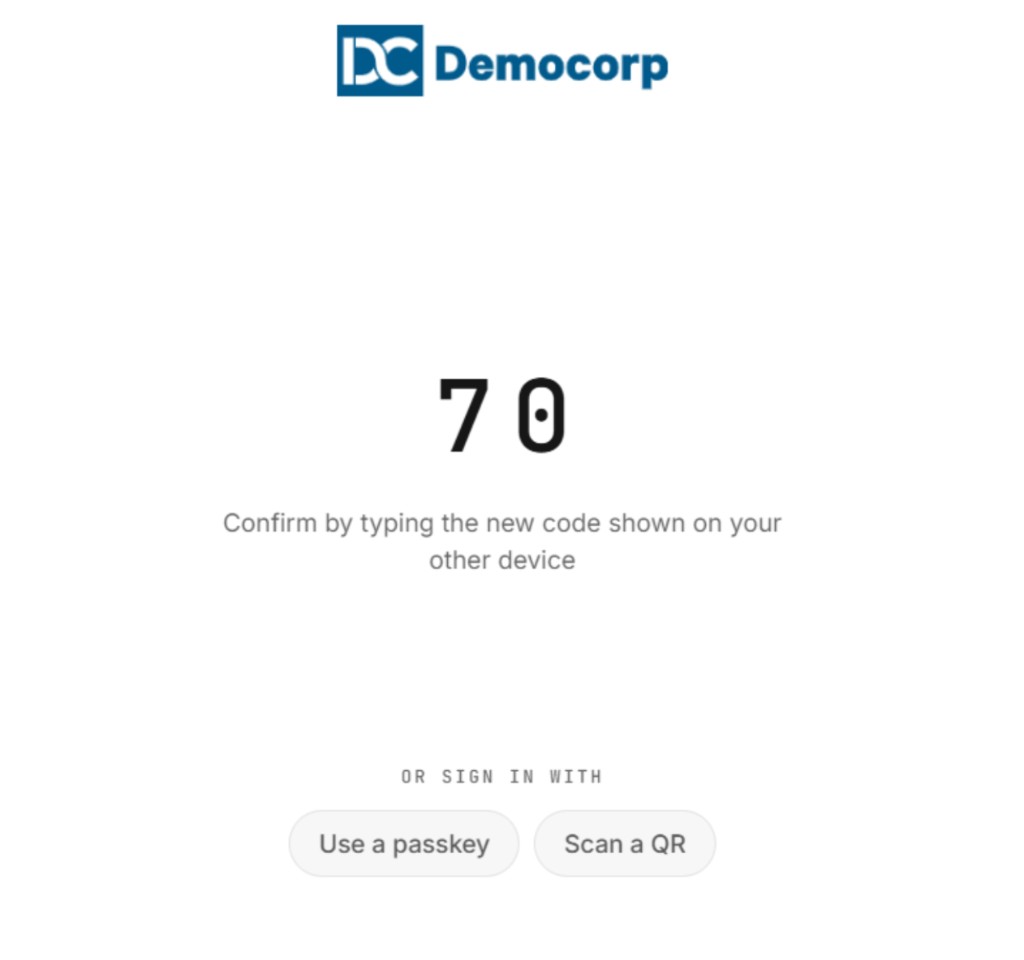
- You will receive an additional 2-digit code on the login app. Enter this code into the Desktop App and click “Authenticate”
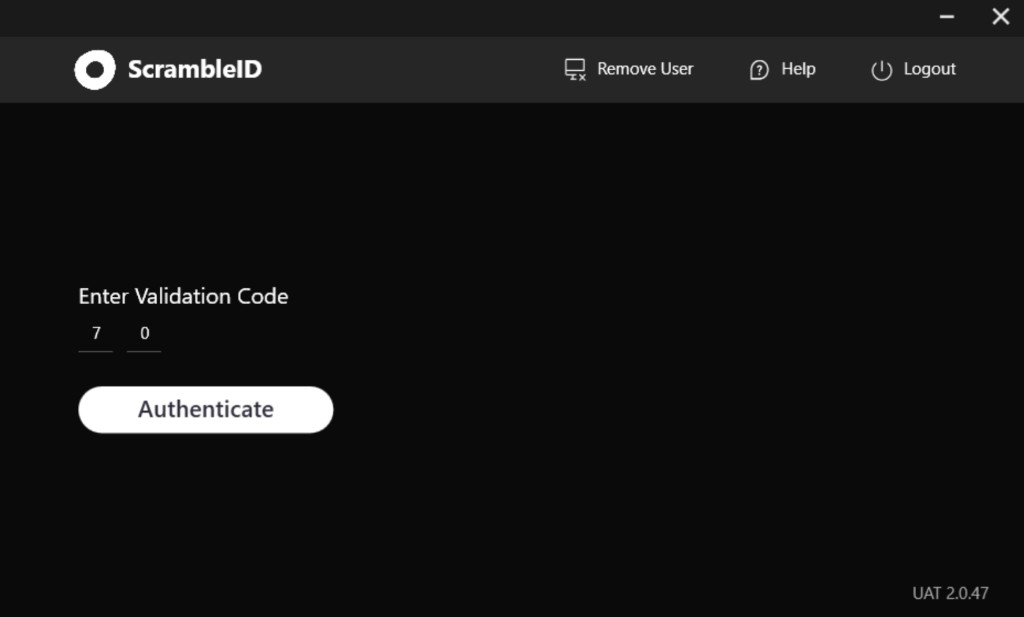
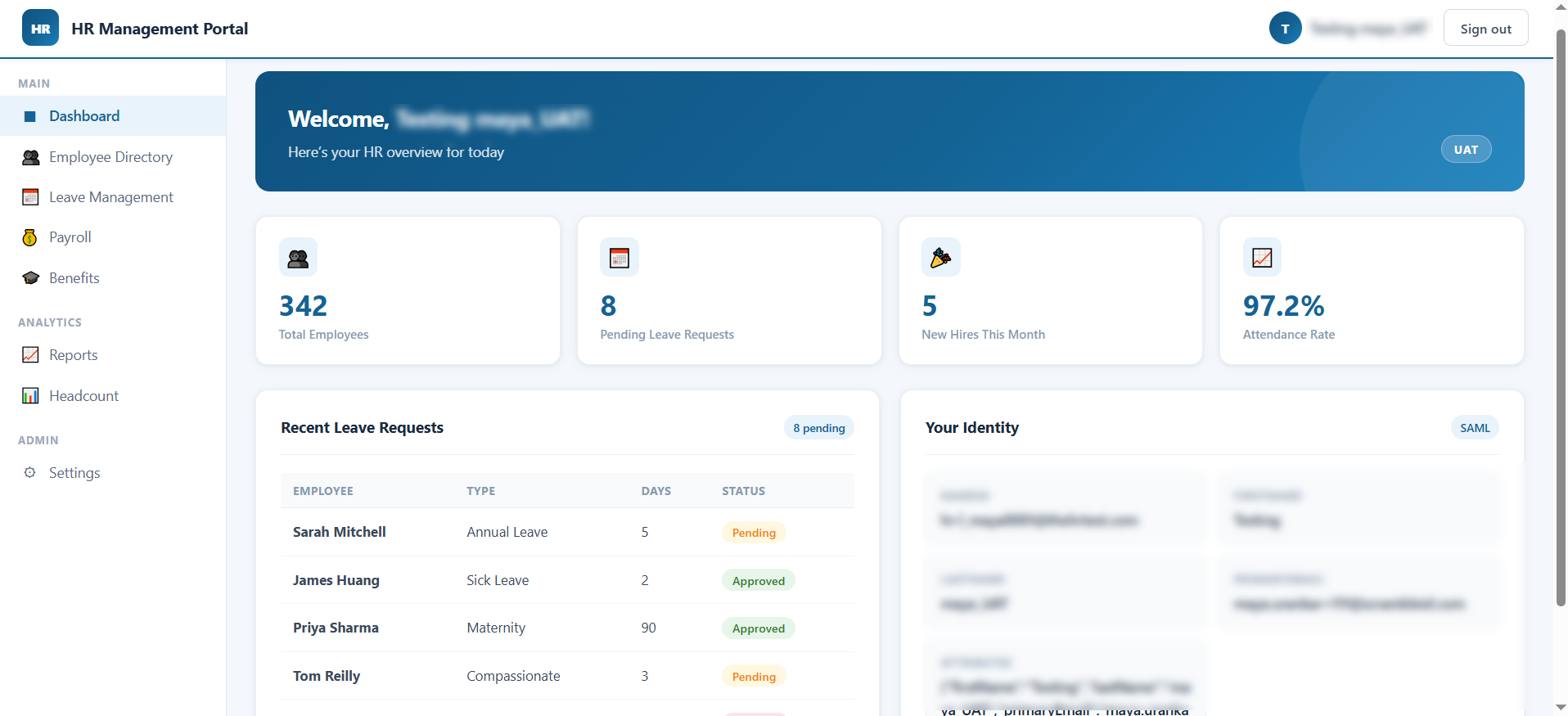
Once verified, you will be automatically logged in and redirected back to your business application.
Setting up Passkey
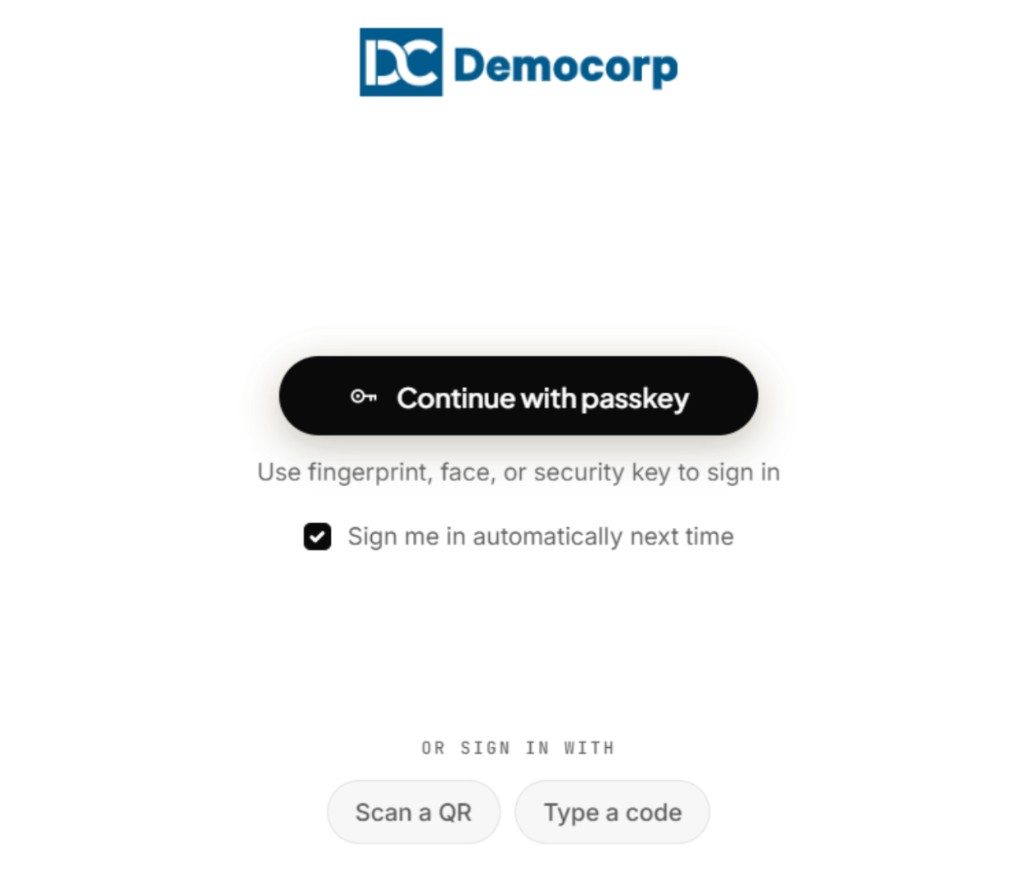
You can use the ScrambleID Desktop App to set up a Passkey, allowing you to log in directly from your computer, bypassing the need to enter codes for future logins.
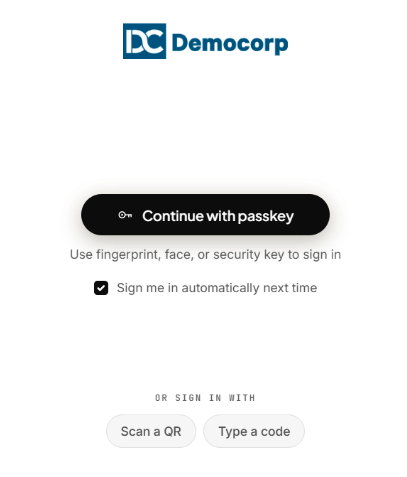
- On the ScrambleID login screen, click Continue with passkey.
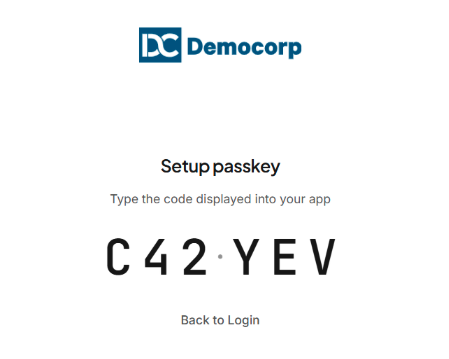
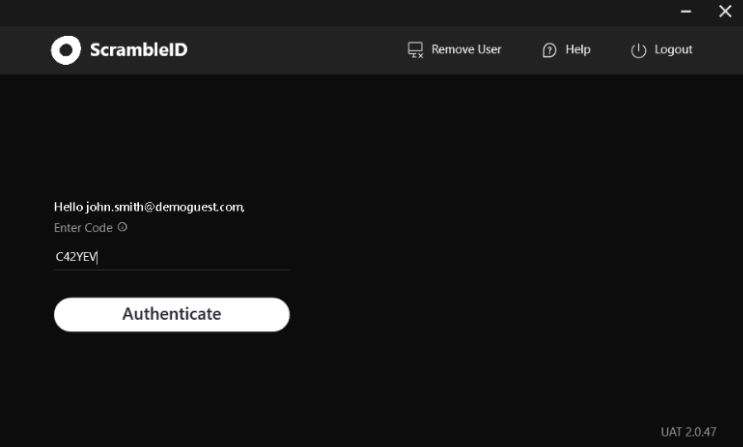
- Copy the authorization code displayed on the screen and paste it into the “Enter Code” section of your ScrambleID Desktop App.
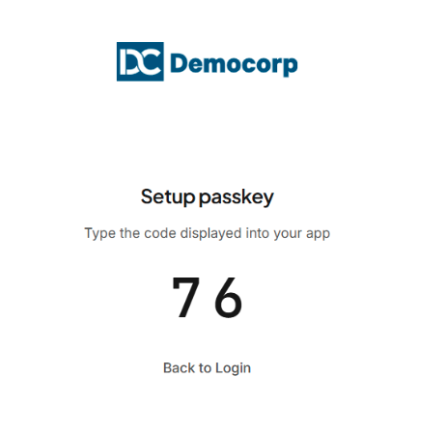
- You will receive an additional 2-digit code on the login page. Enter this code into the Desktop App and click “Authenticate”.
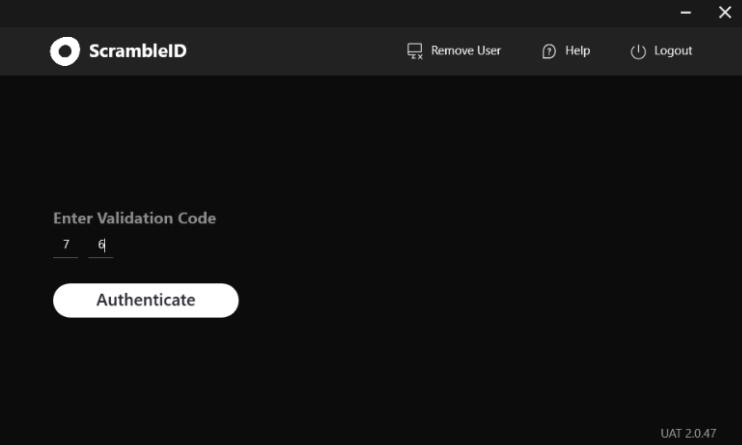
Note: There are several alternatives for configuring a personal passkey, including biometric options such as fingerprint and facial recognition, or a secure PIN.
Setting up your Passkey using Google password manager
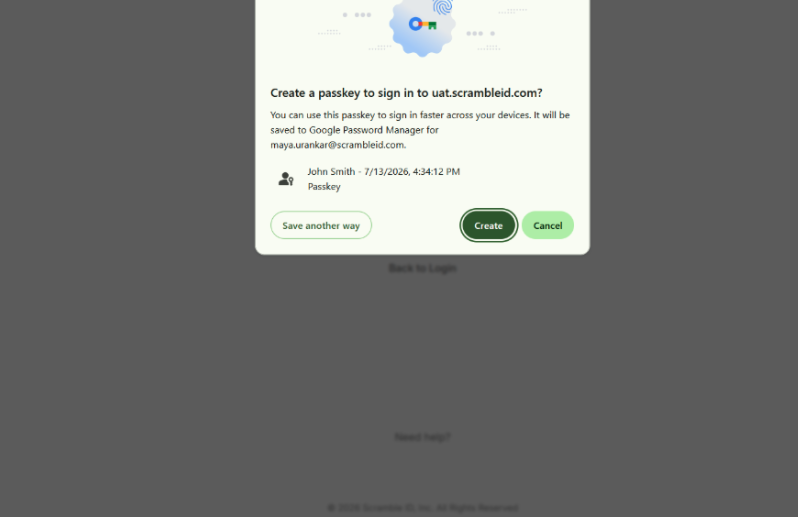
Hit Create and authenticate using your passkey.
You will receive a confirmation on the login screen that the setup is complete.
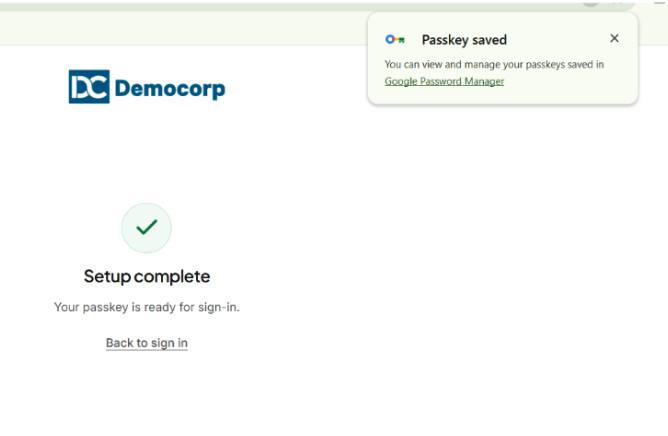
After the setup is complete, click “Back to Login”. You will now be able to log in using the saved Passkey on your Windows device.
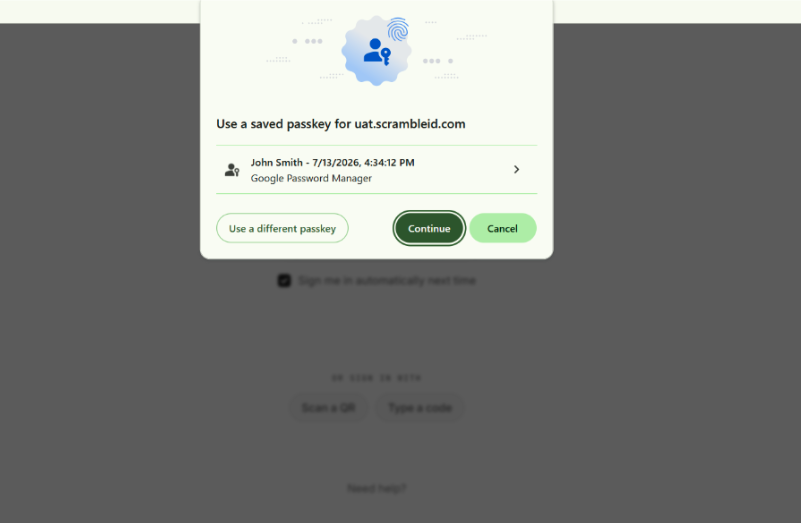
Note: It may take a few seconds for the Passkey option to initialize on the login screen.
You will now be able to log in using the saved passkey. Selecting Sign me in automatically next time will automatically launch the Passkey login window during the next login attempt.
Authenticate using Help Desk / IVR
After receiving your code from the Help Desk or IVR, enter it into the “Enter Code” section of the Desktop App and click “Authenticate”.
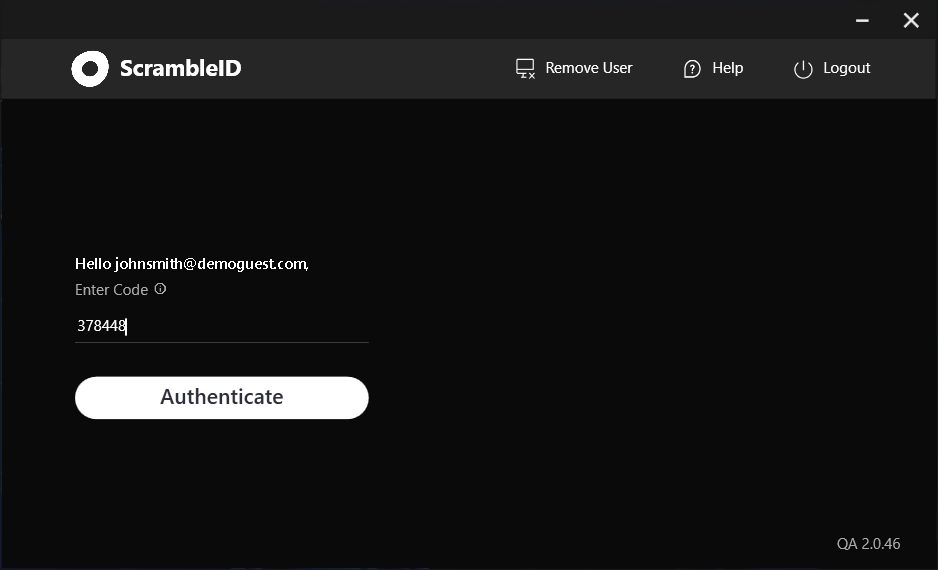
Your account information is transmitted securely to the IVR or help desk professional, enabling smooth identity verification without the need to exchange passwords.
Note: Help Desk and IVR codes are time-sensitive and expire quickly. If your code is rejected, please request a new one from the IVR or help desk professional.
Add a new device using the self-service portal
You can add a new device to your ScrambleID account using your organization’s self-service portal.
Log in to the ScrambleID self-service portal provided by your organization.
- From the Dashboard, select Add Device in the top-right corner.
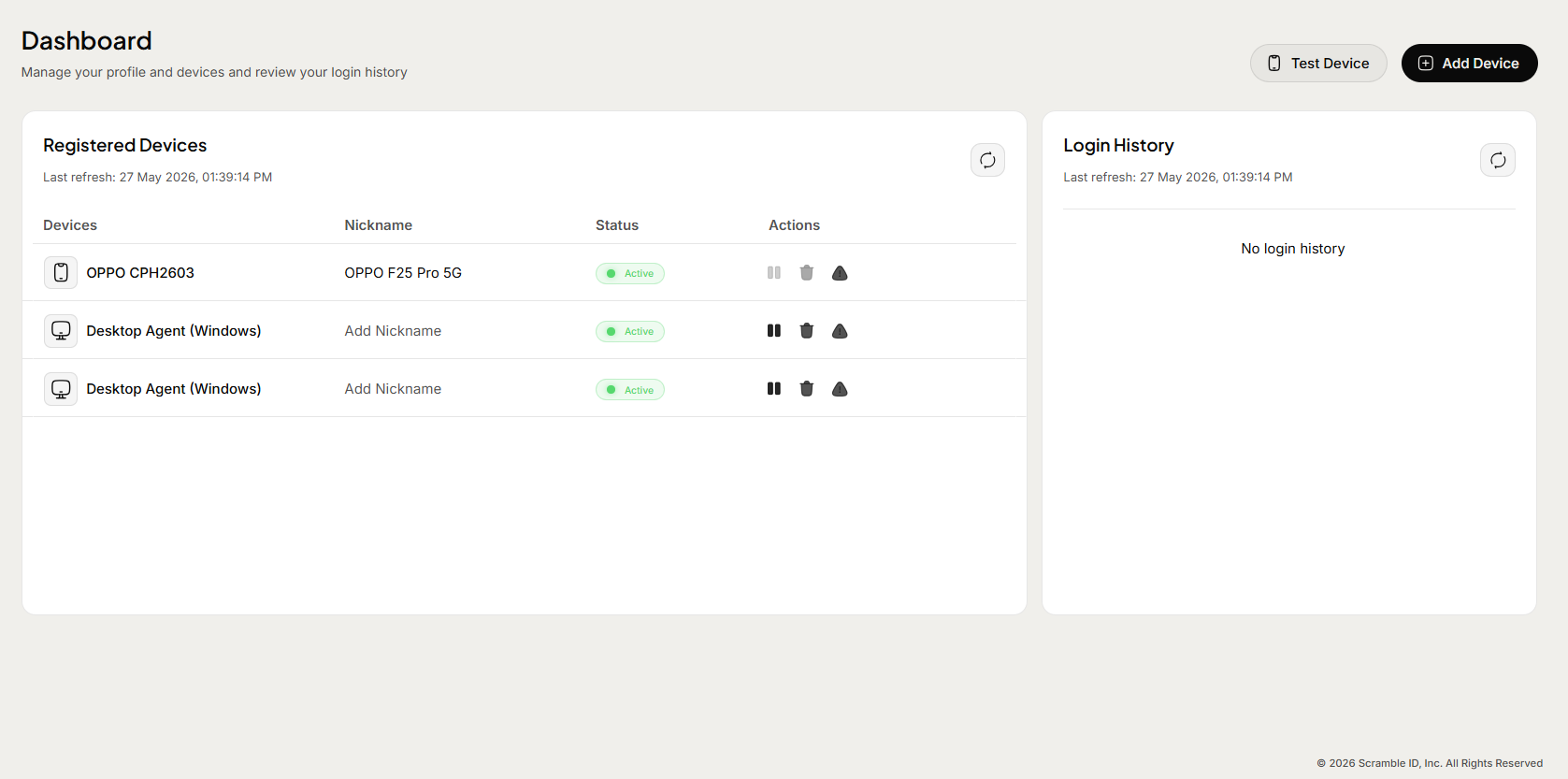
- The Add Device window opens and prompts you to choose a device type
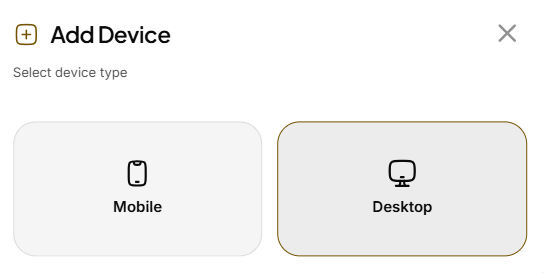
- Click on Desktop and a Code is displayed.
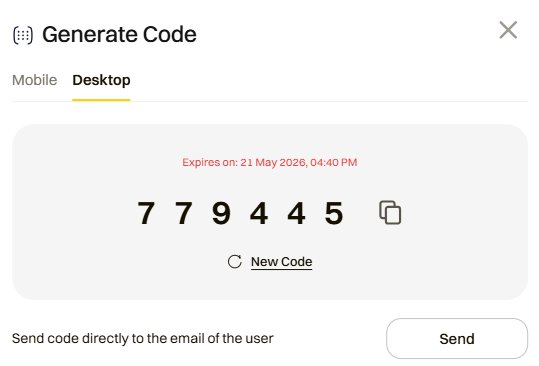
- Copy the Code and paste it in the Desktop Application > New Registration, as shown below.
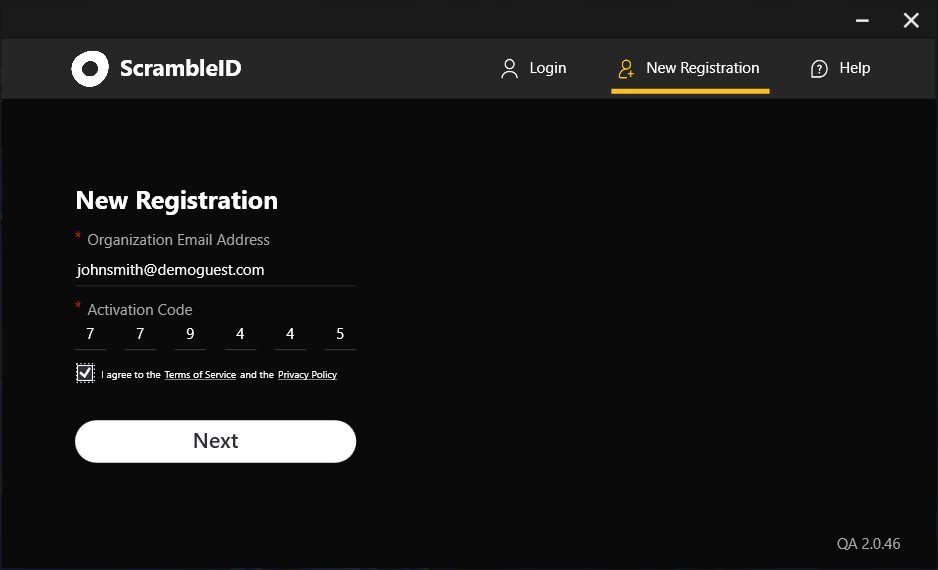
- Check the box to acknowledge the Terms of Service and Privacy Policy, then select Next. Establish a secure PIN for your workstation. Following submission, the current machine on which the registration was done will be automatically added to your registered device list.
Removing a Device/User profile
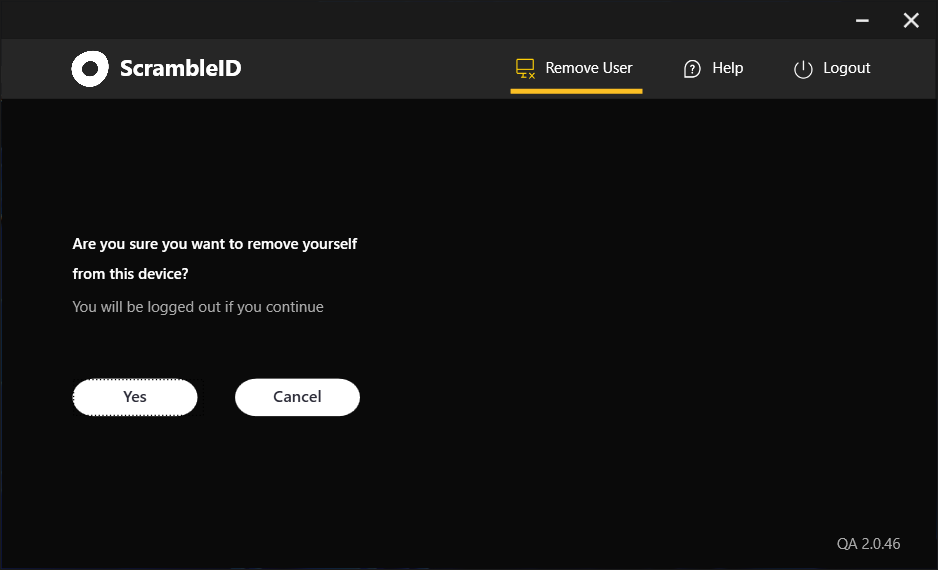
To remove an existing user from the desktop app, click "Remove User" in the top-right corner.
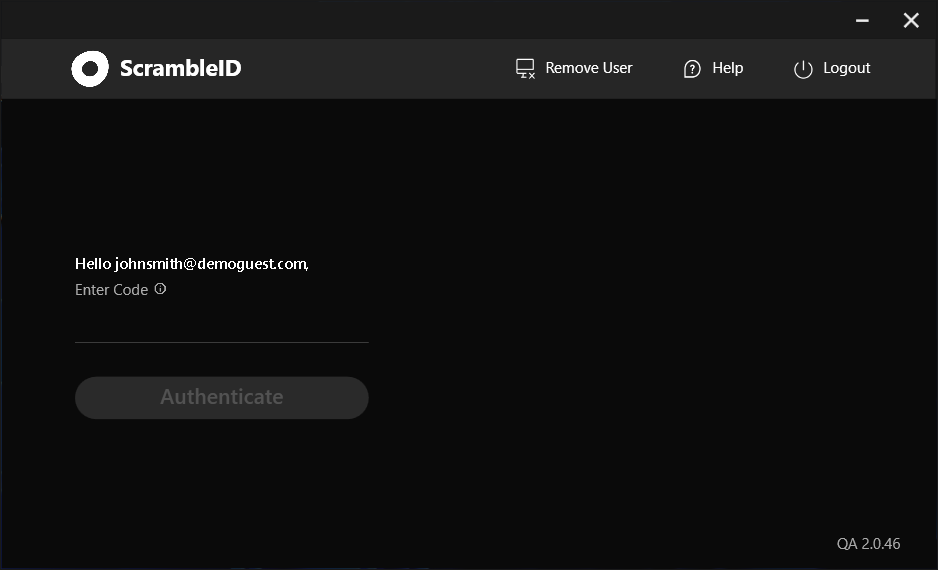
Click Yes to confirm and your device will be removed.
FAQ
Who should I contact if I have questions or issues?
Your company’s help desk can always help answer questions or provide a six-digit activation code to help you register for the first time or add a new device.
What should I do if I encounter an error during activation?
Double-check that your work email address and the six-digit activation code were entered exactly as shown in your invitation email, then try again. If the error persists, reach out to your company's IT Help Desk for assistance.
Can I use more than one device to access the same organization?
Yes. Once you register, you can use the registered device to add more devices. A maximum of five devices is supported per user.
Can I use a single device to access multiple organizations?
Yes. You can use any of your registered devices to securely access all organizations linked to your master ScrambleID user profile.
Why does ScrambleID ask for my personal email?
A user can have multiple organizations associated with them. Personal email is used by ScrambleID to notify users of any account changes that are not organization-specific, but rather related to the ScrambleID user profile itself. An example would be add/remove device,
**I lost my only registered device, how do I register a new device to my ScrambleID?**Please contact your manager or your organization's IT Help Desk to request a new activation code. Once received, simply open the app on your replacement device and follow the steps to register as a new user
**What do I do if I forget my ScrambleID Desktop App PIN?**Please contact your administrator or help desk to receive a fresh activation code, which will allow you to quickly re-register your app and set up a new secure PIN.
Will uninstalling the ScrambleID app on my device delete my ScrambleID profile?
No, your ScrambleID profile is not deleted. If you have any other devices with ScrambleID installed, you can always add this device back to your profile using an existing device with ScrambleID on it.
Contact Us
Need more help?
Your organization’s help desk can help resolve issues, assist with new registration, or provide an activation code for new and/or replacement devices.
Please also read through our Terms of Service and Privacy Policy.
© 2026 Scramble ID, Inc. All Rights Reserved.