LDAP Browser Extension
Sign in to LDAP applications with the ScrambleID Chrome extension.
Updated September 5, 2025


Document Purpose
This guide explains how to use ScrambleID to log into your company’s LDAP-based applications without passwords.
Introduction
The ScrambleID Chrome Extension lets you log into applications without remembering passwords. Instead of a password, ScrambleID uses a one-time code generated for each login. This makes signing in faster and more secure.
Installing the Chrome Extension
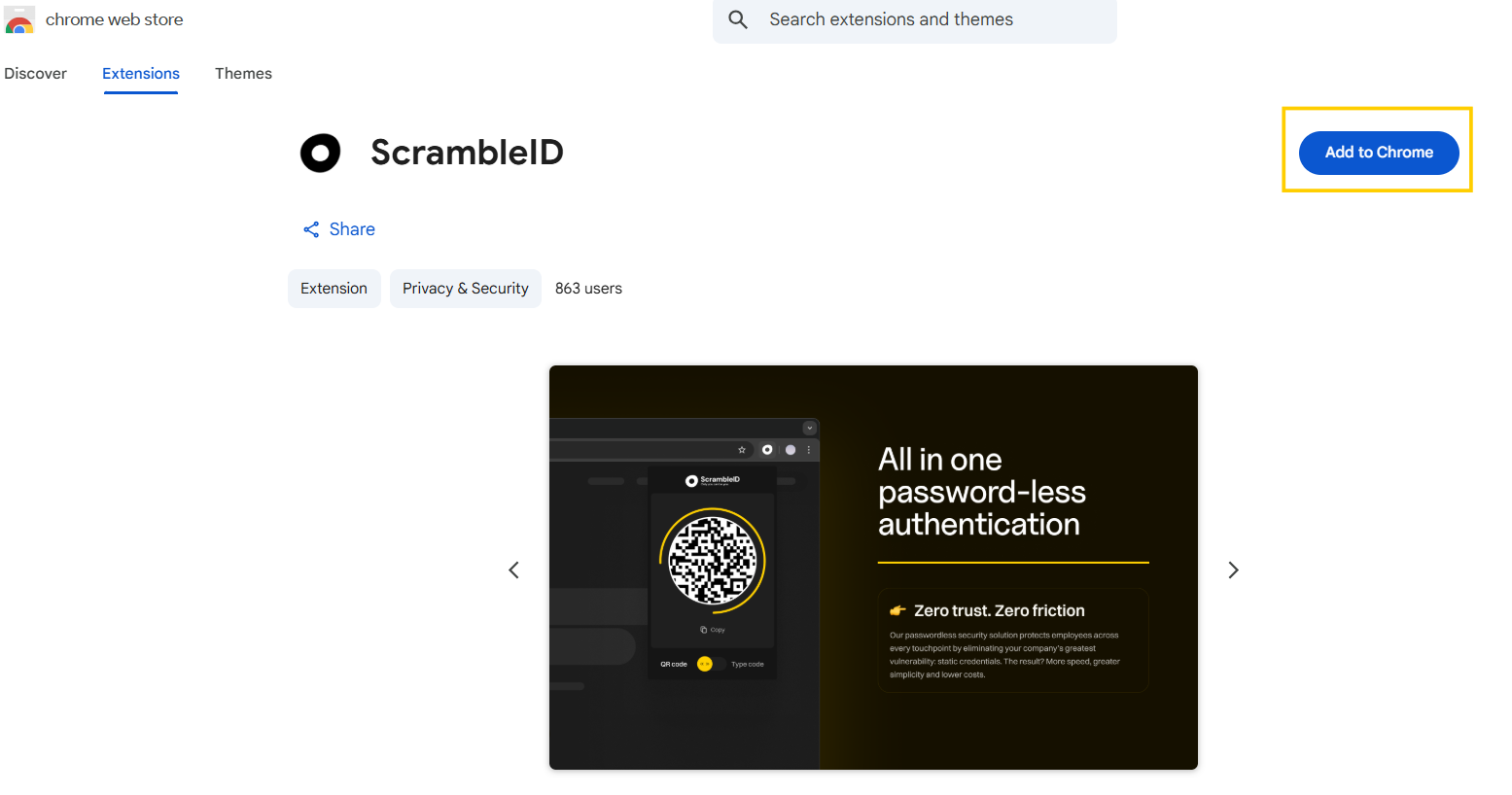
- Go to the Chrome Web Store, search for ScrambleID Chrome Extension (or use the direct link), and click Add to Chrome.
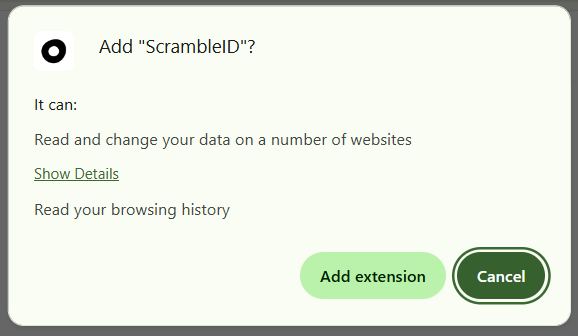
- Select Add Extension.
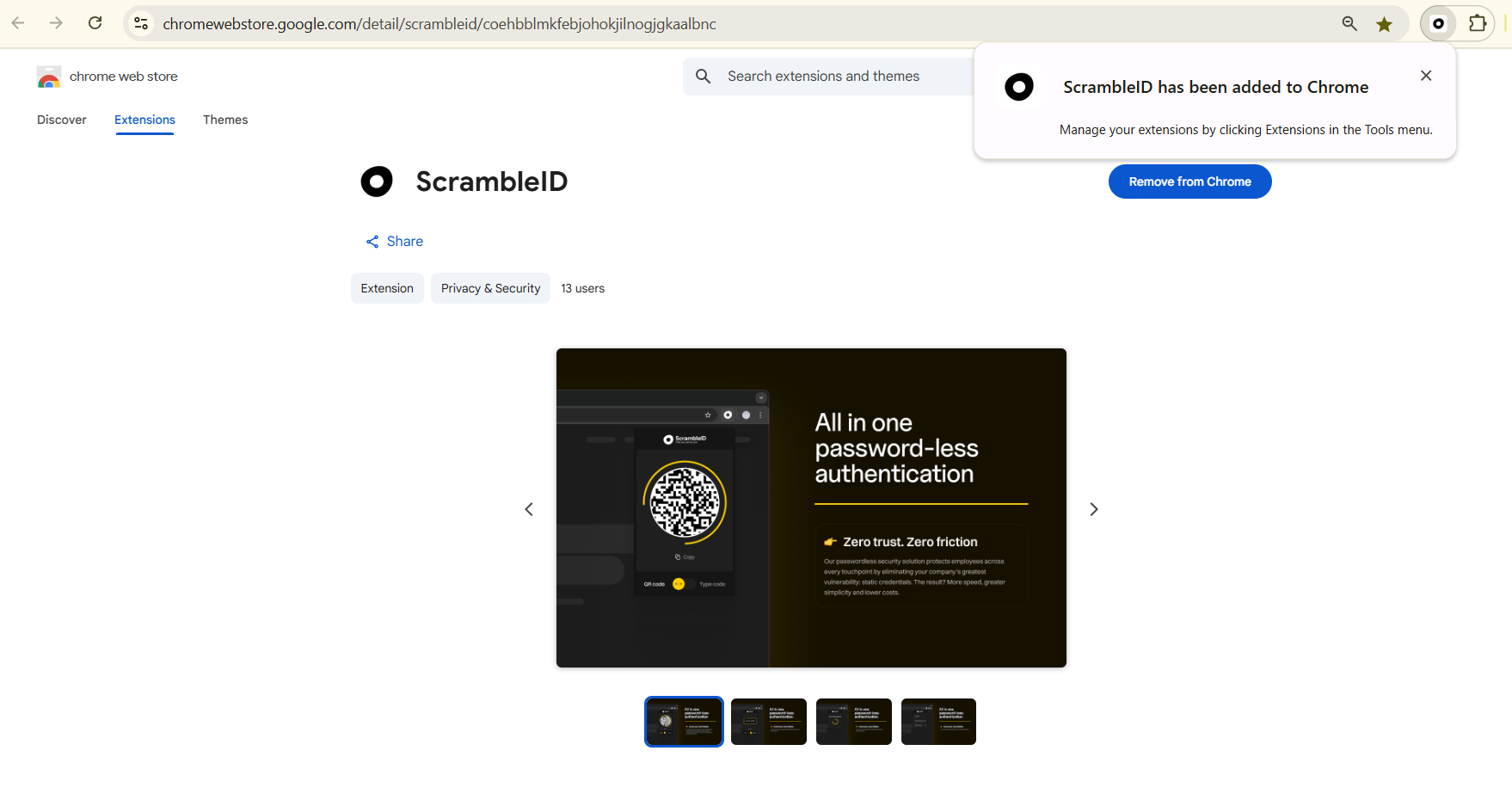
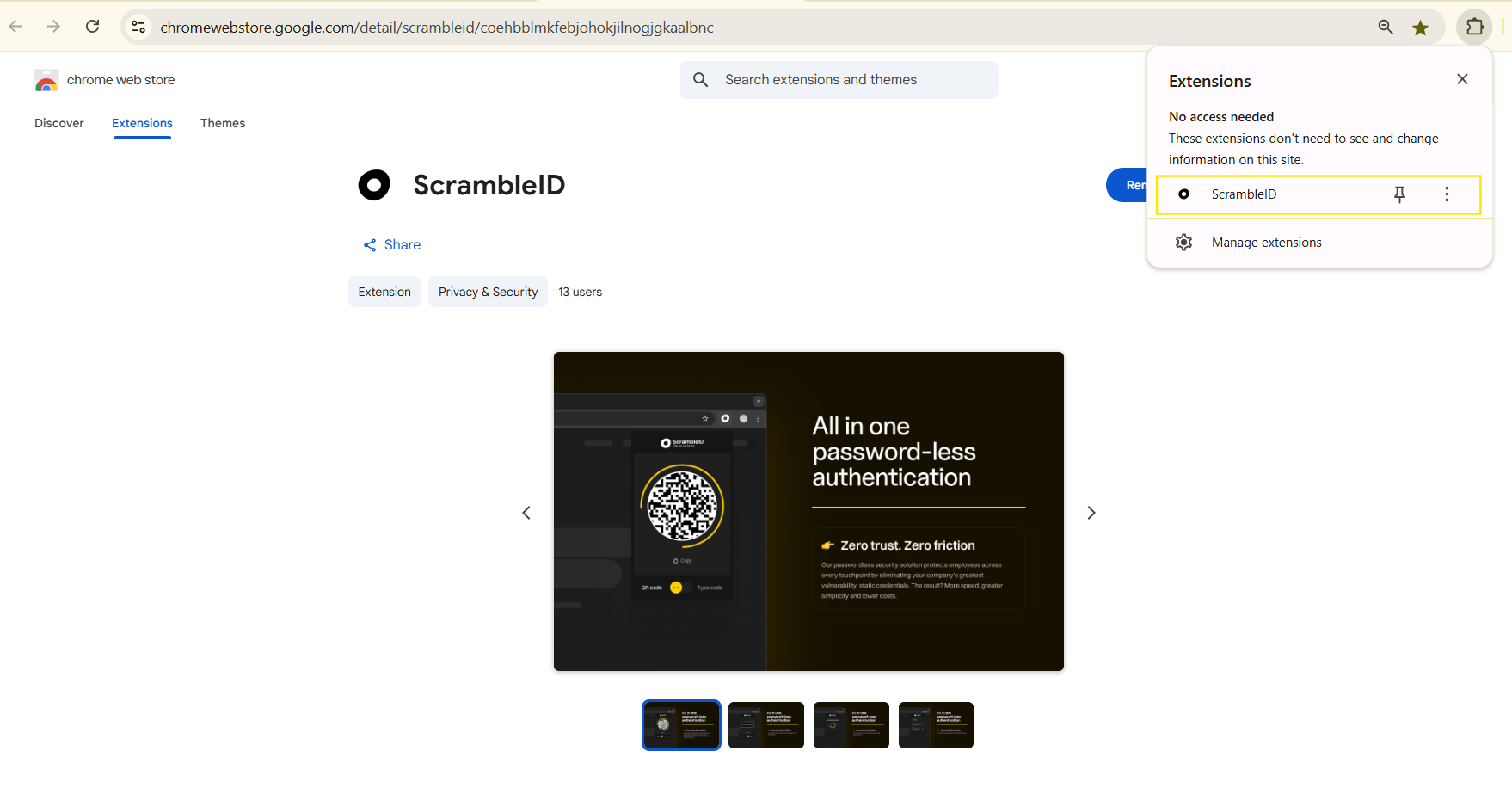
- Confirm the installation and verify the ScrambleID icon's presence in the Chrome toolbar.
Logging into LDAP Applications
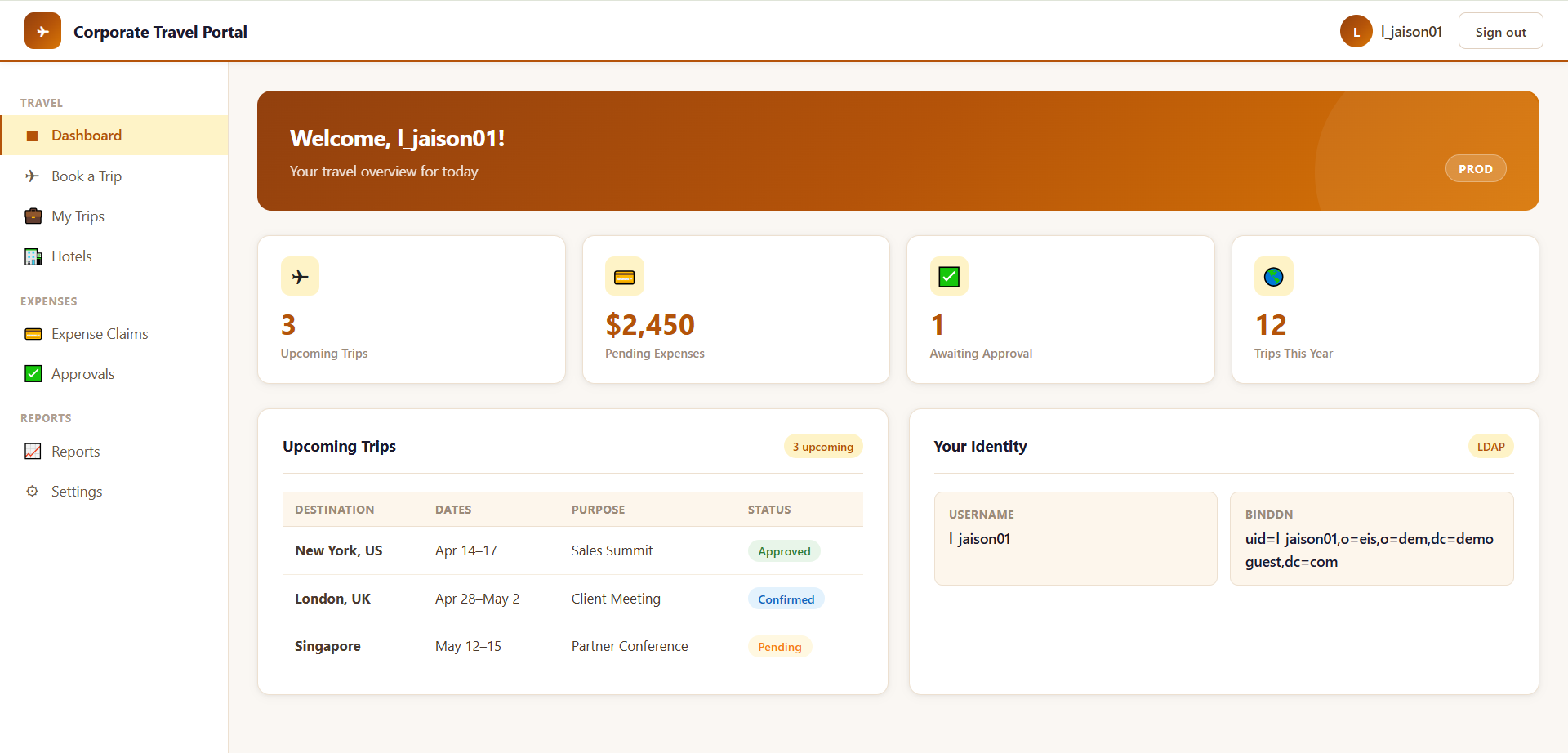
- If you are attempting to log into an LDAP application (for example, if your company's travel portal is a legacy application running on LDAP), first navigate to the application's login page.
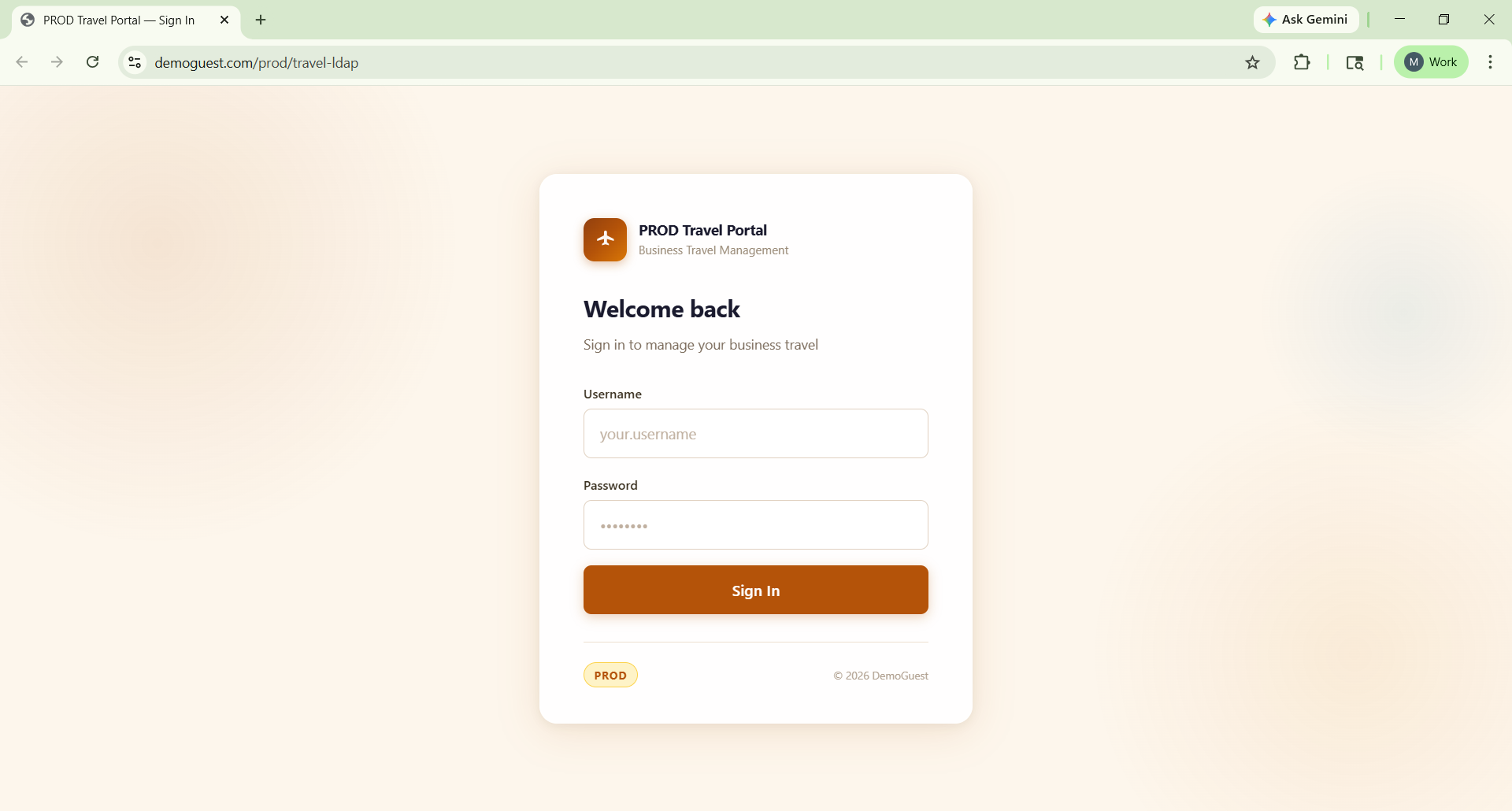
- Click the extensions icon in your browser, and then select ScrambleID..
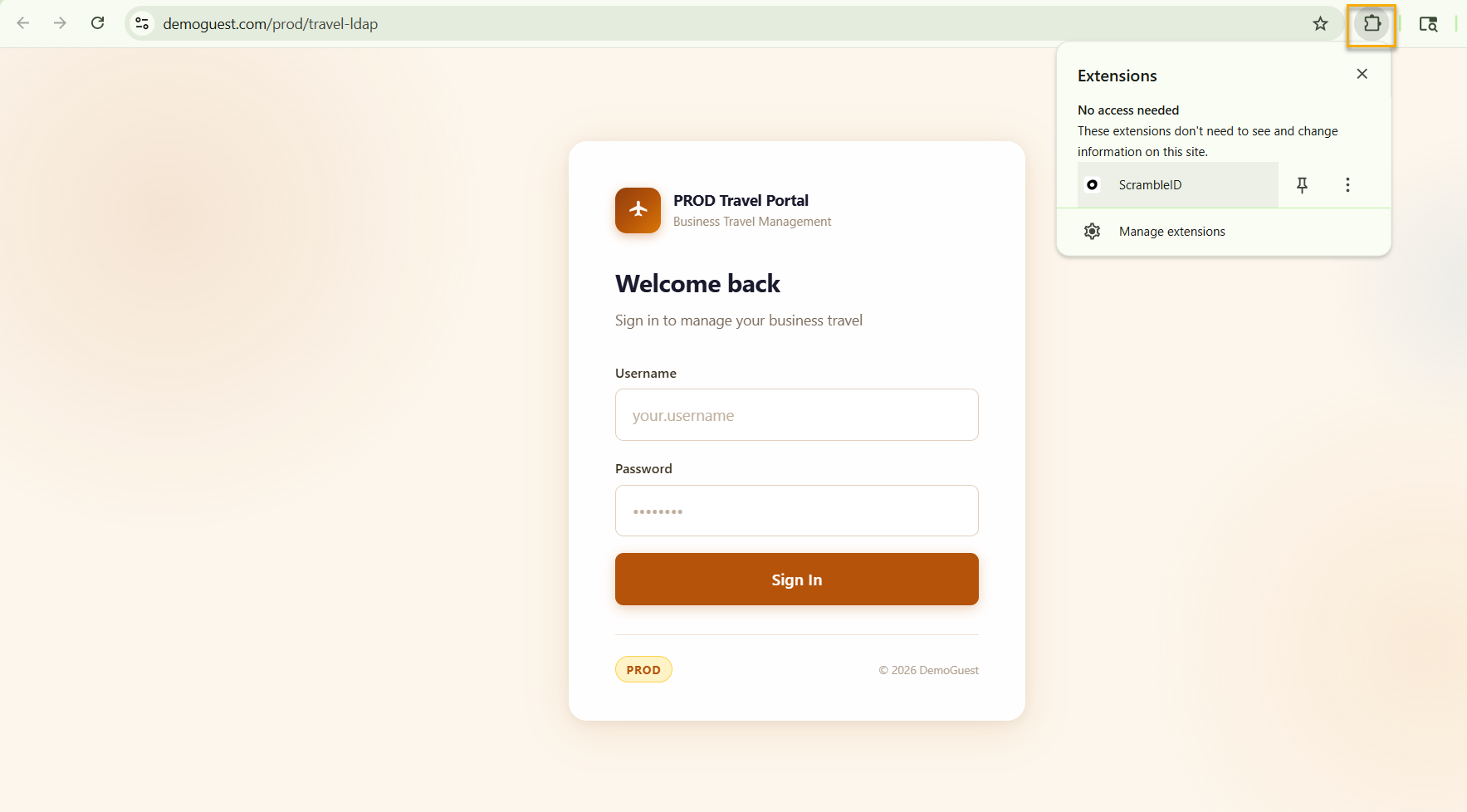
- To access the ScrambleID Chrome Extension, you can log in either by setting up a passkey, scanning a QR code or by typing a code. A toggle switch located at the bottom of the Chrome Extension window allows you to alternate between these three authentication methods.
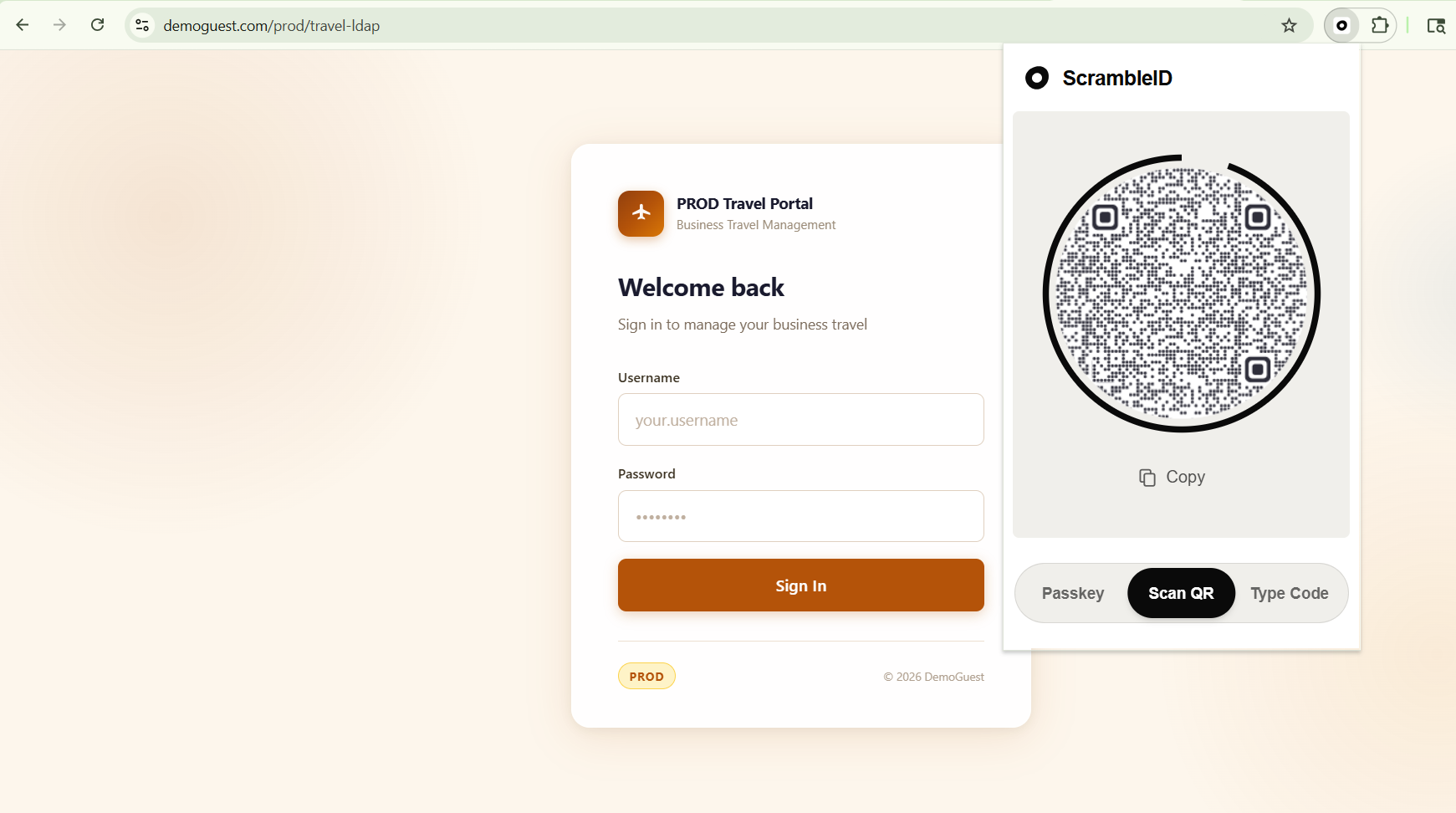
-
Use the ScrambleID mobile application (available on Android or iOS) to setup the Passkey, scan the provided QR code or input the corresponding code manually. For more information, refer to the Scramble-End-User-Guide-Mobile.
-
Alternatively, you can use the Desktop App (Windows/macOS) to copy the provided QR code, paste it into the Desktop App, and click Authenticate. You may also input the corresponding Type Code manually. For more information, refer to the Scramble-End-User-Guide-Desktop.
-
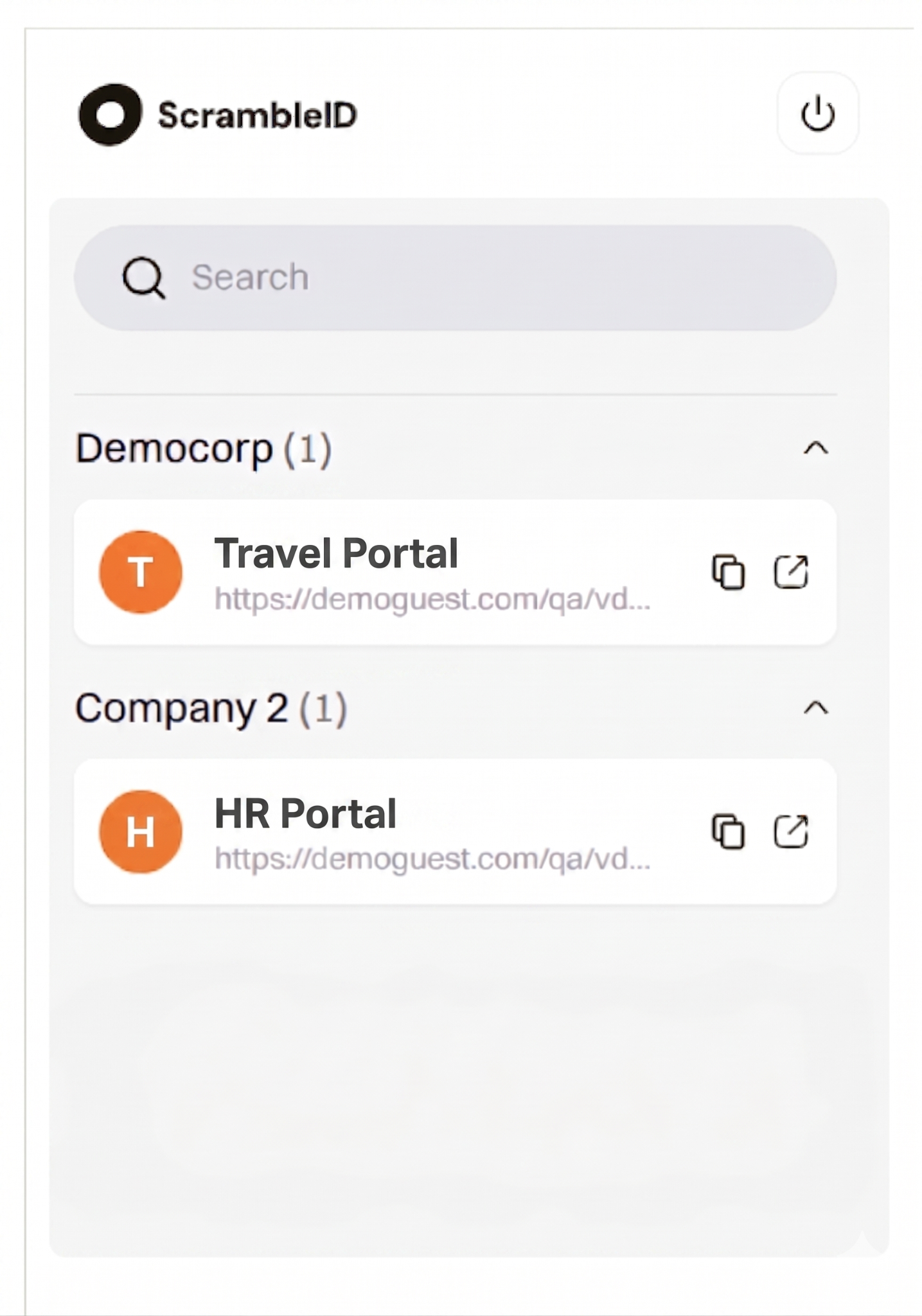
Upon successful authentication, the extension will display the LDAP applications you are authorized to access. Select your desired application to view its specific login credentials. If you have access to only one LDAP application, it will be displayed automatically along withyour temporary login credentials.
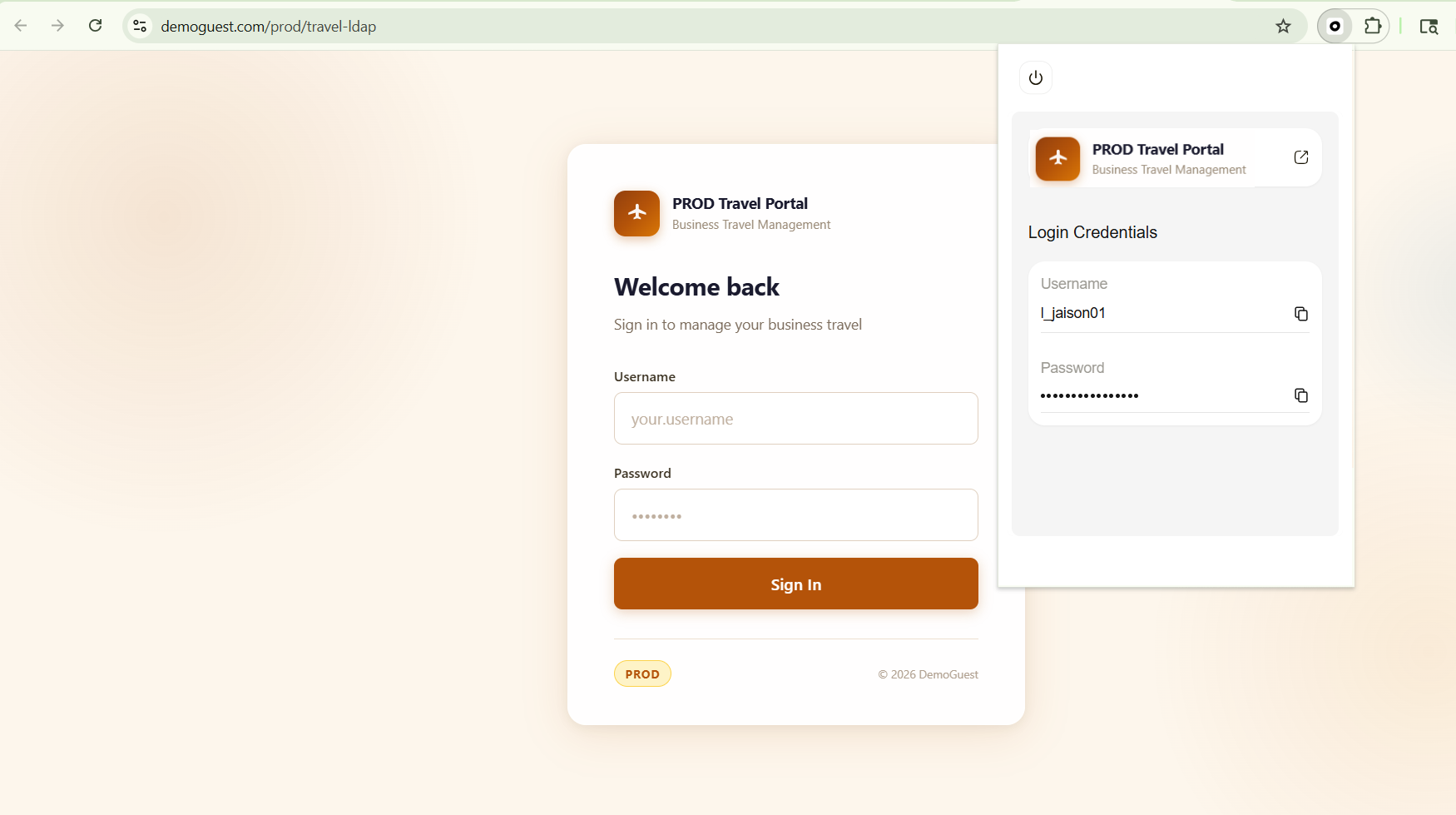
- Copy the temporary Login Credentials (Username and Password) generated by the extension and paste them into the login fields of the LDAP-enabled application you wish to access.
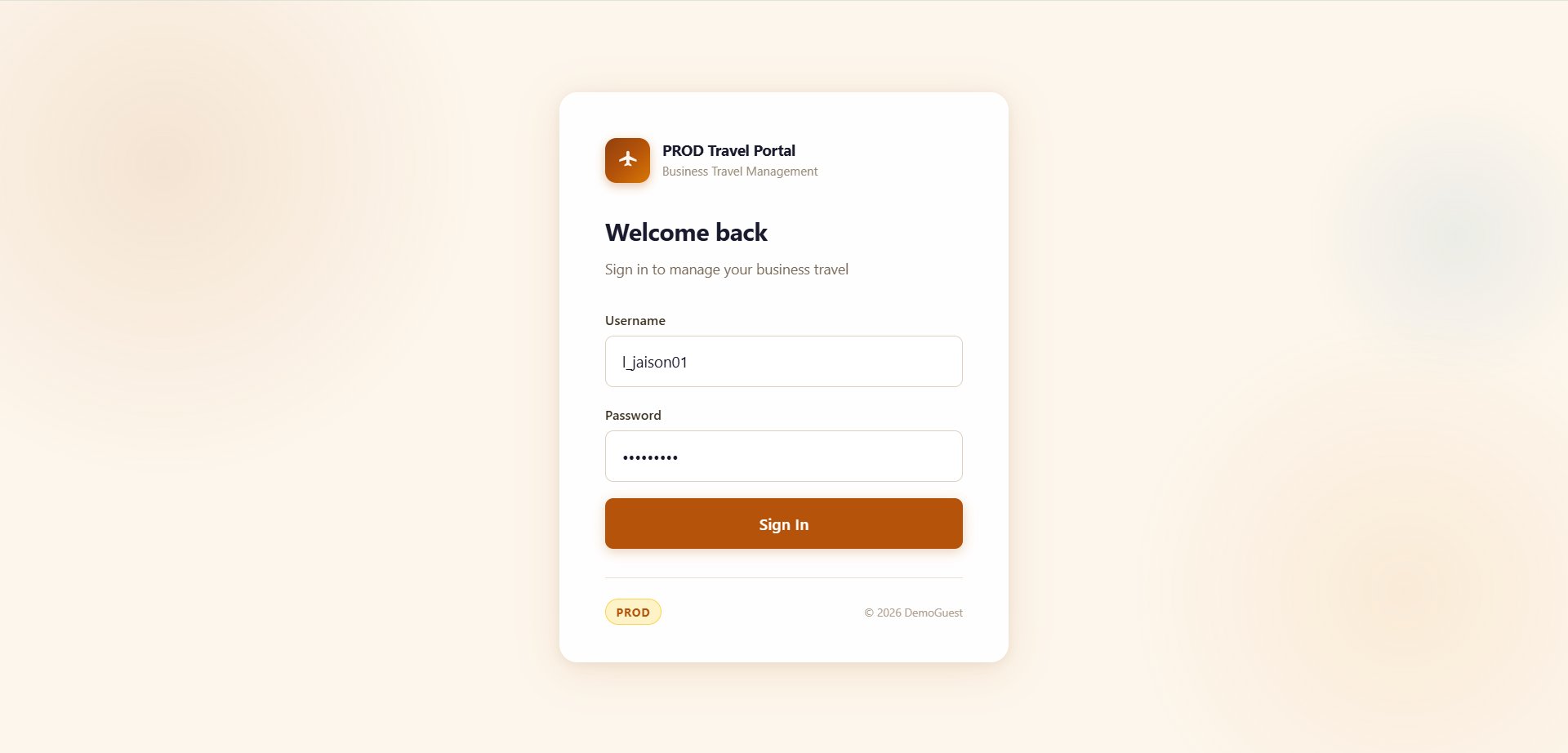
Note: The temporary password expires after 2 minutes*. A new one will subsequently be loaded into the ScrambleID Chrome Extension. Attempts to use expired credentials after this 2-minute window will result in an invalid login. You must copy and paste the newly generated password to successfully log in.*
- You will now be securely logged into your LDAP-enabled application.
Using ScrambleID Chrome Extension with Multiple Organizations
If your account is registered with multiple organizations, the ScrambleID Chrome Extension will display a list of all organizations associated with your user profile. You can select the appropriate organization from this list to proceed, as outlined below.
Logging in with a QR Code
- Open the ScrambleID Chrome Extension and scan the displayed QR code.
- If multiple organizations are available, the ScrambleID mobile app will prompt you to select your preferred one.
- If only a single organization is associated with your account, it will be registered automatically.
- Regardless of the organization selected on the mobile app, once registration is complete, the extension will display all organizations associated with your ScrambleID profile along with the LDAP applications you have access to.
- Upon selecting an application, your temporary credentials will be generated for authentication.
Logging in with a Type Code
- Enter the Type Code displayed in the extension, followed by the 2-digit Validation Code when prompted.
- If multiple organizations are available, the mobile app will prompt you to select your preferred one.
- If only one organization is linked to your account, it will be registered automatically.
- Regardless of the organization selected on the mobile app, once authentication is complete, the extension will display all organizations associated with your ScrambleID profile along with the LDAP applications you have access to.
- Select an application to view the credentials required for login.
Troubleshooting
- QR code not loading: Close and reopen the ScrambleID Chrome Extension.
- Login failed: Verify that you are using the latest temporary credentials. (⚠️ Temporary credentials expire after 2 minutes.)
- Invalid Credentials: Check if the LDAP Username/password was copied correctly without any extra spaces.
- Extension not responding: Perform a hard refresh of the Chrome page or reinstall the extension.
- Unknown error in mobile app while scanning: This typically occurs if the lidIdentifier is not configured for your user profile. Contact your administrator or help desk for assistance.
Best Practices
- Ensure that you are utilizing the most recent version of the ScrambleID Chrome Extension.
- Verify that the ScrambleID mobile application has been updated to version 1.8.1 or later.