LDAP Admin
Configure ScrambleID LDAP: attributes, base DN, proxy integration, and the extension rollout.
Updated June 11, 2026


Admin Overview
ScrambleID handles LDAP authentication by generating short-lived temporary credentials after a user verifies. A Proxy LDAP Application uses those credentials, so users log in without static passwords.
The next sections cover the configuration options and admin settings you'll need to deploy and manage the integration.
Configuring Attributes for Temporary Credentials
You can configure the attributes below at both the Organization and Application levels:
- Password Length
- Password Prefix
Password length sets how long the generated temporary LDAP password is. Password prefix sets the password's prefix; use it to mark a login as coming from ScrambleID, which lets you add extra configuration or logic on the LDAP side.
| Attribute | Type | Description | Default Value |
|---|---|---|---|
| lidPasswordLength | Number | Length of the temporary password. Configurable at App & Org level. | 9 |
| lidPasswordPrefix | String | Prefix for the generated password. Configurable at App & Org level. | LID |
| lidIdentifier | String | Attribute value from SCIM that will be used as the LDAP login username. Configurable at Org level. | N/A |
For the ScrambleID Chrome extension to work, you also need to configure one more attribute, lidIdentifier, for the user at the organization level. Its value from SCIM becomes the LDAP login username.
Password length and prefix settings resolve in this order:
- Application level: wins if set.
- Organization level: used when there's no application-level setting.
- Default values: applied when neither is set (see the table above).
The ScrambleID support team can help you configure these values.
Setting LDAP Base DN
Every organization using LDAP authentication needs a Base Distinguished Name for LDAP bind and search operations. Set it at the organization level for each organization.
| Attribute | Type | Description |
|---|---|---|
| ldapBaseDN | String | The Base Distinguished Name used for LDAP bind/search. |
Here's the Base DN configuration for an organization with the Base DN "demoguest":
ldapBaseDN = "dc=demoguest"
Proxy LDAP App Integration
To enable LDAP authentication, integrate with the Proxy LDAP Application by configuring the Proxy LDAP URL and using the temporary username and password the extension generates.
Proxy LDAP URLs:
Production : ldap://ldap.prod.scrambleid.com
UAT : ldap://ldap.uat.scrambleid.com
Authentication Workflow
- The client sends an LDAP bind request to the Proxy using temporary credentials.
- The Proxy forwards the request to ScrambleID for validation.
- If the credentials are valid, the Proxy returns a success notification.
- If the credentials are invalid, the Proxy returns an LDAP error.
Testing with ldapsearch:
ldapsearch -H ldap://ldap.prod.scrambleid.com \
-D "uid=userName,dc=democrp,dc=com" \
-w "yourPasswordHere" \
-b "uid=userName,dc=democrp,dc=com"
Force-Installing the ScrambleID Chrome Extension via PowerShell
In managed enterprise environments, you may need to deploy and configure the ScrambleID Chrome Extension silently, without asking end users to install anything. You can do that with PowerShell scripts plus Chrome policy settings.
Prerequisites
Before you begin, make sure:
- You have administrator privileges on the designated machine.
- Google Chrome is installed.
- You have the ScrambleID extension ID:
coehbblmkfebjohokjilnogjgkaalbnc. It's the string in the extension's Chrome Web Store URL, and the installation script below already includes it.
Installation Steps
- Save the provided installationScript.ps1 file to a local directory.
- Open PowerShell as Administrator.
- Navigate to the folder containing the script:
Example: cd C:\Users\<YourUsername>\Downloads
- Run the script:
.\installationScript.ps1
- Close and reopen Chrome, or visit chrome://policy and click Refresh Policy to confirm installation.
- Once complete, the ScrambleID extension will be installed and available for all users on the machine.
Installation Script
The installation script lives at this GitHub URL:
Removing the Extension
To uninstall the extension:
- Run the provided removalScript.ps1 file.
.\removalScript.ps1
- Restart Chrome, or navigate to chrome://policy and refresh the policies.
The script removes entries from both the ExtensionInstallForcelist and ExtensionSettings registry keys for a clean uninstall.
Alternatively, you can remove the policy by hand in the Registry Editor: find the extension ID and delete its entries.
Uninstallation Script
The uninstallation script lives at this GitHub URL:
Resetting the Extension
You can switch the extension between environments (production, quality assurance, user acceptance testing).
To reset or change the environment:
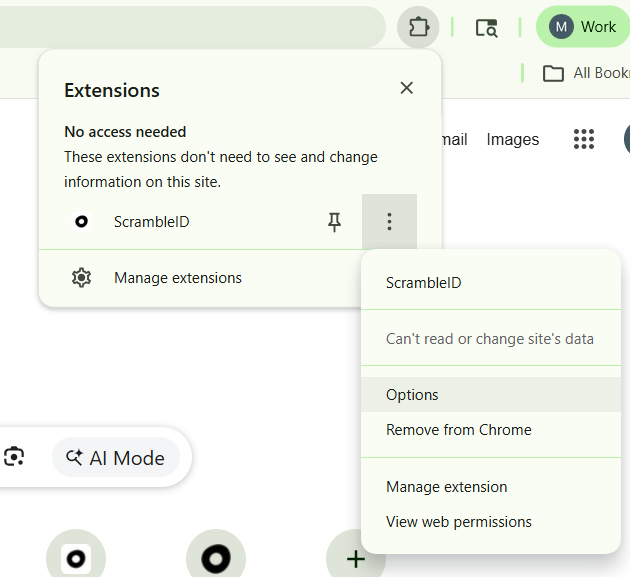
- Click the ScrambleID extension icon in Chrome and select Options from the menu.
- Set the environment value to prod, qa, or uat, then click Save to apply the change.
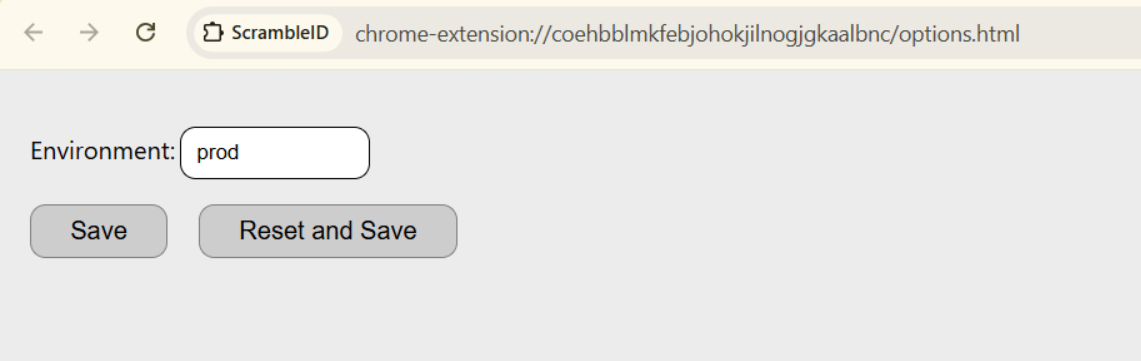
Note: The Reset and Save button resets the environment to Production by default.