Mobile App
Set up the ScrambleID mobile app: register, manage organizations and devices, and authenticate.
Updated June 11, 2026


Getting started
ScrambleID allows you to sign in securely using your trusted mobile device, with no usernames and no passwords. Simply scan and go for a fast, seamless authentication experience.
Download and install the ScrambleID app for Android or iOS , and then register within the app to get started. It only takes a few minutes.
| ℹ️ Already a user? If you already have a ScrambleID account, open the app and tap I already have ScrambleID on the Welcome screen. See the Existing user options section for more information. |
|---|
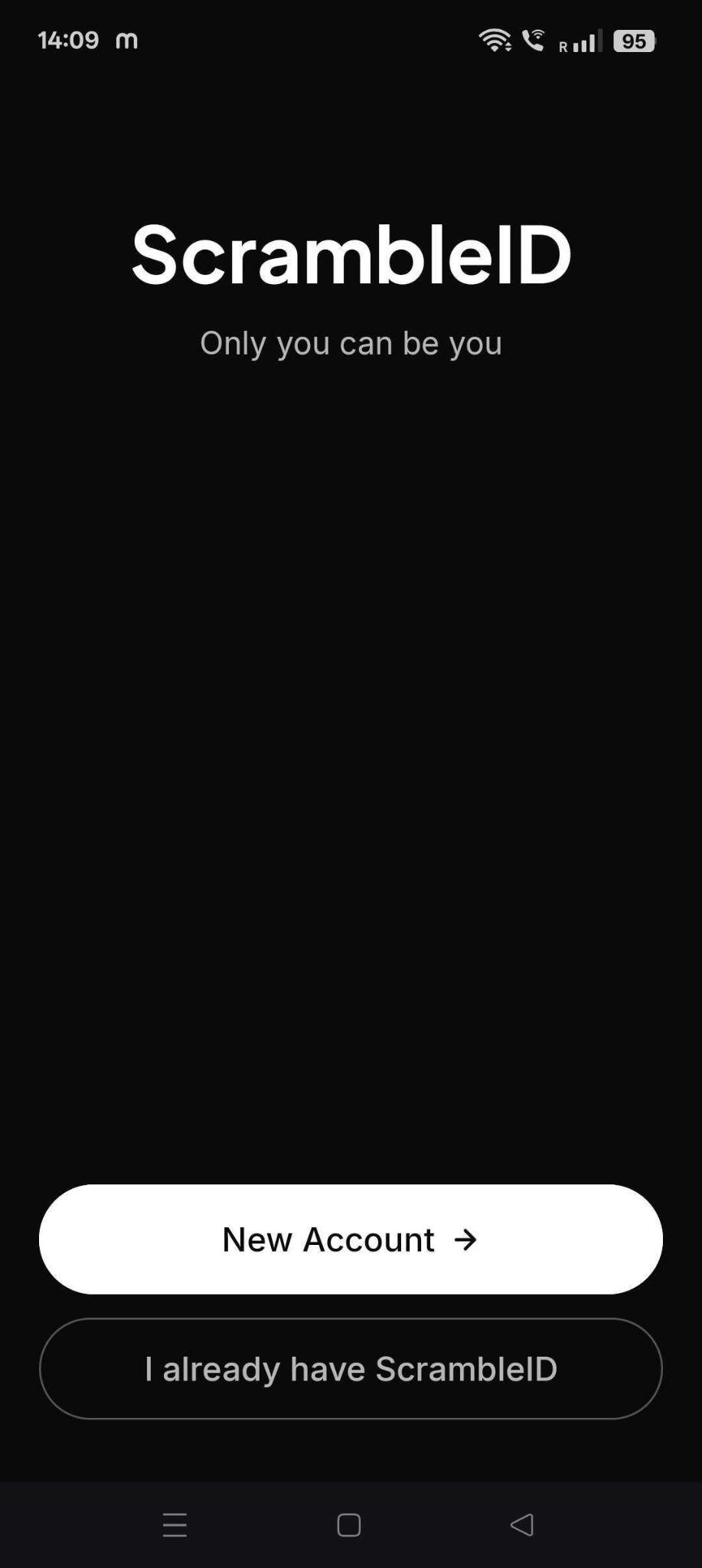
Set up your ScrambleID account
Download the latest ScrambleID mobile application from the Google Play Store or Apple App Store, depending on your mobile device.
Install the ScrambleID application and launch it.
You will see two options:
- New Account
- I already have ScrambleID
Tap New Account to initiate your registration process.
Register as a new user
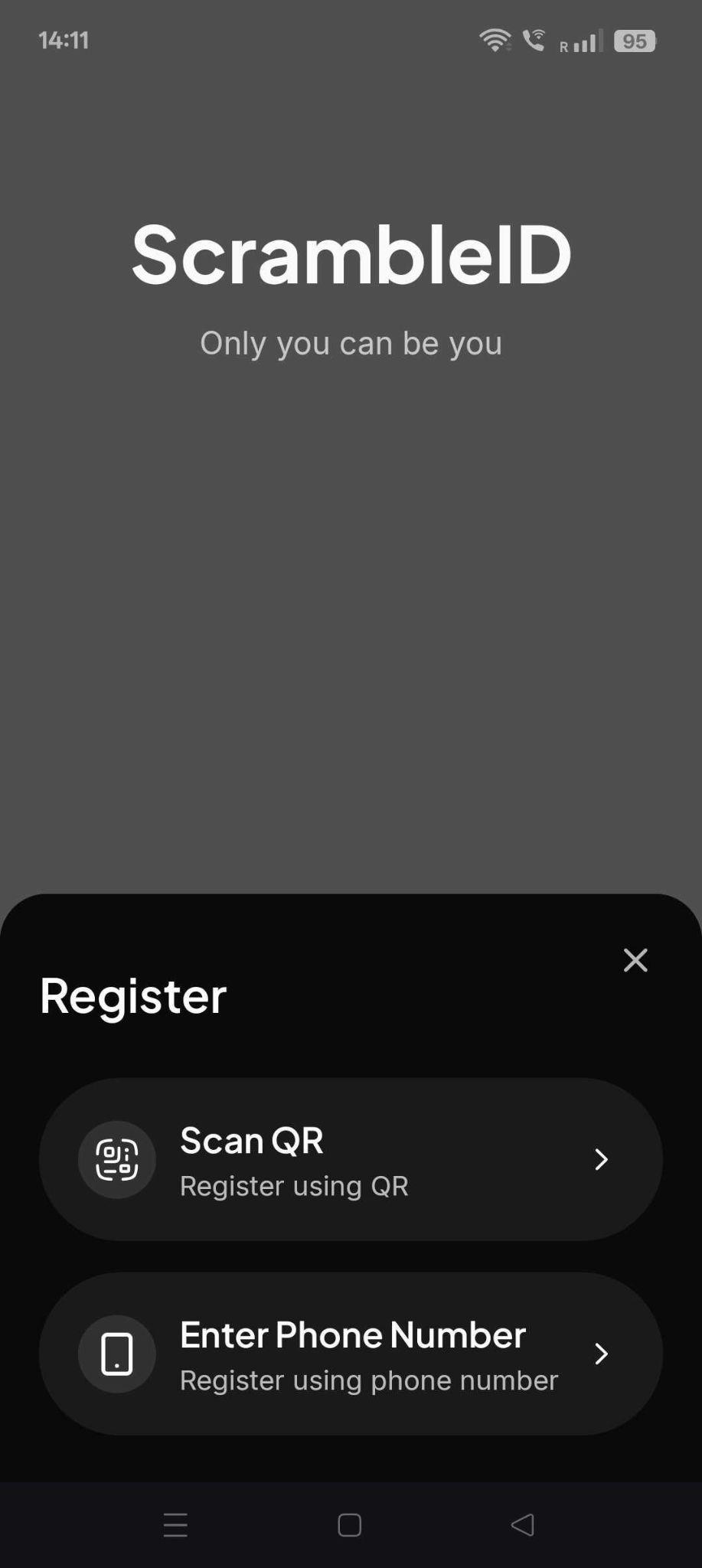
After tapping New Account on the Welcome screen, choose one of the following registration methods:
- Scan QR
- Enter Phone Number
Scan QR: if your organization gave you a registration QR code (your admin generates it, or you'll find it in your organization's self-service portal), tap Scan QR and point your camera at the code. The app reads it and takes you straight to profile creation below.
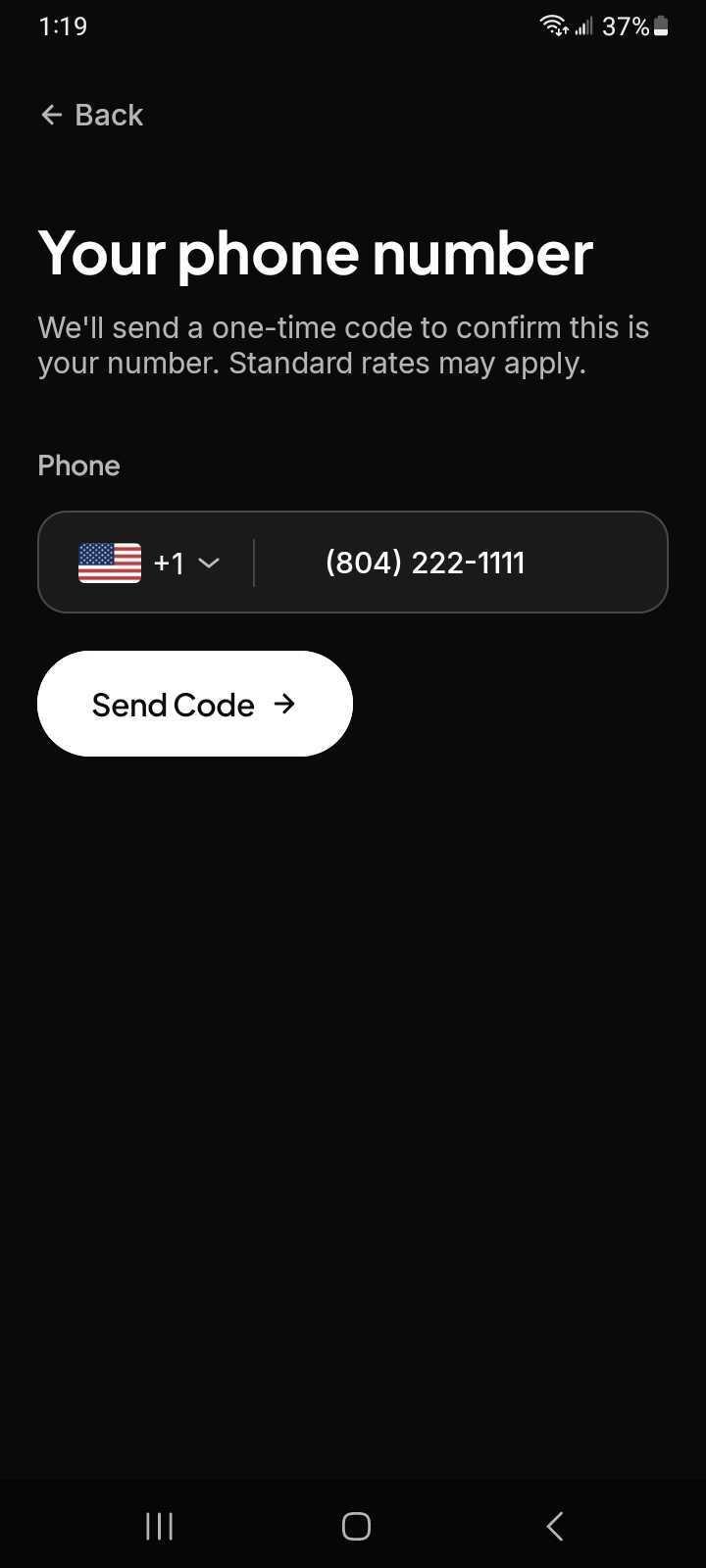
Enter Phone Number: to register with your mobile number instead:
- Enter your phone number.
- Tap Send Code.
The system will deliver a six-digit verification code via SMS to your submitted phone number.
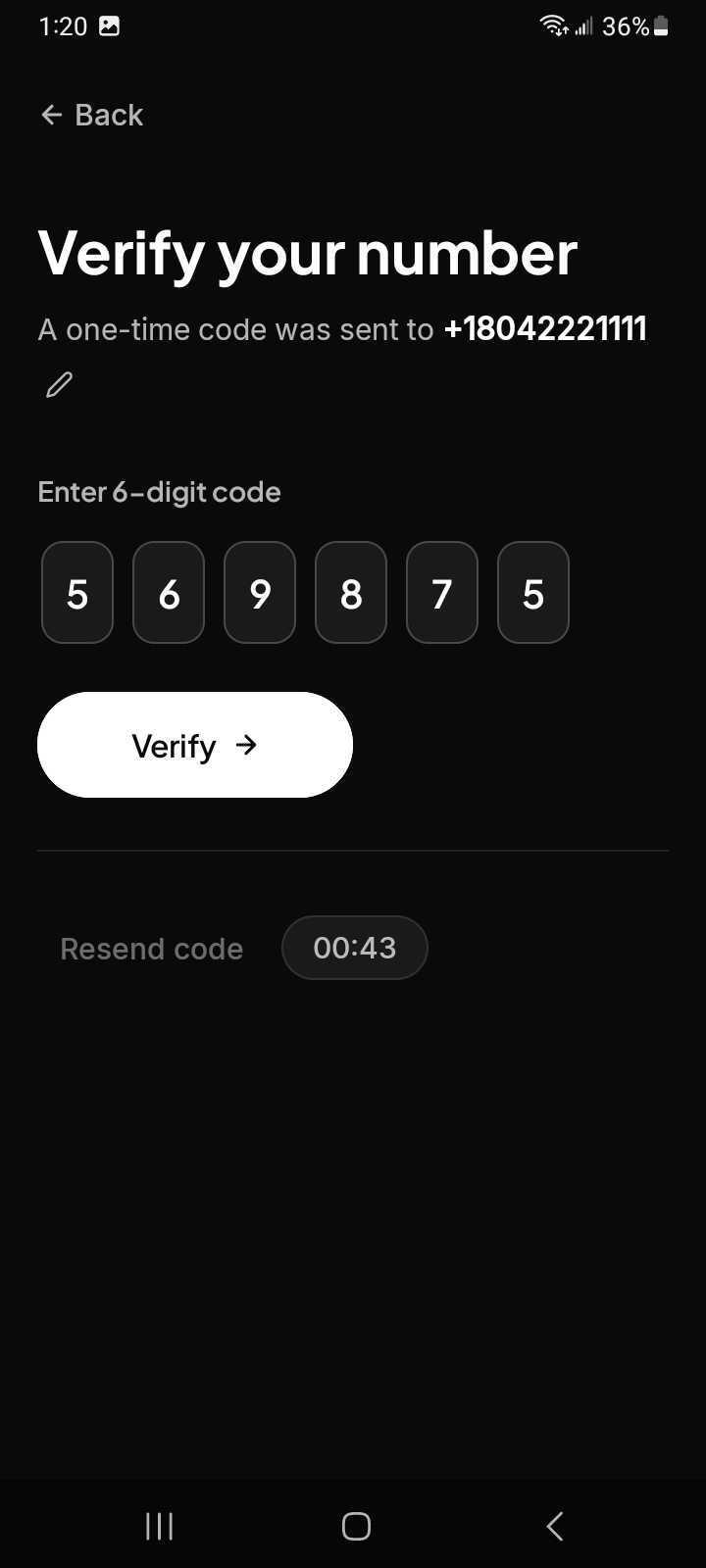
Follow these steps to complete the verification:
- Type in the six-digit code, or allow it to auto-populate.
- Tap the Verify button to submit the code.
- Tap Resend code if you do not receive it within 60 seconds.
- Tap the Edit icon to change your mobile number and restart the process.
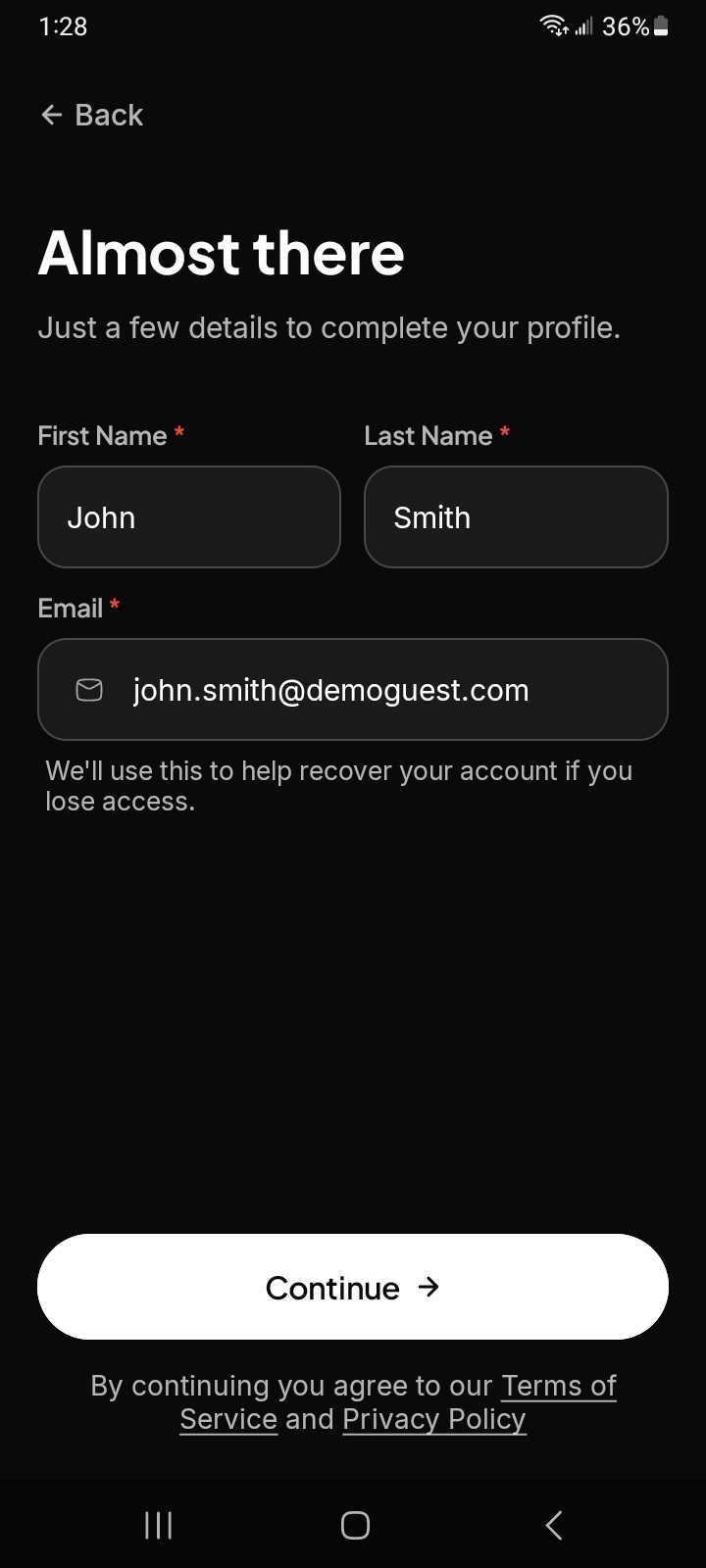
Finalize your registration by providing your First Name, Last Name, and Email credentials.
Tap Continue.
Note: Review the Terms of Service and Privacy Policy before selecting Continue.
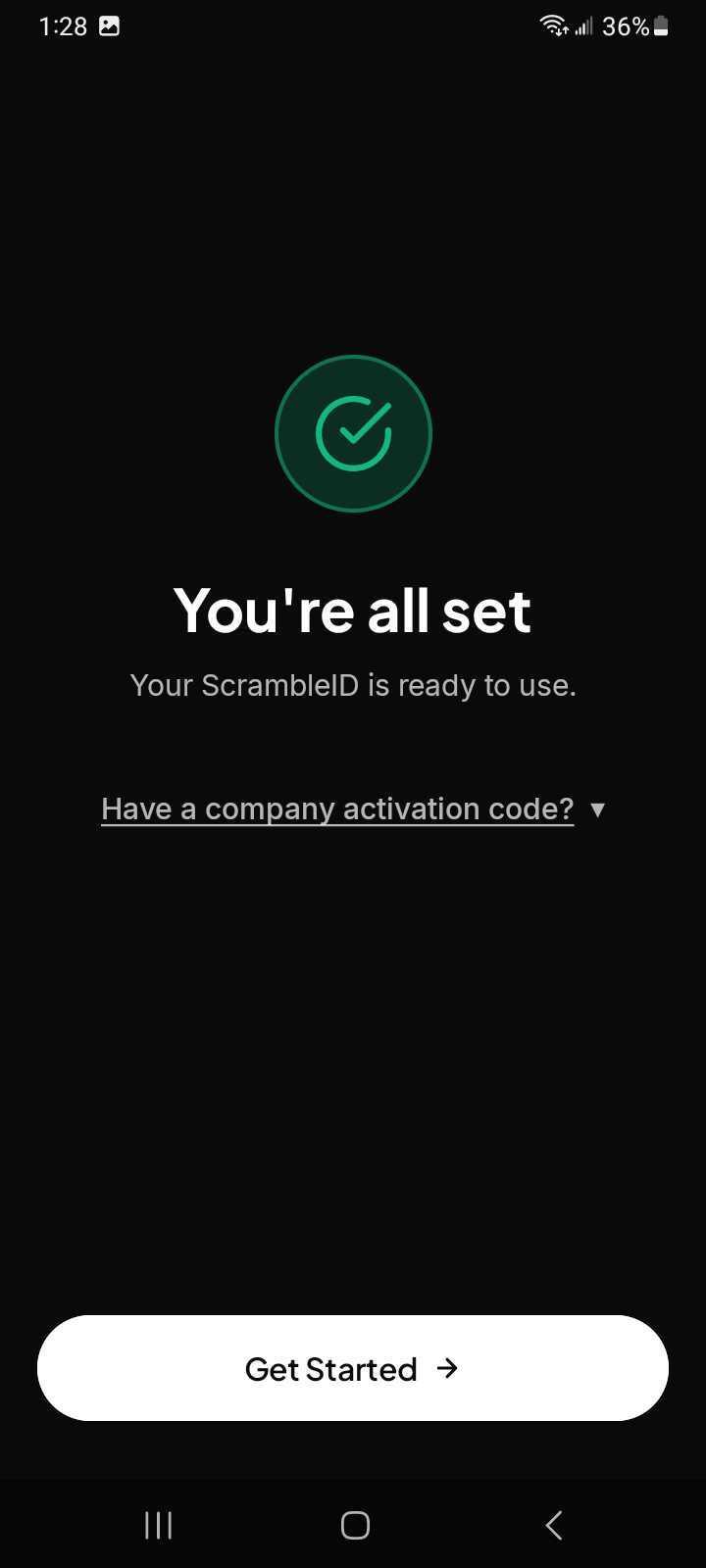
You will receive a confirmation that your ScrambleID Profile has been activated.
Register with a company activation code
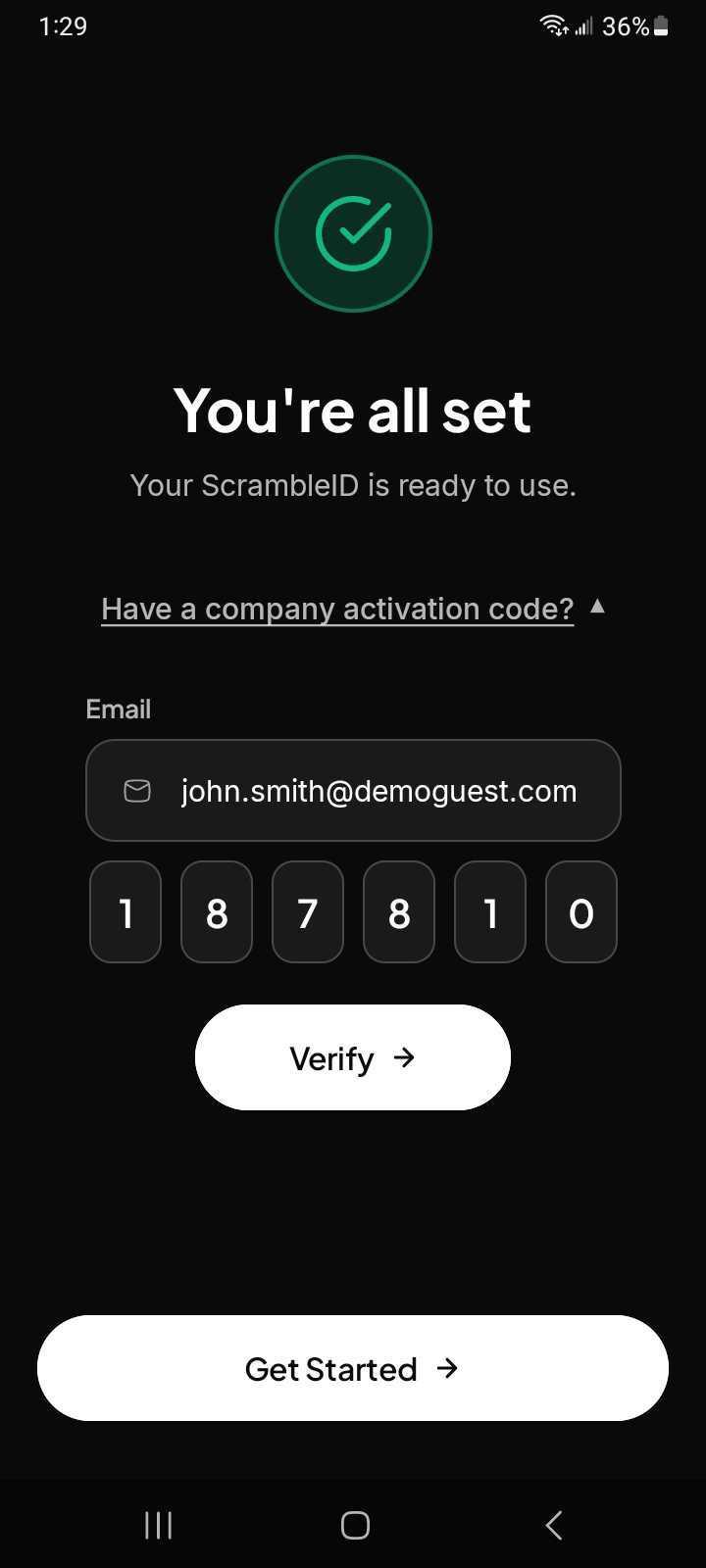
If you possess a Company Activation Code, expand the link labeled Have a company activation code? to reveal the required entry fields.
The application will display input boxes for your corporate email address and the generated activation code.
If the email address you provided during the profile registration step matches your company email, this field will auto-populate.
Follow these steps to complete the corporate verification:
- Look for an email containing your six-digit verification code.
- Type the six-digit verification code into the designated field.
- Tap Verify to authenticate your company account.
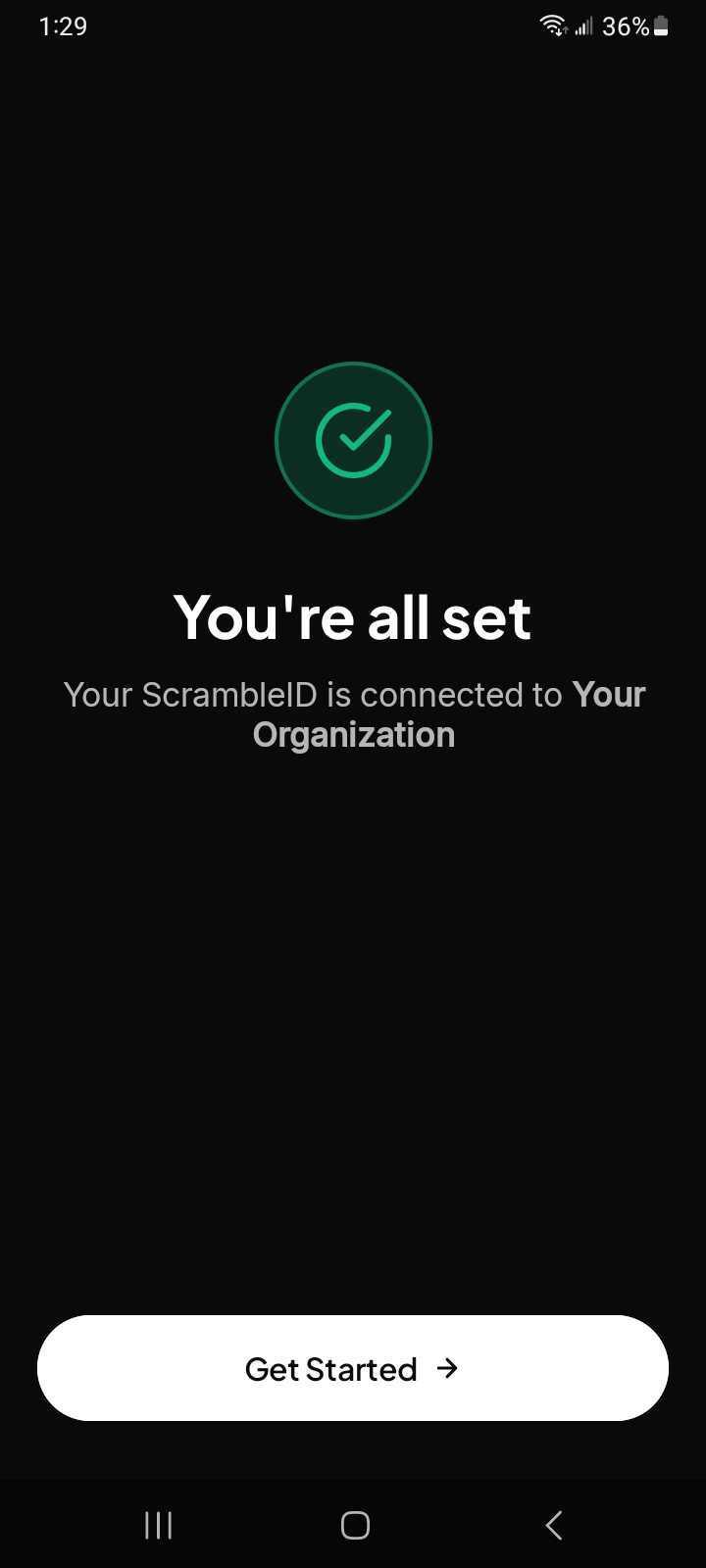
Tap Get Started to go to the home screen.
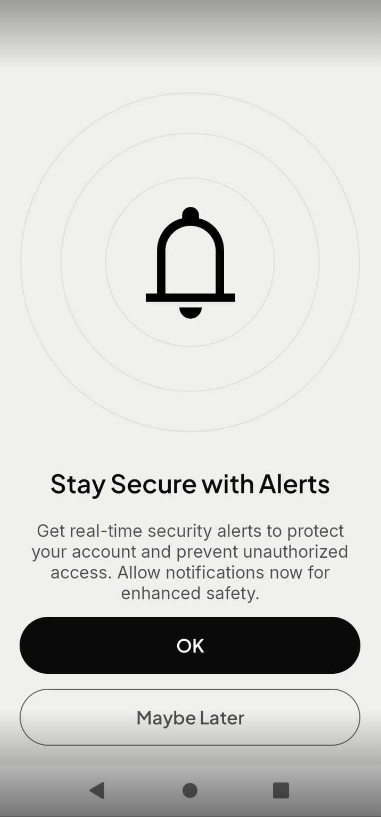
Select OK to get real time security alerts on your device.
Select Maybe Later option, If you do not wish to receive notifications at this point.
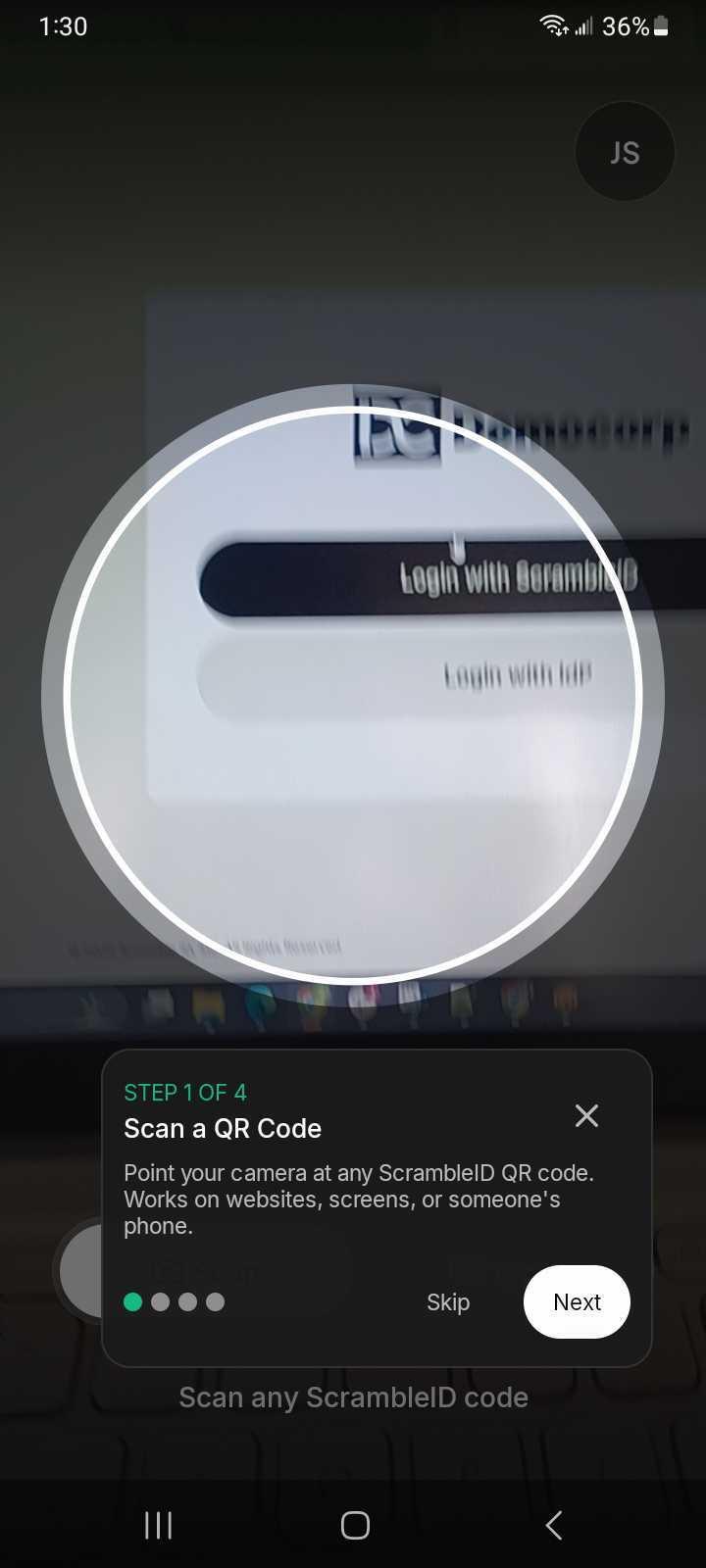
After completing enrollment, you will land on the Home screen.
A help prompt will display by default to guide you through the available features.
Existing user options
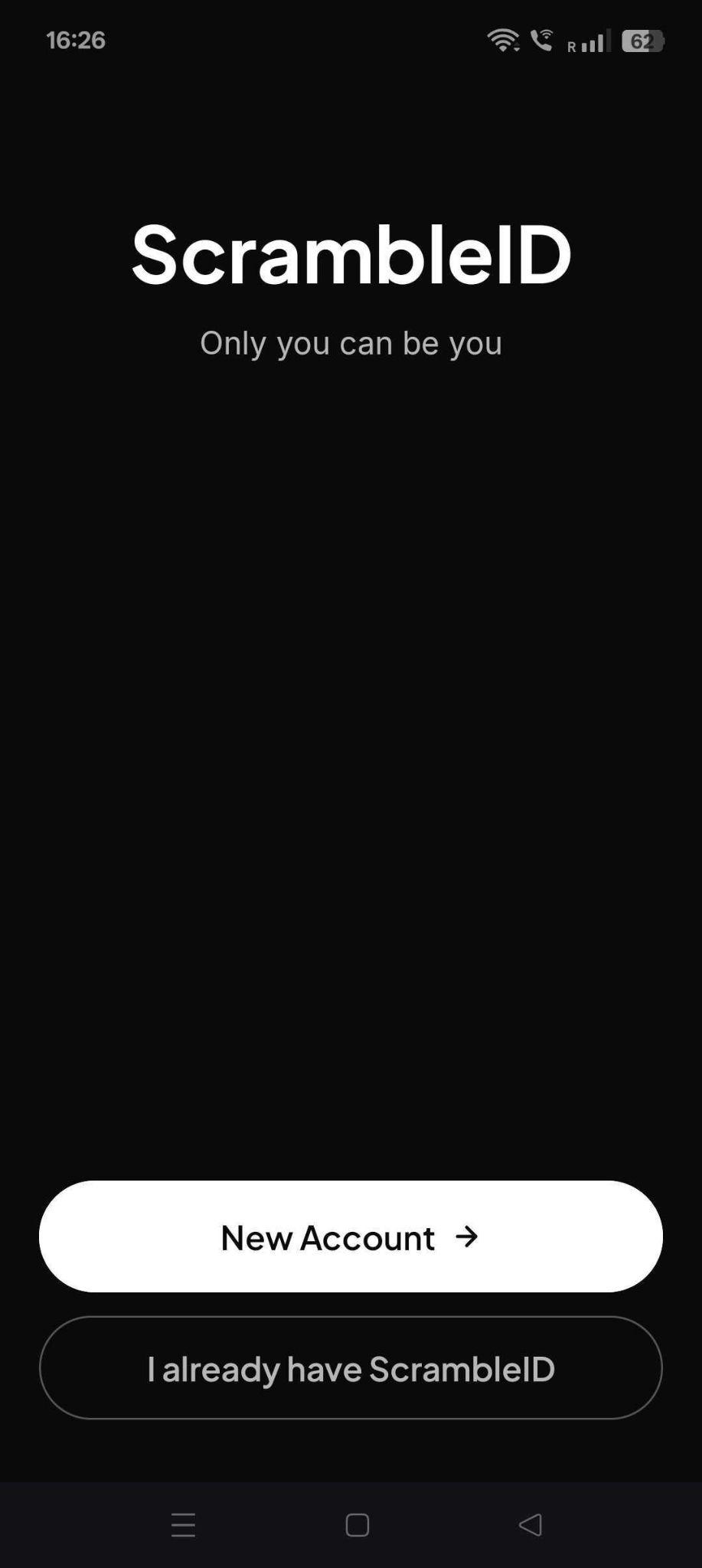
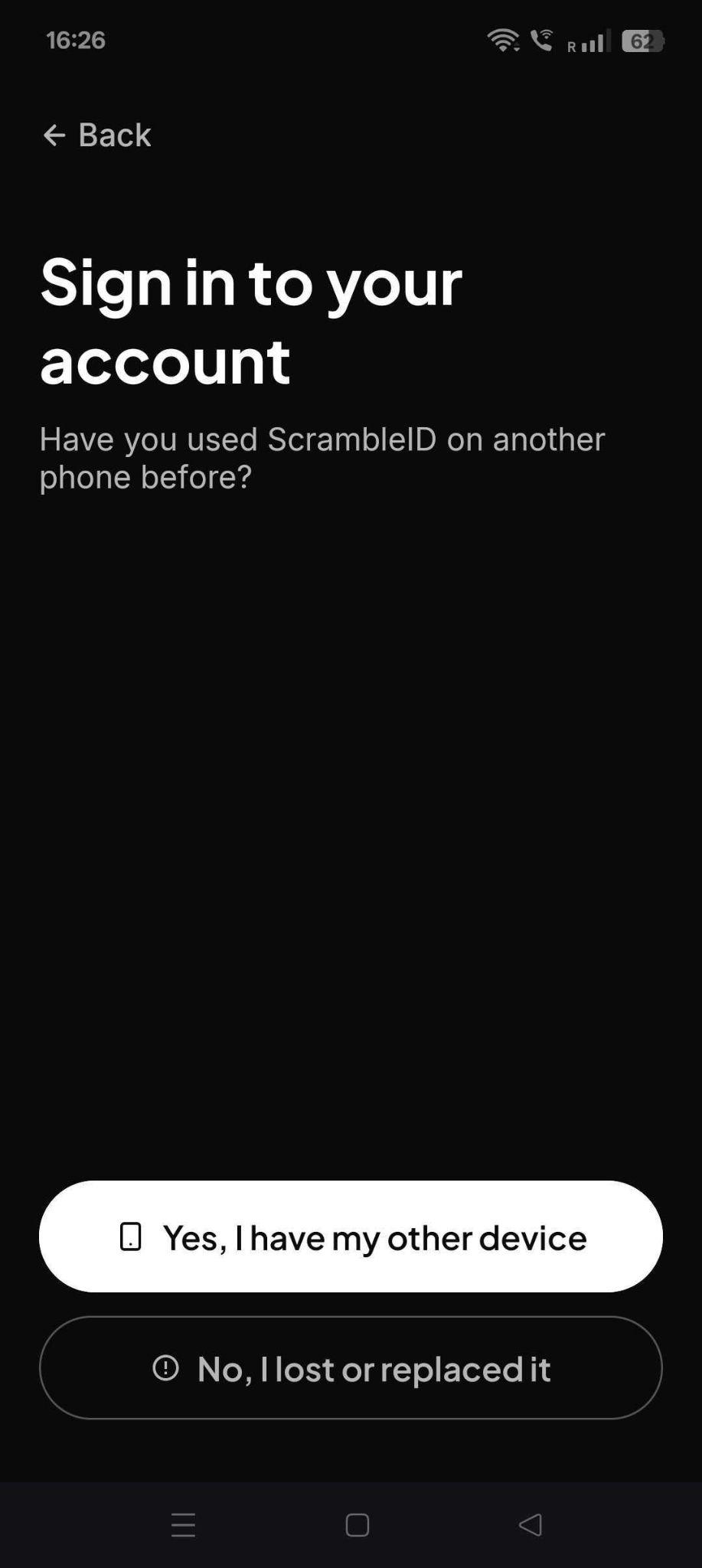
If you already have a ScrambleID account and want to register a new device, open the app and tap I already have ScrambleID on the Welcome screen. When the next screen opens, select the appropriate response to the question: Have you used ScrambleID on another phone before?
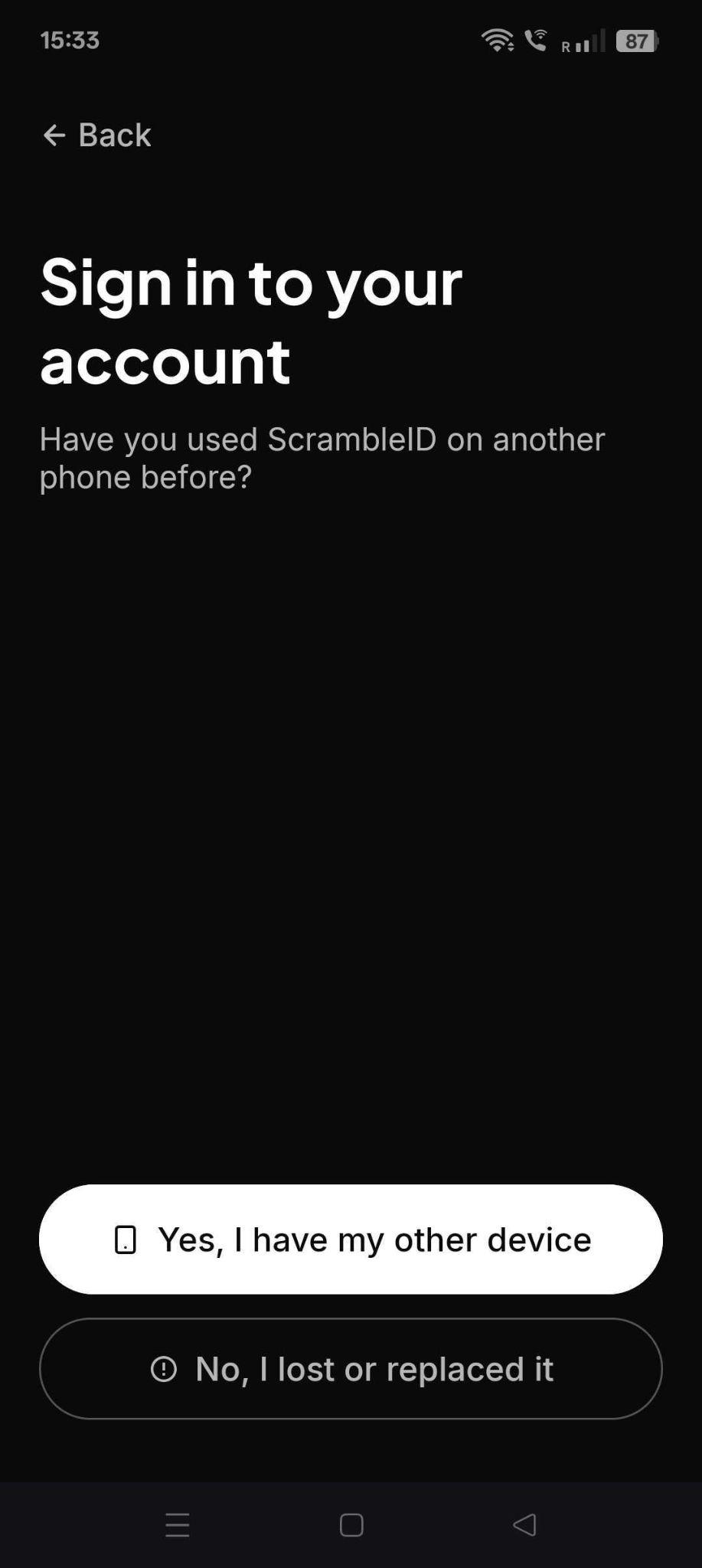
If you already have a ScrambleID account and want to register this new device, select Yes, I have my other device if your previously registered device is nearby.
Navigate to Adding a new device for further instructions.
If you lost your phone or want to replace your existing device, select No, I lost or replaced it. The application will then direct you to the recovery page to restore your existing account.
The recovery page displays fields for you to enter the valid mobile number linked to the account you wish to restore. Once you submit your phone number, the system processes the request through the following steps:
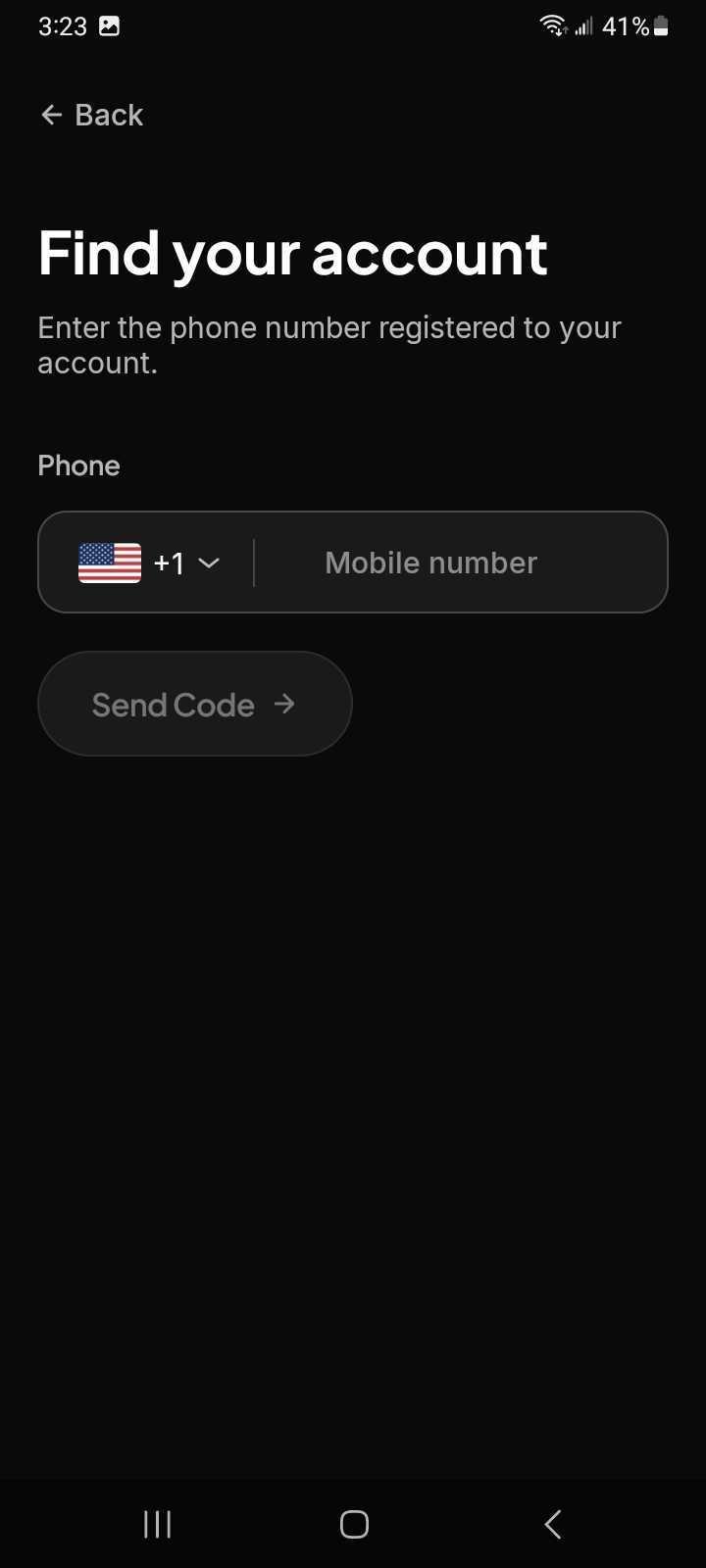
- The app sends an SMS code to verify your identity.
- The system identifies your account, restores your profile, and provisions the new device.
- You immediately regain access to your personal Scramble profile on your new device.
Note: Any organization details associated with your recovered account will be removed during this process. However, all physical devices currently attached to the account will be preserved.
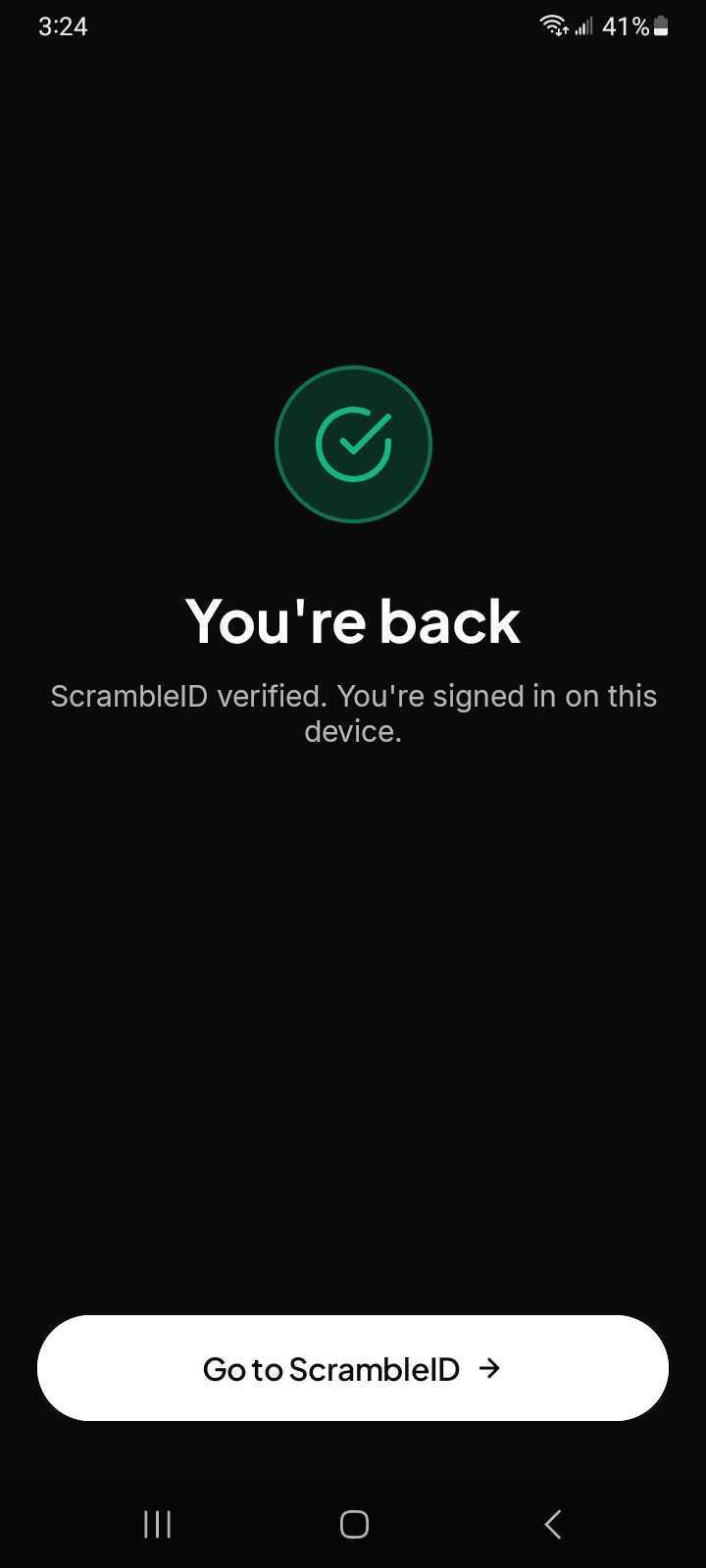
After recovery, you regain access to your personal Scramble profile on the new device.
If the user was previously associated with enterprise organizations, the system may require the user to re-add those organizations through Manage Organization using a new activation code.
Using the app
Once your device is registered, your account is authenticated and ready for use. You can now use the application to connect additional devices
Note that now that you’re registered, the User profile menu appears at the top-right corner of your screen.
Authentication
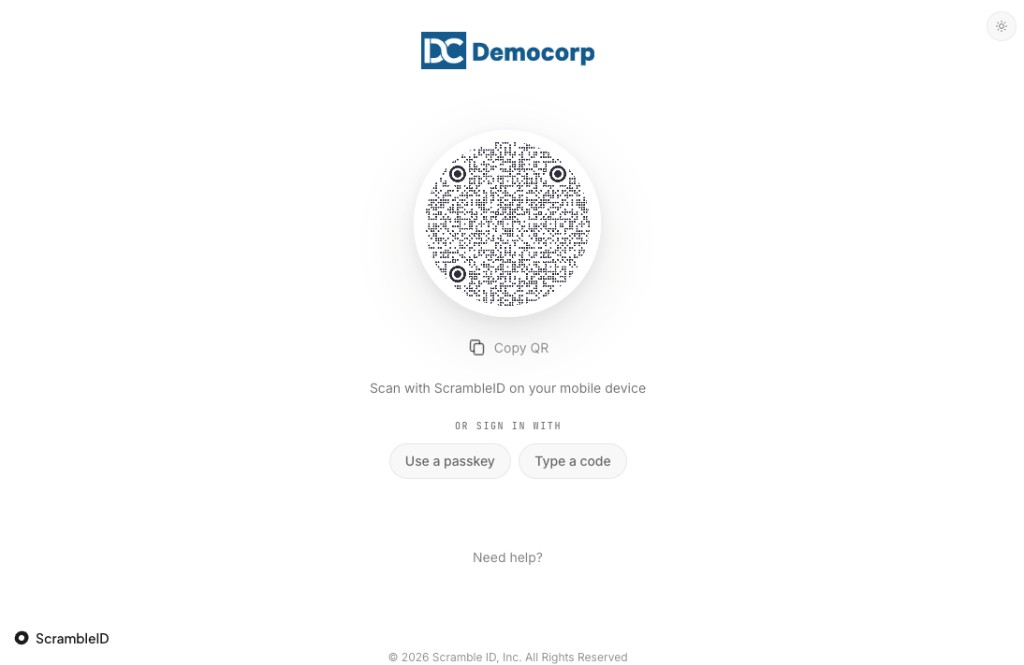
There are three ways to securely sign in using ScrambleID. Accessing a ScrambleID-compatible business application will redirect you to the ScrambleID login page. On this page you can choose your preferred login method.
Scan a QR
- The ScrambleID login page displays a QR code with a countdown timer.
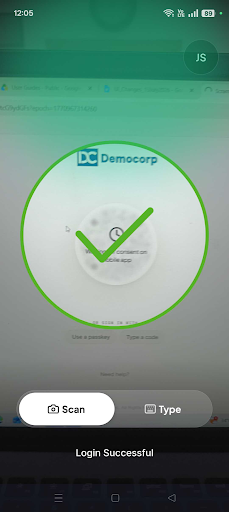
- Open the ScrambleID app on your phone and scan the QR code.
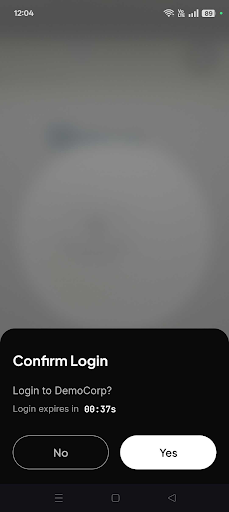
- Approve the sign-in on your phone.
Note: If the code is not scanned before the timer expires, you must click Refresh Code to receive a new QR code.
| Scan the QR code | Approve the sign-in |
|---|---|
 |  |
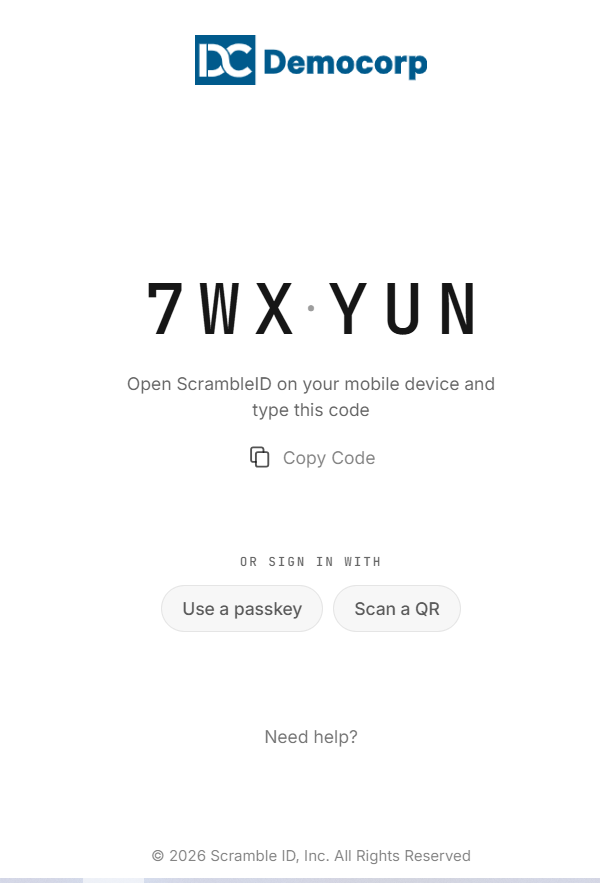
Type a code
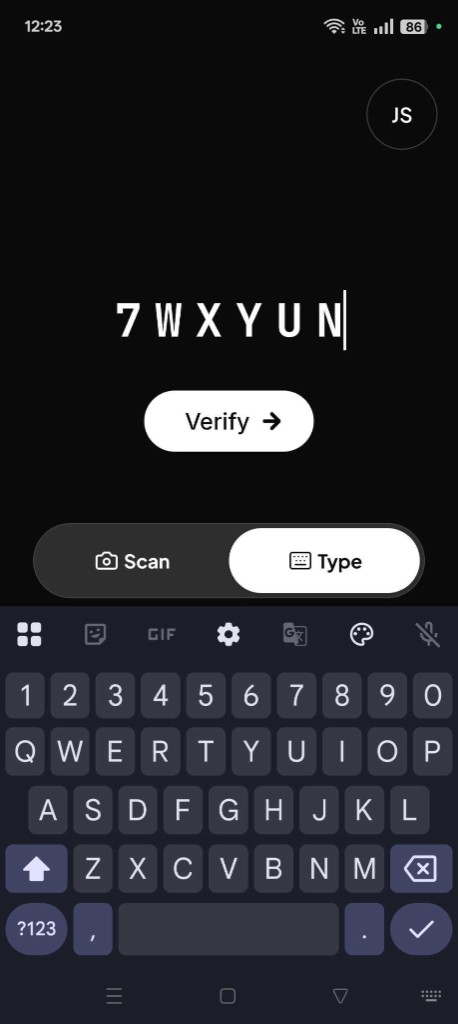
- Click Type on the login page and enter the six-digit code displayed into the app on your device.
Note: If the code is not entered before the timer expires, you must click Refresh Code to get a new code.
| Login Page | Mobile App |
|---|---|
 |  |
- If your account is associated with multiple organizations, the app displays options for you to choose the specific organization you wish to access.
- Tap Verify.
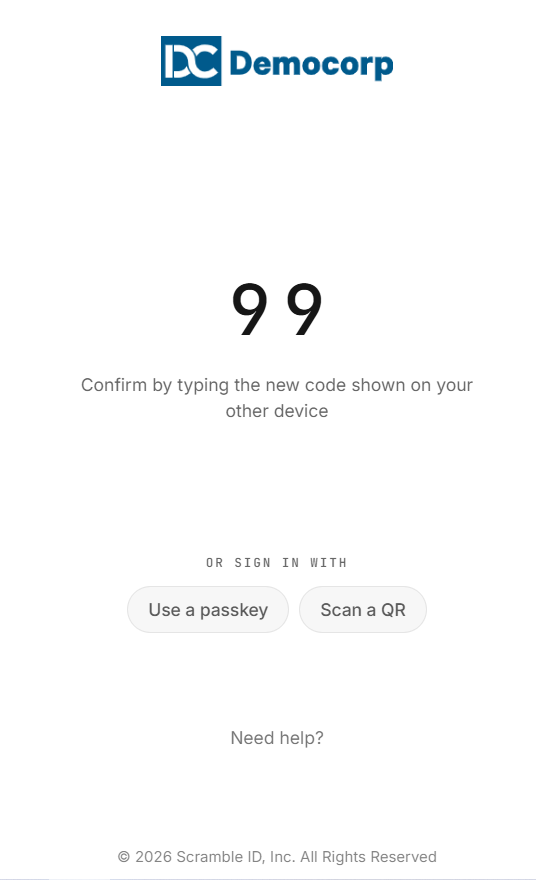
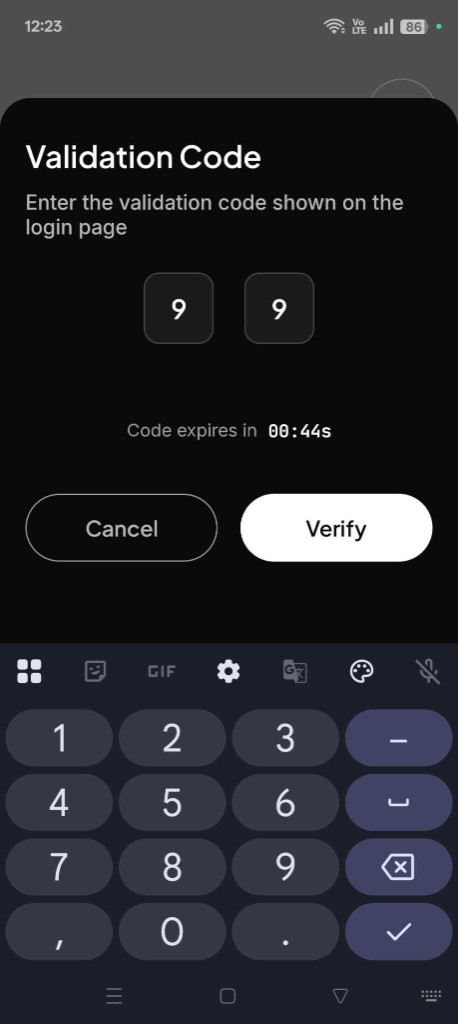
- Enter the additional two-digit code into the mobile app, and then tap Verify.
| Login Page | Mobile App |
|---|---|
 |  |
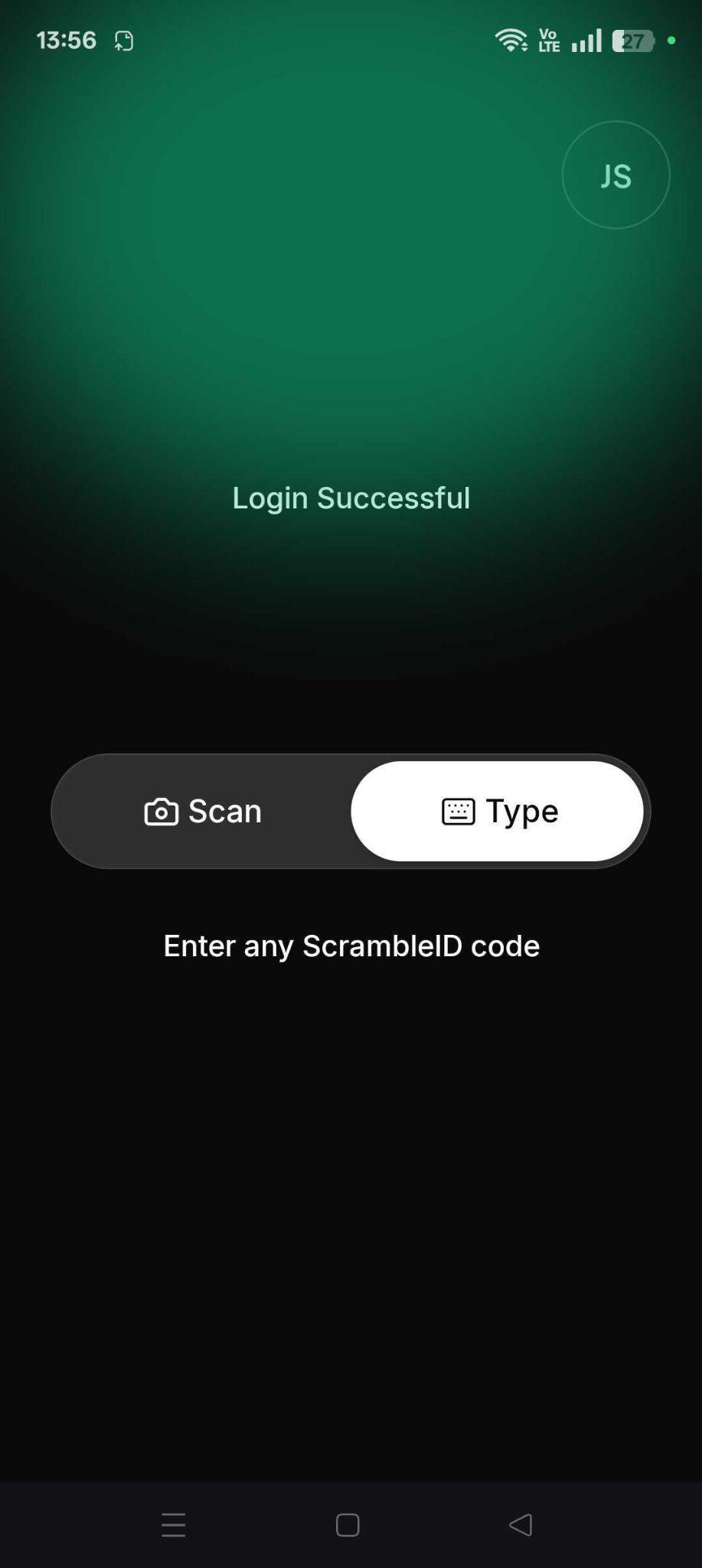
You're logged in to the website.
Use a passkey
Passkey authentication may also be available for your device. Passkey authentication is dependent on the specific device hardware and software. You must set up Passkey authentication first before you can login with this option. To set up, you need a device that is already registered with ScrambleID.
Setting up Passkey
ScrambleID uses your mobile device to authorize Passkey login on your computer. The Passkey itself is managed by your operating system (Windows Hello or Apple Touch ID).
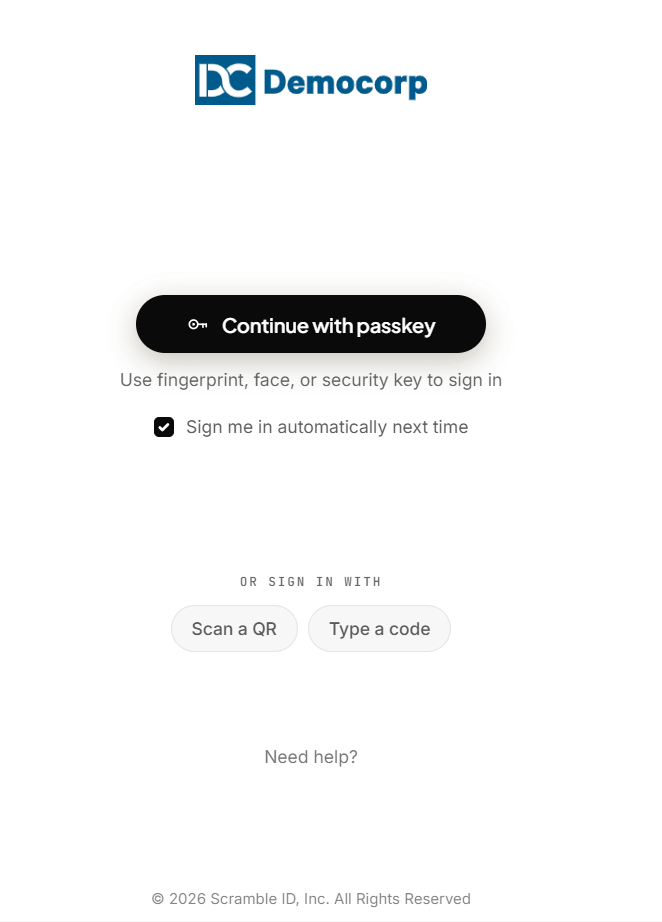
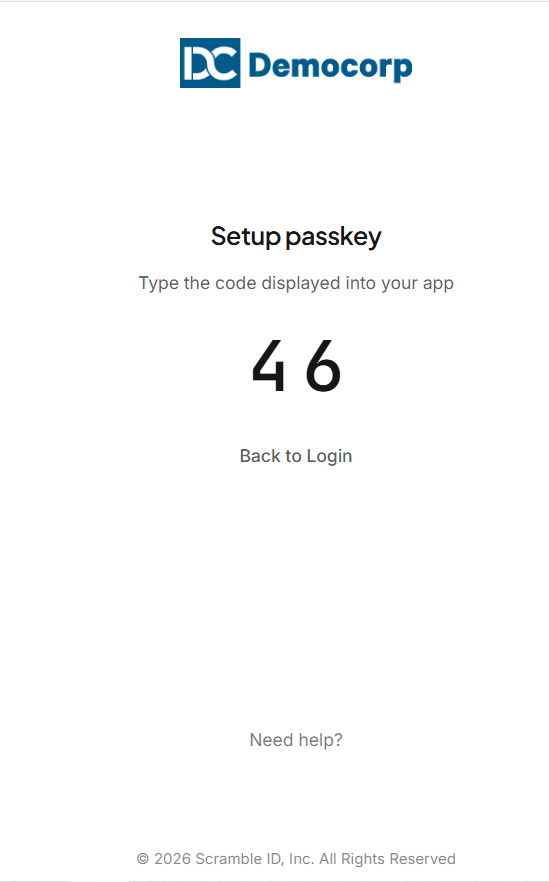
In order to set up Passkey, tap the Continue with passkey button on the login screen.
If you select Sign me in automatically next time, then the next time you log in, the app will automatically prompt you with your Passkey.
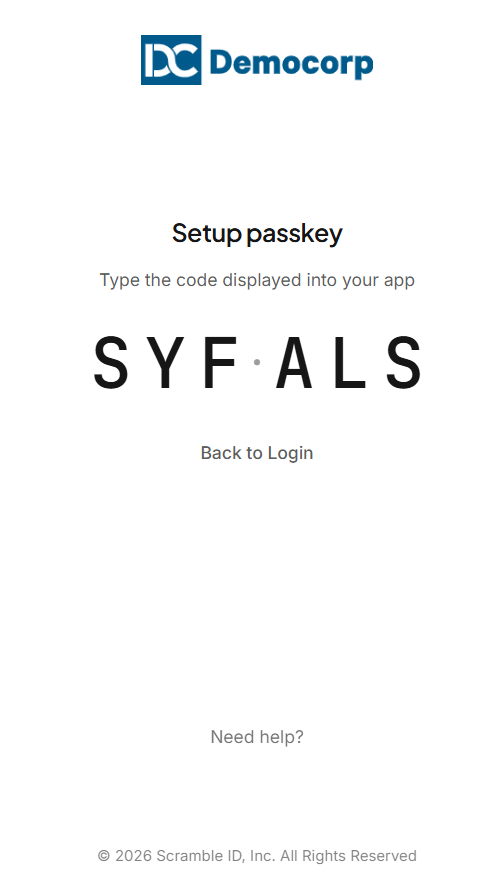
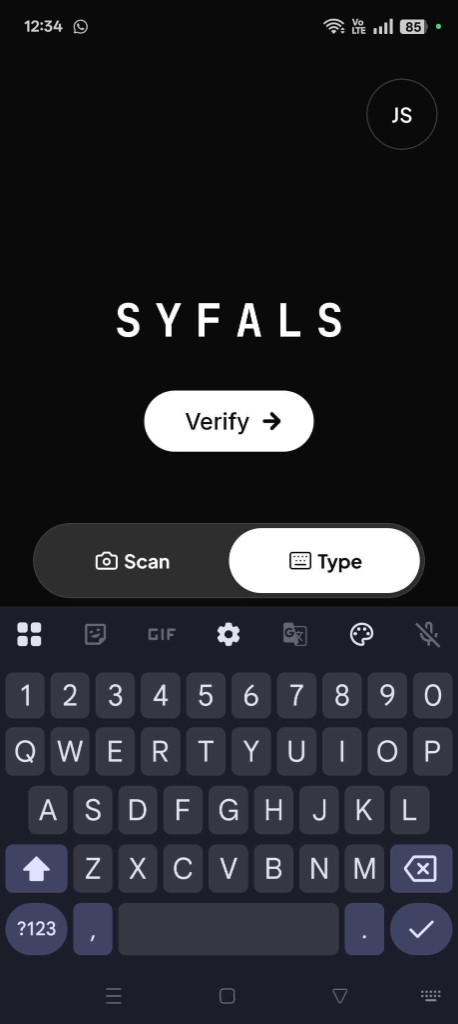
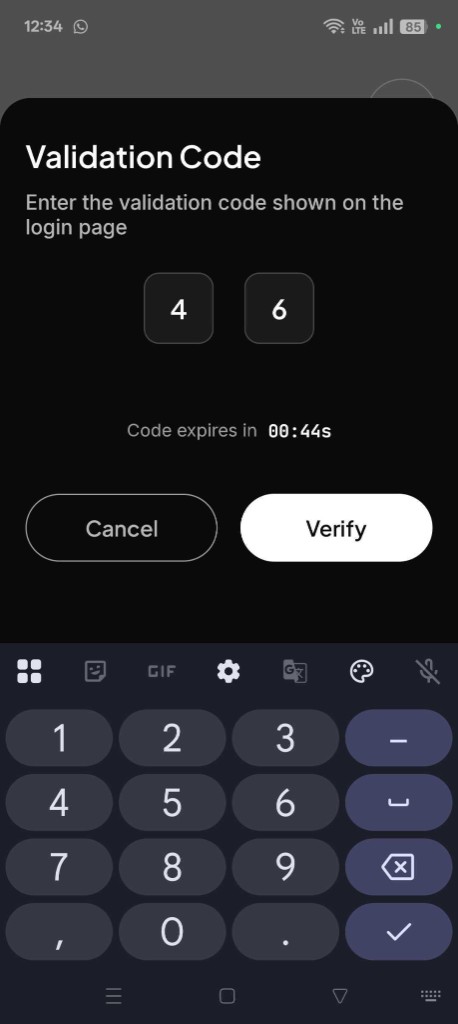
Type the code displayed on the portal into your ScrambleID mobile app.
| Login Page | Mobile App |
|---|---|
 |  |
Enter the additional two-digit code into the mobile app, then click Verify.
| Login Page | Mobile App |
|---|---|
 |  |
To complete setting up passkey on Windows, follow the steps below. To set up passkey on Mac, skip to the Passkey on Mac OS section.
Passkey on Windows
Set the Passkey to complete the setup.
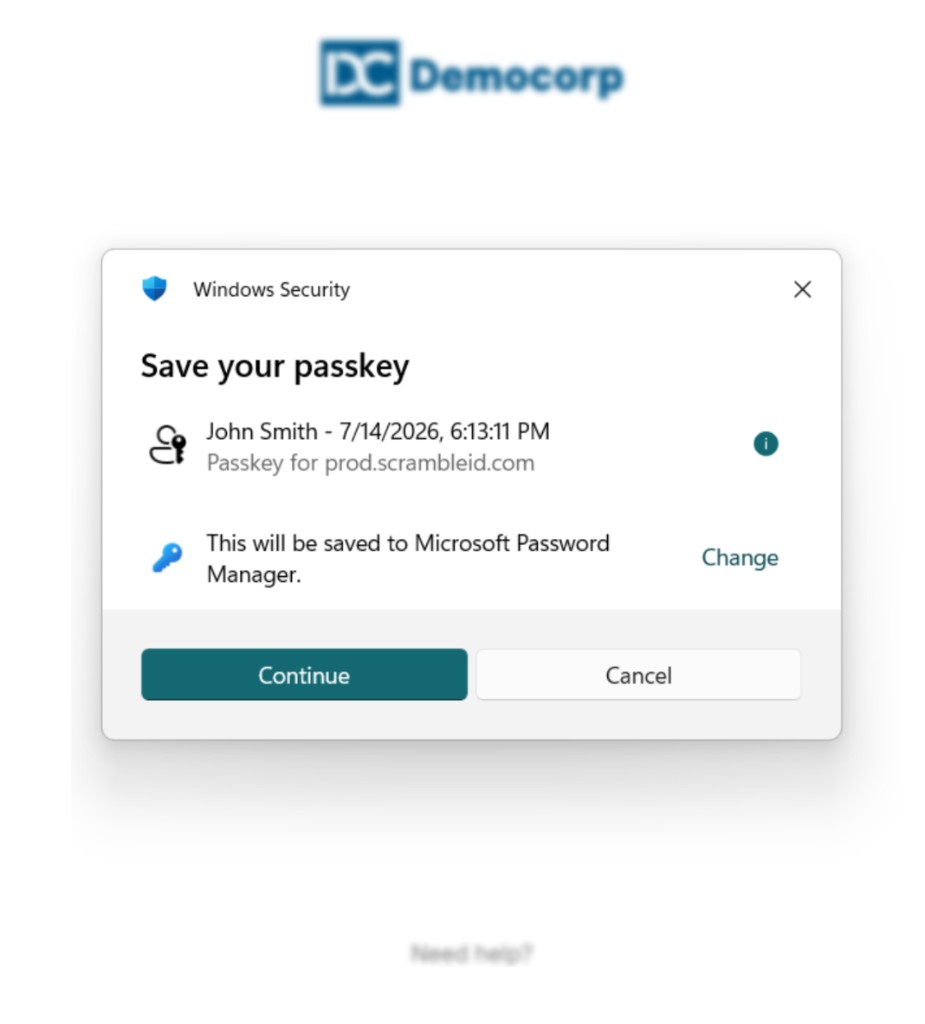
Tap Continue
Note: There are options on the system to set up a passkey of your choice for example your fingerprint, facial recognition, or PIN.
Setting up your Passkey using the fingerprint option:
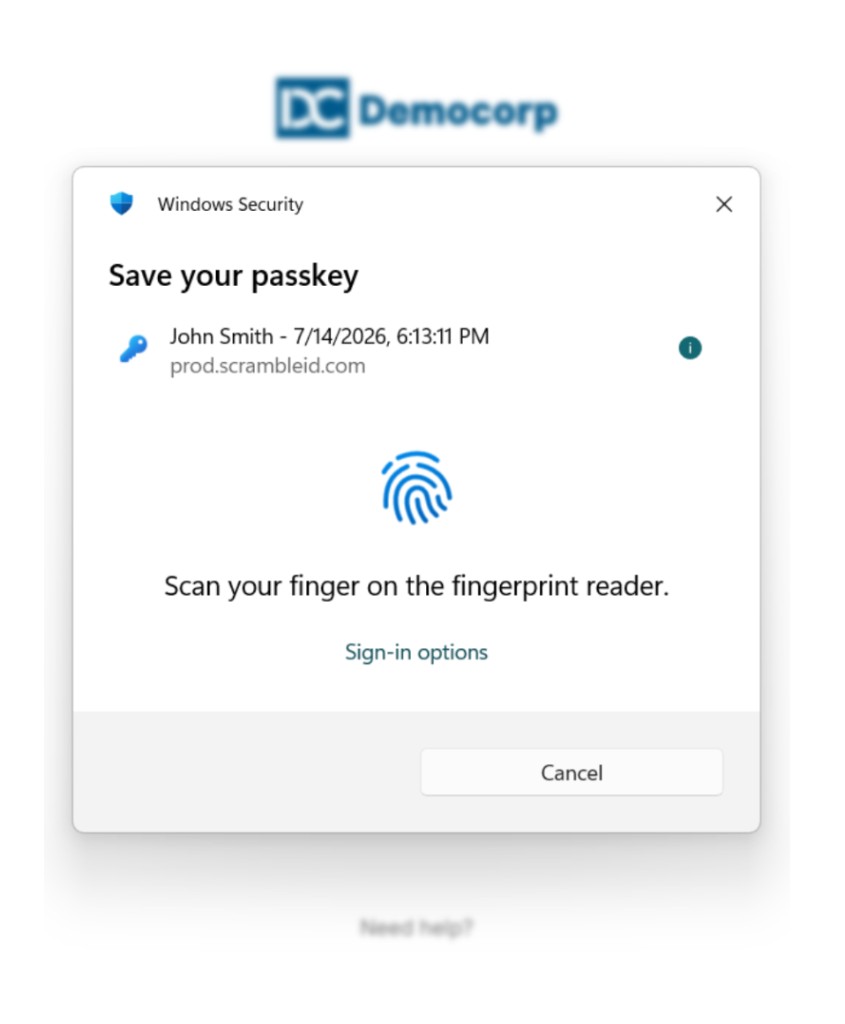
The Passkey will now be saved on your Windows device.
Passkey on Mac OS
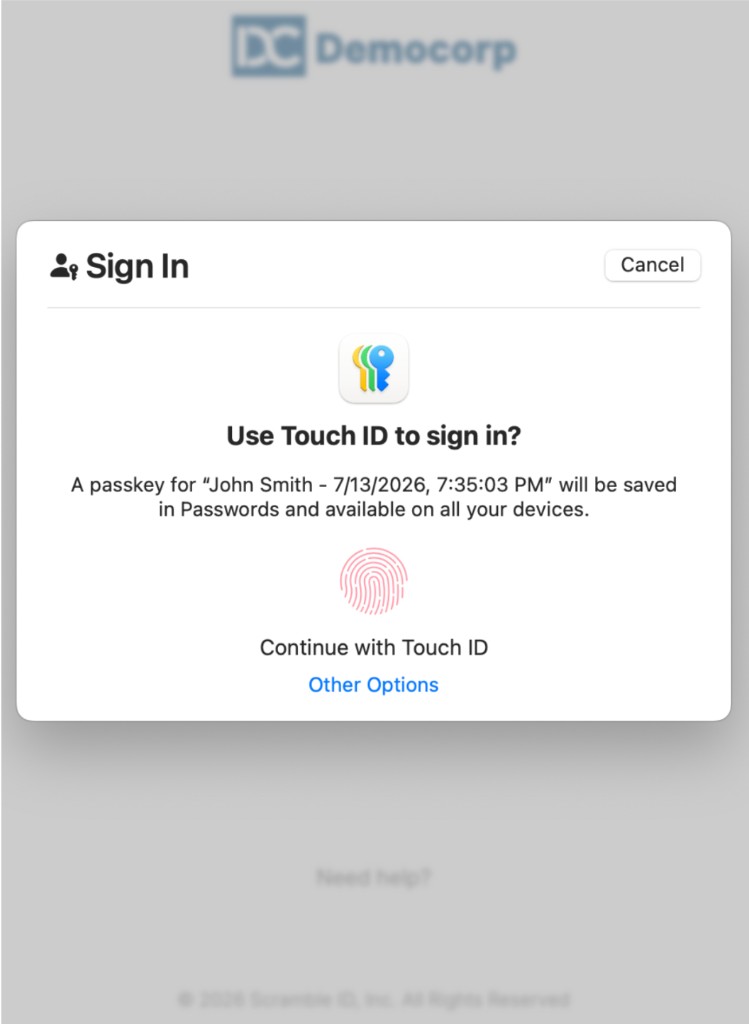
If you are using a Mac OS, you will be prompted to use Touch ID. Scan your fingerprint to Continue with Touch ID.
Whether you are using a Windows or Mac, you will receive a confirmation on the portal screen that the setup is complete.
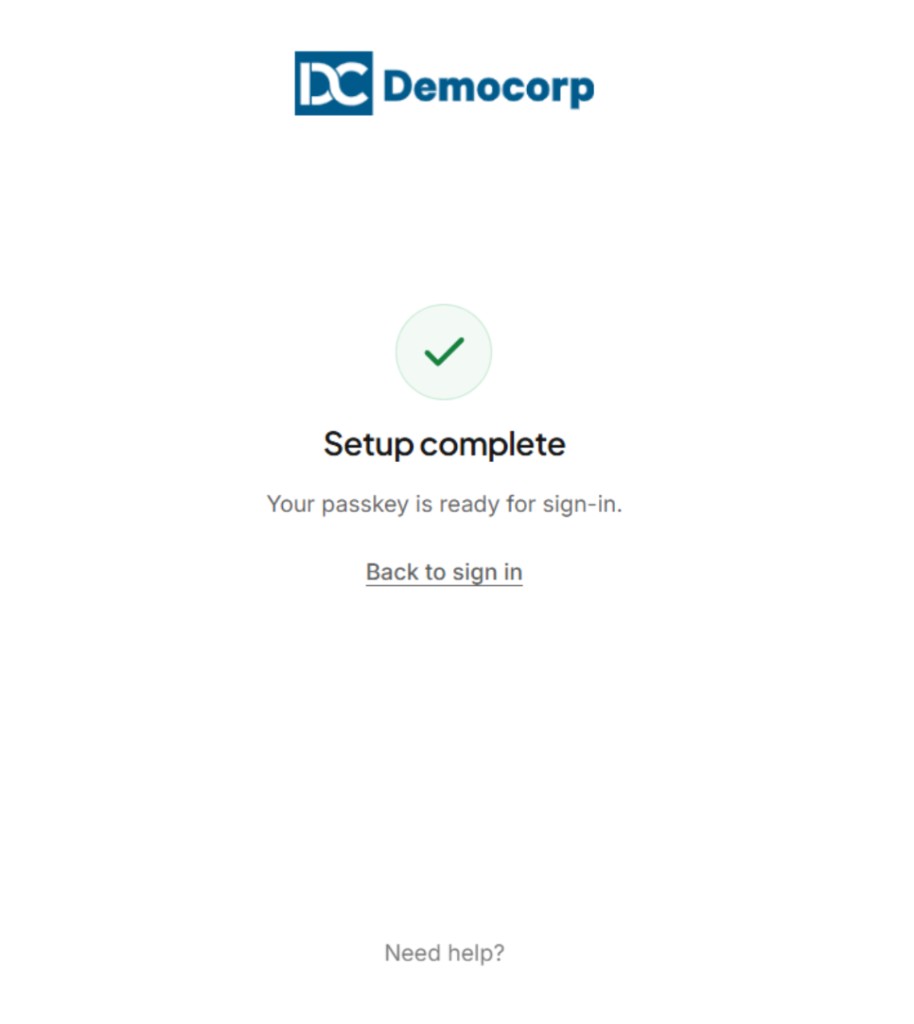
On clicking Back to sign in, you will now be able to login using the Passkey set up on your laptop or computer.
You will now be able to log in using the saved passkey i.e. your fingerprint.
Profile
Tap the user icon in the top-right corner to access your Profile.
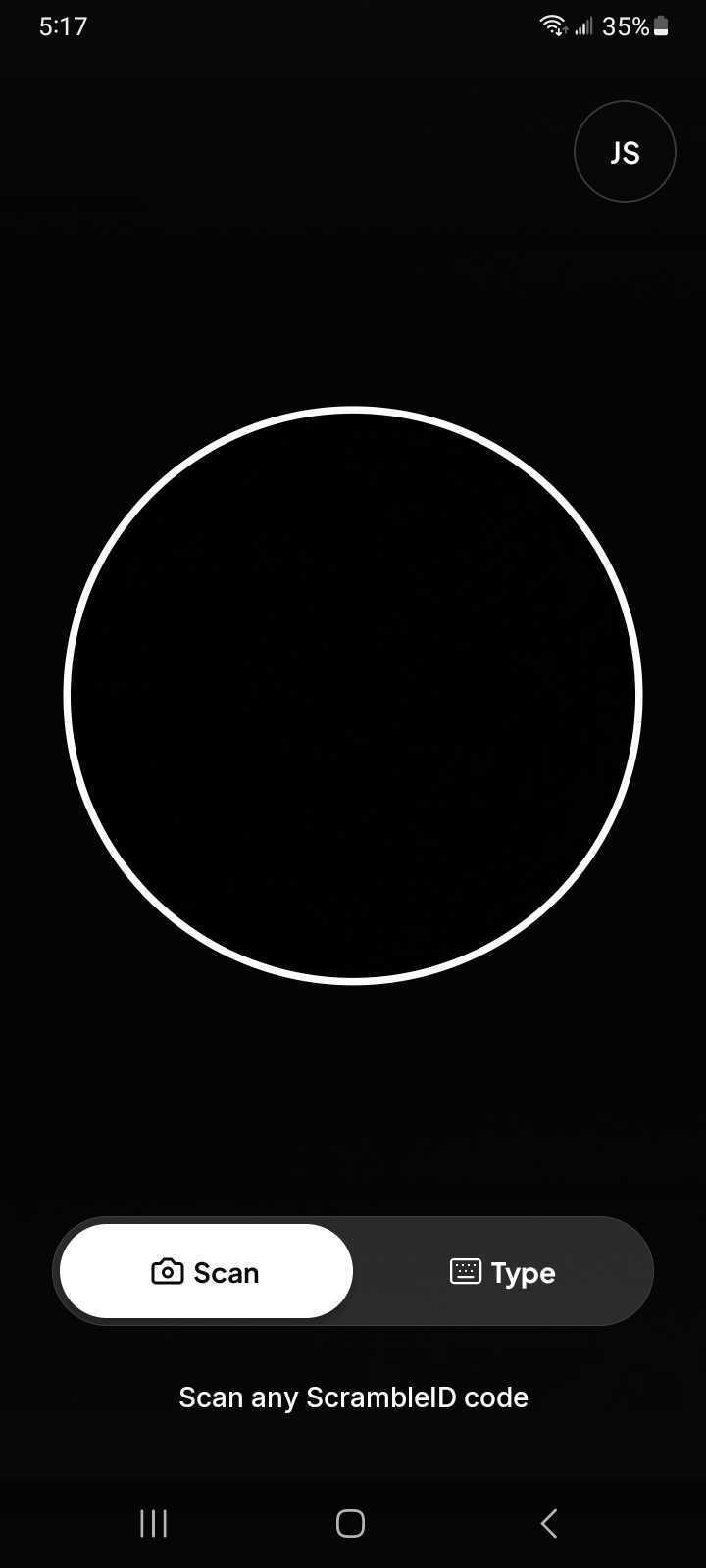
From the Profile menu, you can manage your account details and security configurations.
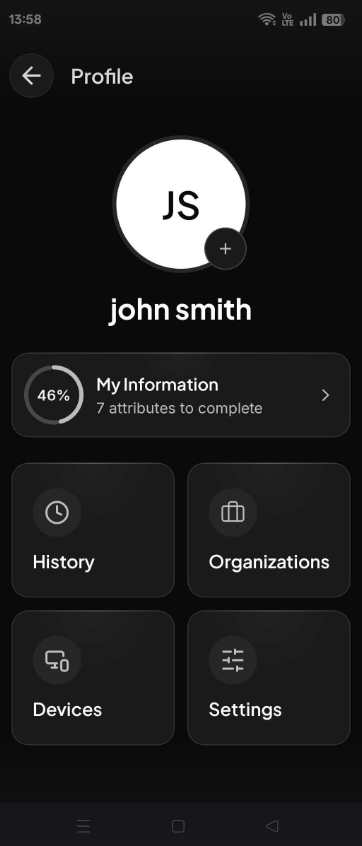
My Information: View your personal identity details.
History: Review your past account access logs.
Organizations: View existing organization details and link additional corporate enterprise profiles.
Devices: View the list of connected devices and connect new additional hardware.
Settings: Adjust your security and application preferences.
Profile
Add Profile Picture
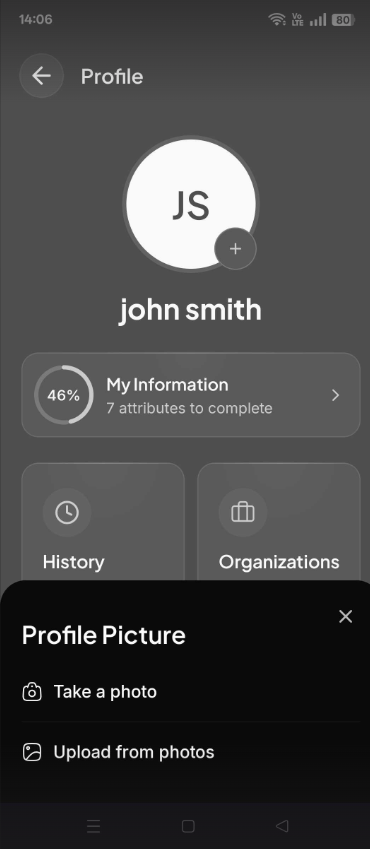
Click the + (plus) icon to add a profile picture. You can choose to either
- Take a photo or
- Upload from photos.
Profile > My Information
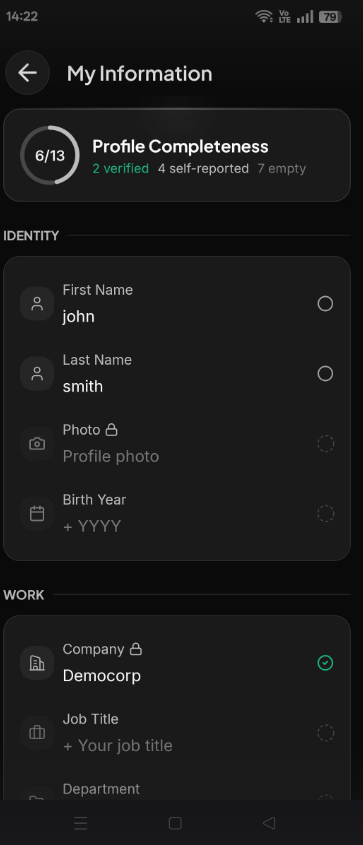
This page provides detailed information about your profile, housing your core identity metrics and professional data.
The profile page includes the following sections:
Identity: View your core identity details.
Work: View your professional work details.
Contact: Access your linked contact information.
Social: View your social media profiles, such as LinkedIn.
Location: Check the location attached to your account.
Trust Levels: Review your verification statuses, categorized as Org-verified, ID-proofed, or Self-reported.
Use the sections below to explore options under Profile such as History, Organizations, Devices, and Settings, or jump directly to a common task:
- Add another device
- Add an organization
- Delete your account
- Delete an organization
- Report a suspicious login
Profile > History > Web
On the Profile menu, tap History. The Web tab is displayed by default, allowing you to view all time-stamped login events associated with each of your devices.
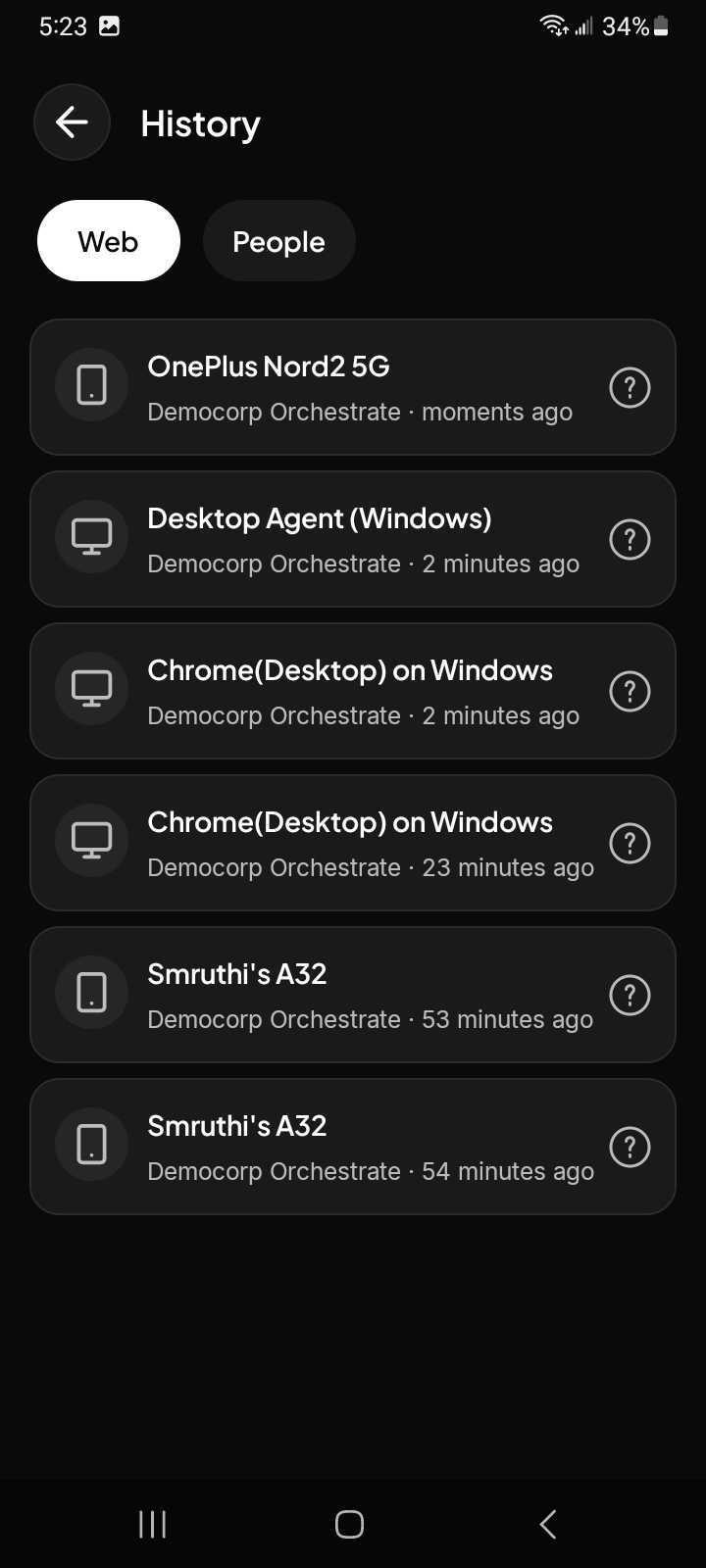
For each entry in the list, the device name, date, and time of day are displayed.
Note: The People tab displays the authentication history of peer-to-peer (P2P) identity verifications completed via the mobile application, independent of any shared organization.
Reporting a device
If you see an entry you don’t recognize you can report it for further review by tapping the question mark icon.

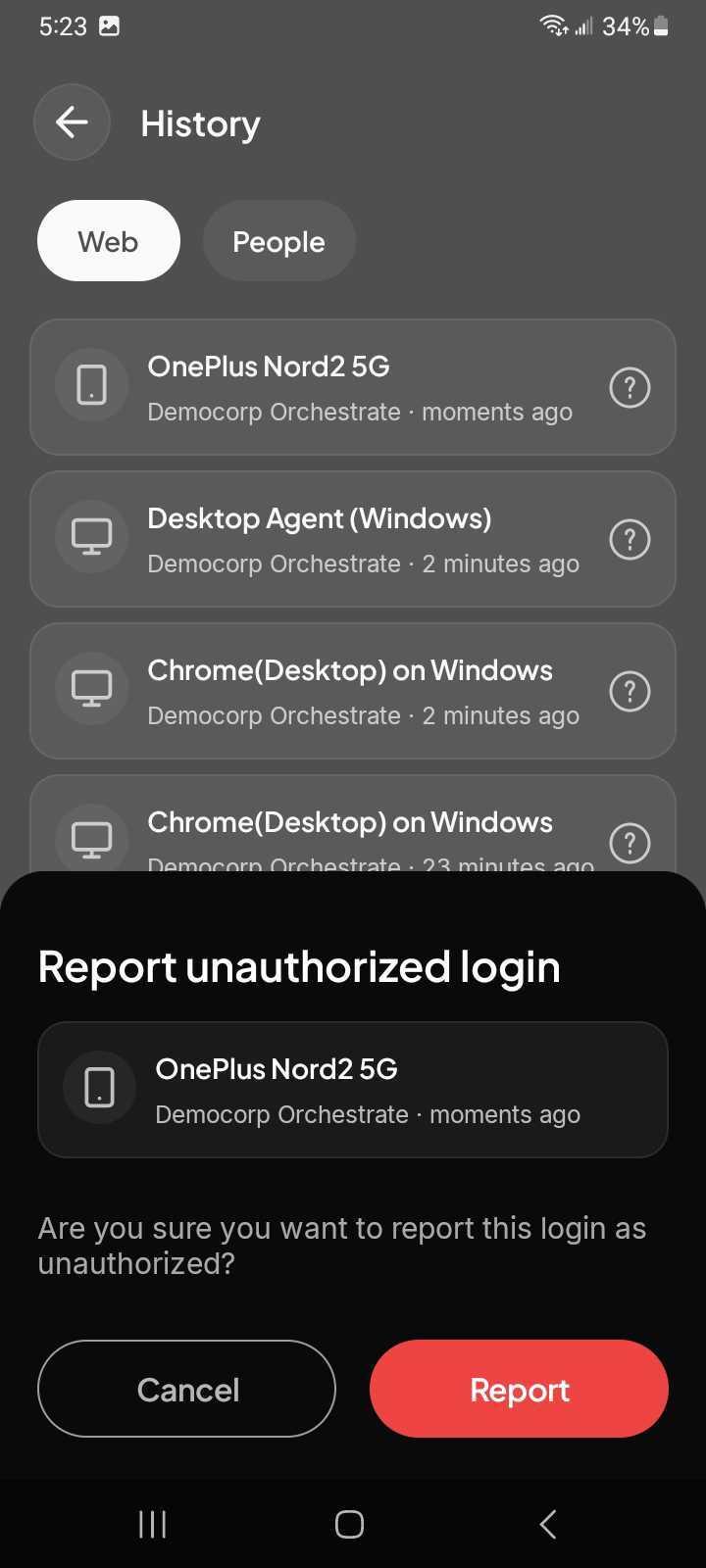
Tap Report to report a suspicious login.
Tap Cancel to return to the previous screen without reporting.
Profile > Organizations
To manage your organizations, tap Profile to access your Organizations.
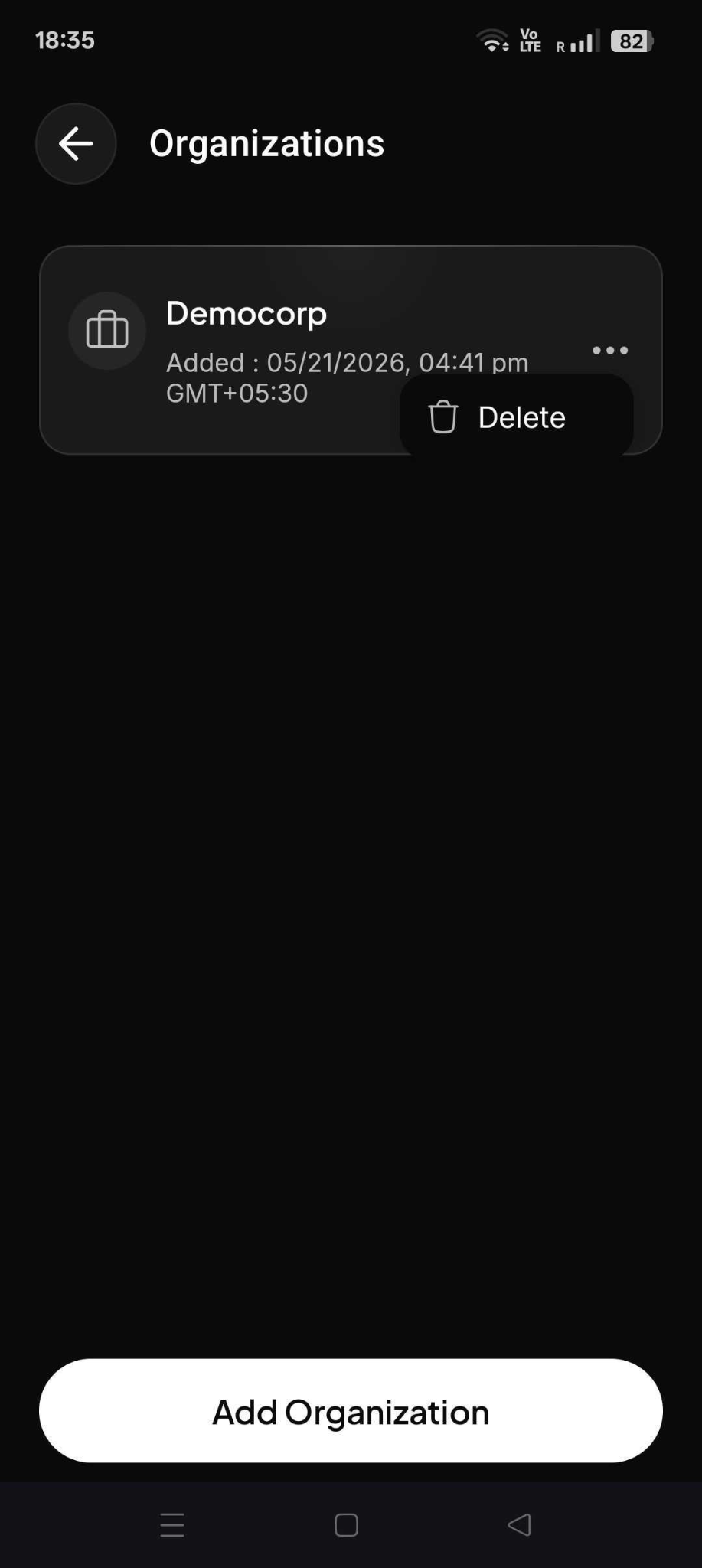
From here you can add a new organization or delete an existing one. Your account can be associated with one or more organizations.
Note: The ScrambleID app is designed to let you manage devices separately from managing the organizations associated with your account.
Add an organization
To add a new organization, tap the Add Organization button at the bottom of the screen.
- To start activation enter your email address.
- Tap Next.
- Enter the six-digit authorization code provided by your organization.
- Tap Add Organization.
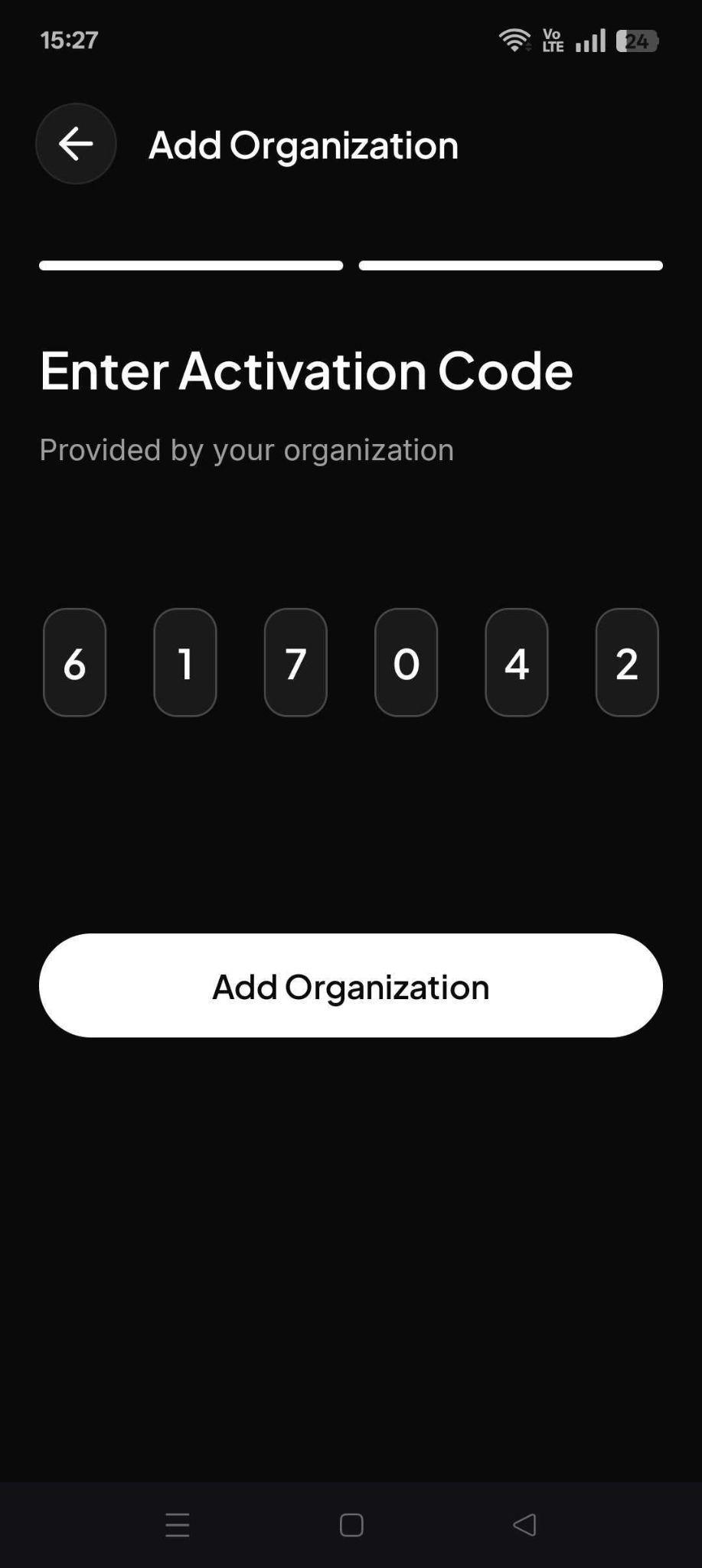
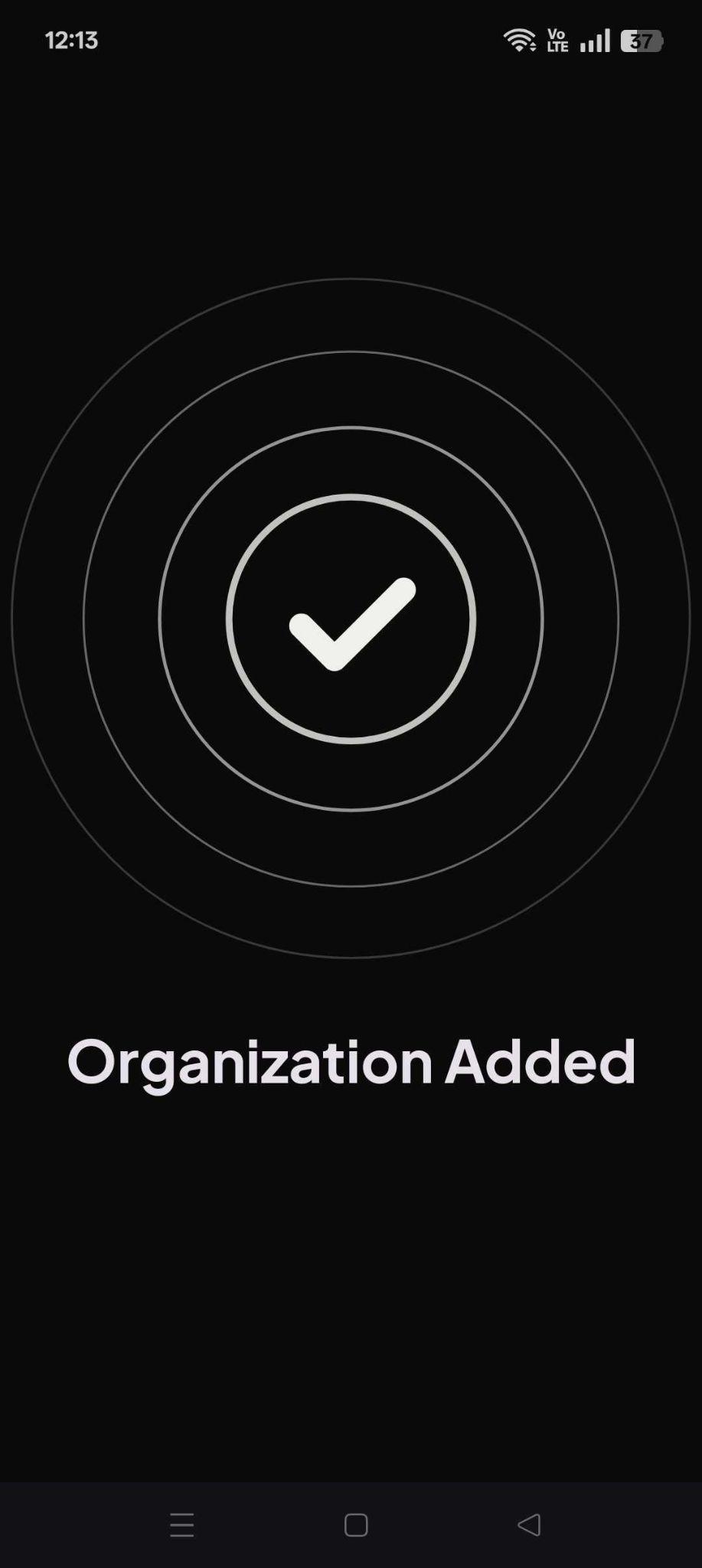
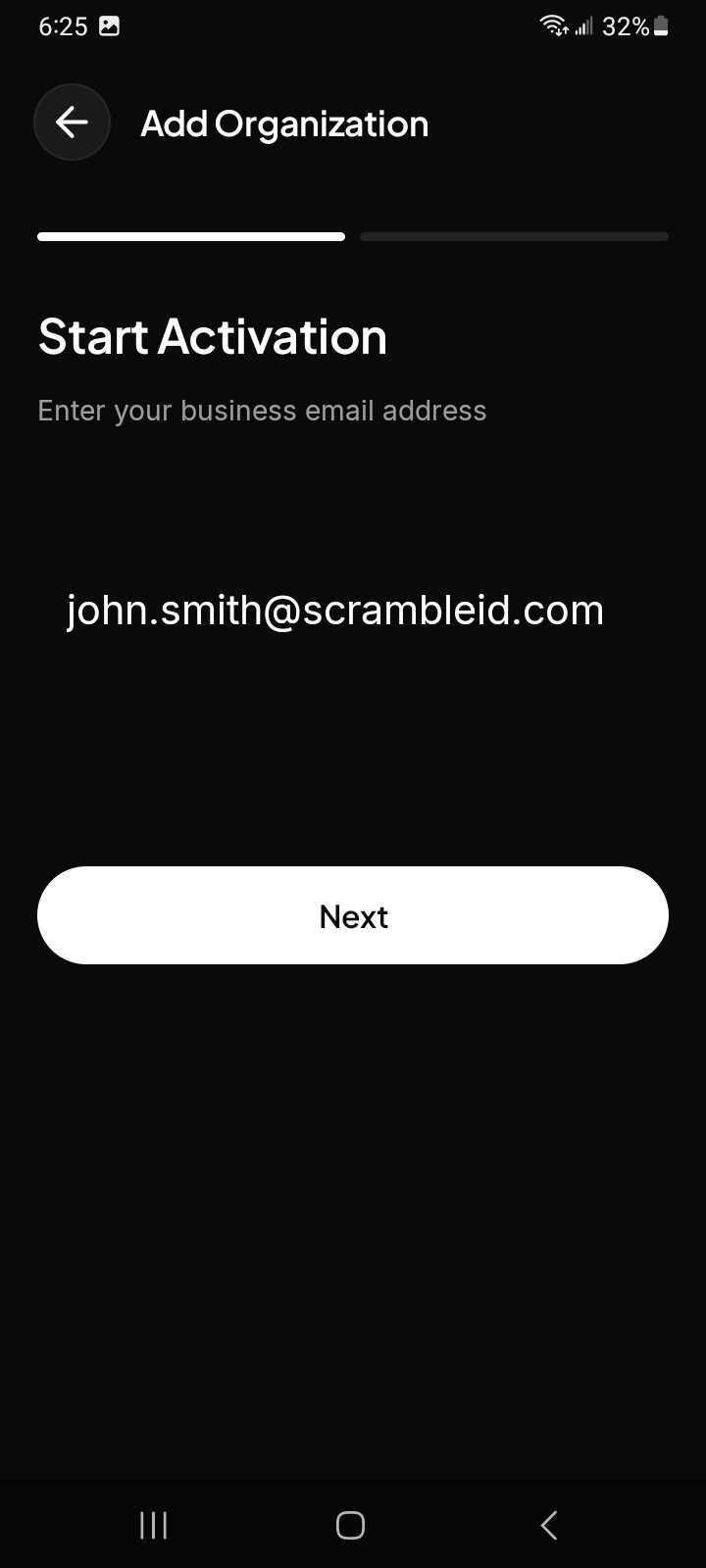


Delete an organization
To delete an organization, go to Profile > Organizations, tap the options icon next to the organization name, and tap Delete to remove the organization.

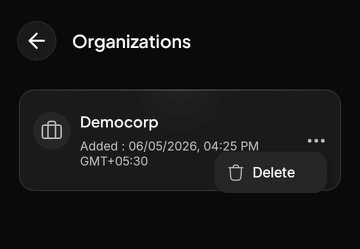
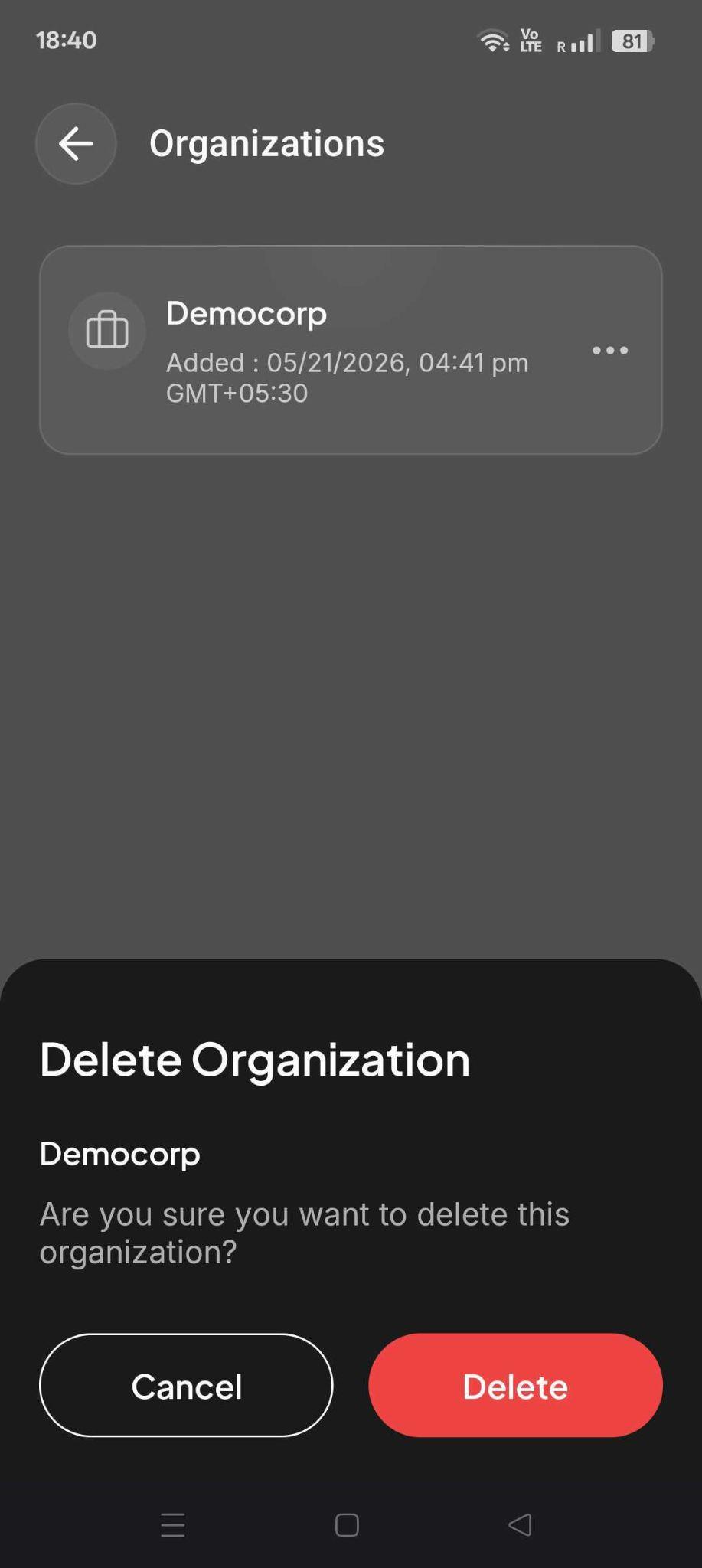
Tap Delete to confirm the selected organization.
Tap Cancel to return to the previous screen without deleting the organization.
Profile > Devices
The Devices screen lists all of your currently active physical devices.
Note: A maximum of five devices can be associated with a single user account.
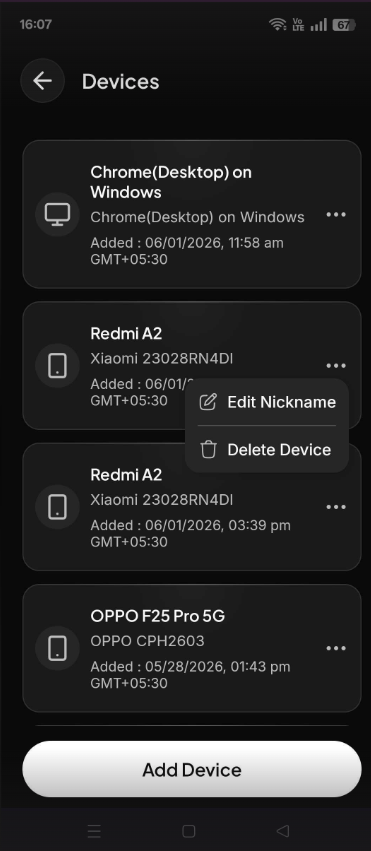
To manage the options for one of your devices,
tap the options

icon next to it.
You can perform the following actions:
- Add Nickname: Assign a custom name to desktop agents for easier identification.
- Edit Nickname: Change the current name of an existing device.
- Delete Device: Remove the device from your account permanently.
Add Nickname
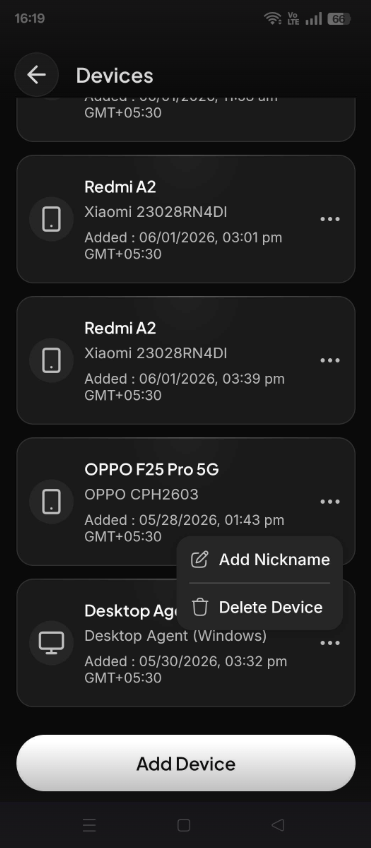
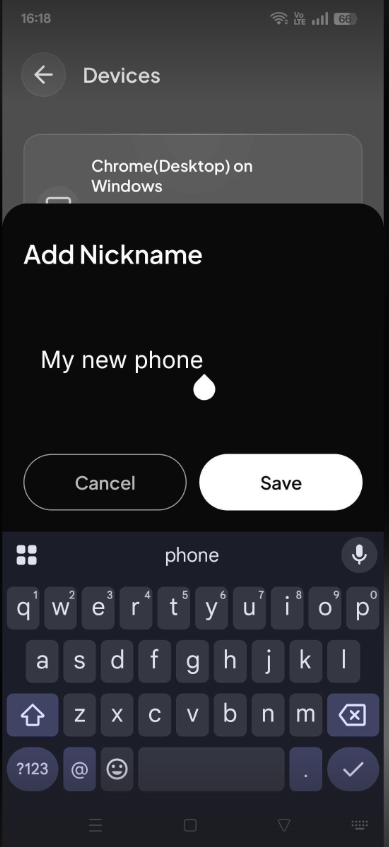
- Hit Add Nickname
- Enter the new name
- Hit Save.
Edit Nickname
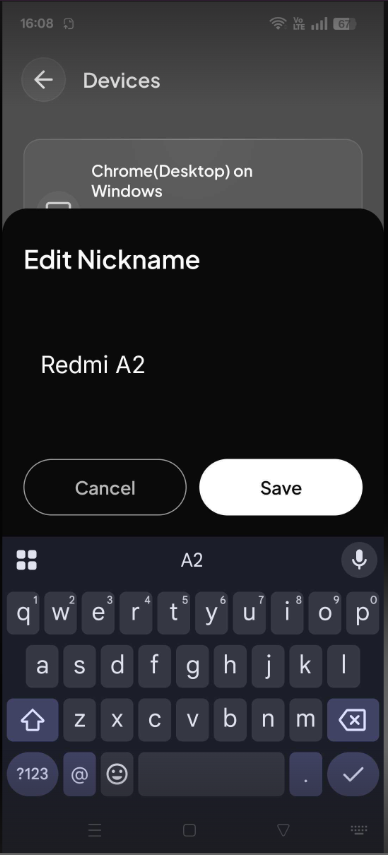
- Edit the Nickname
- Hit Save
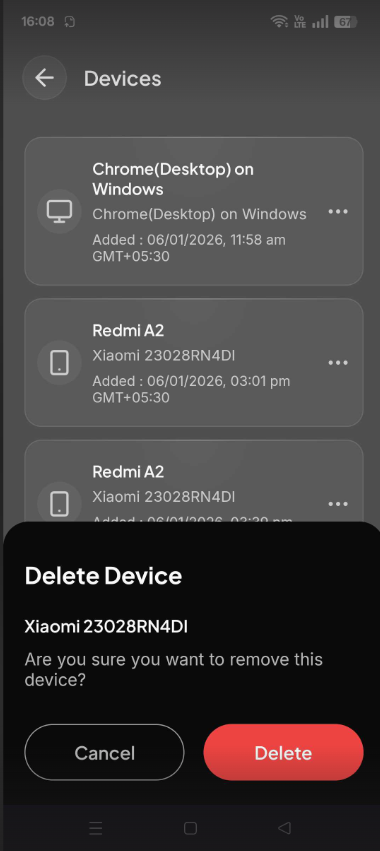
Delete Device
Hit Delete to remove the device from the list. You'll receive a pop up to confirm the deletion.
Adding a new device
You can use your existing device to provide authorization codes for adding a new device to your account. Have both your new and existing devices handy.
To add a new device:
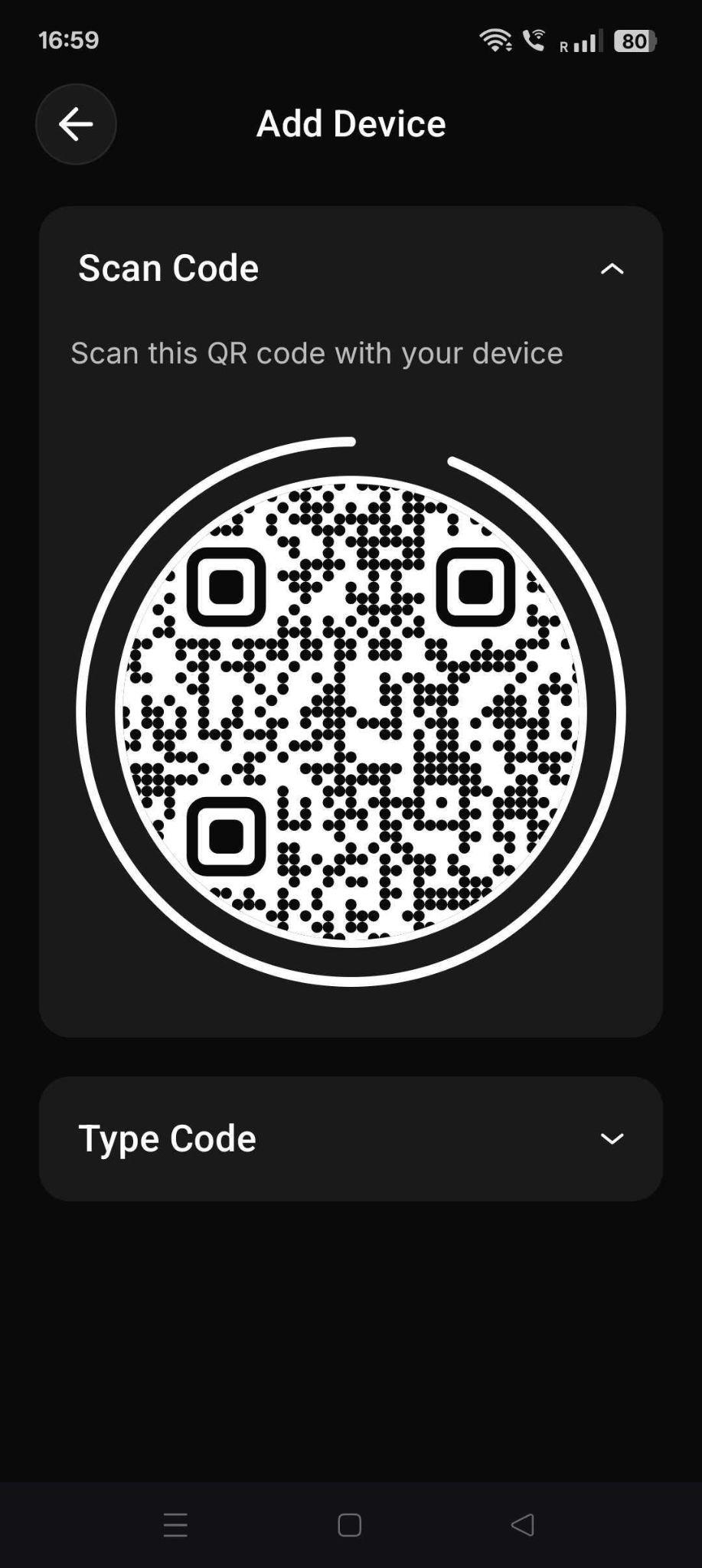
- Tap the Add Device button on the bottom of the Devices screen on your existing device.
- The Add Device screen opens with a QR code displayed.
- Tap Type Code to display the six-digit code instead.
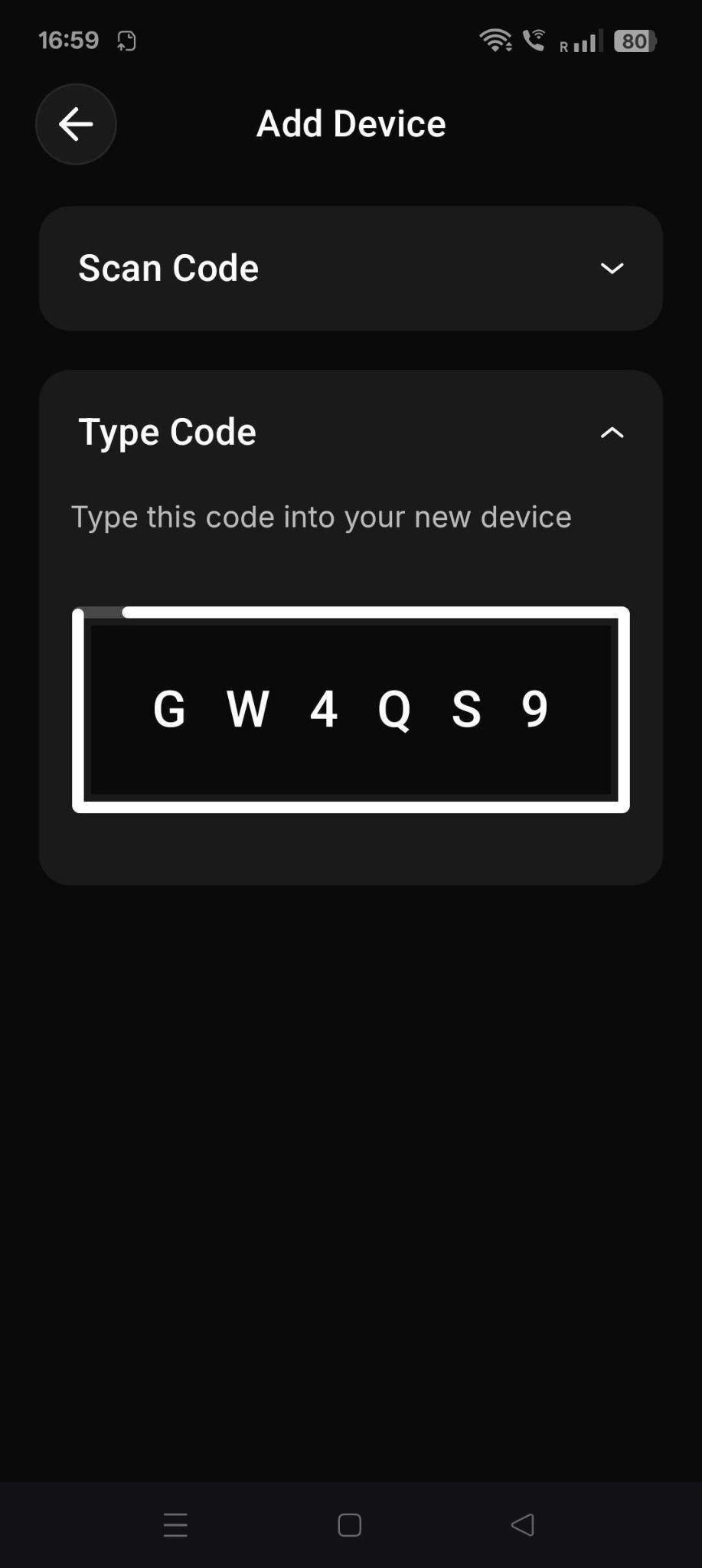
Now open the ScrambleID app on your new/unregistered device:
- Select I already have ScrambleID on the Welcome screen
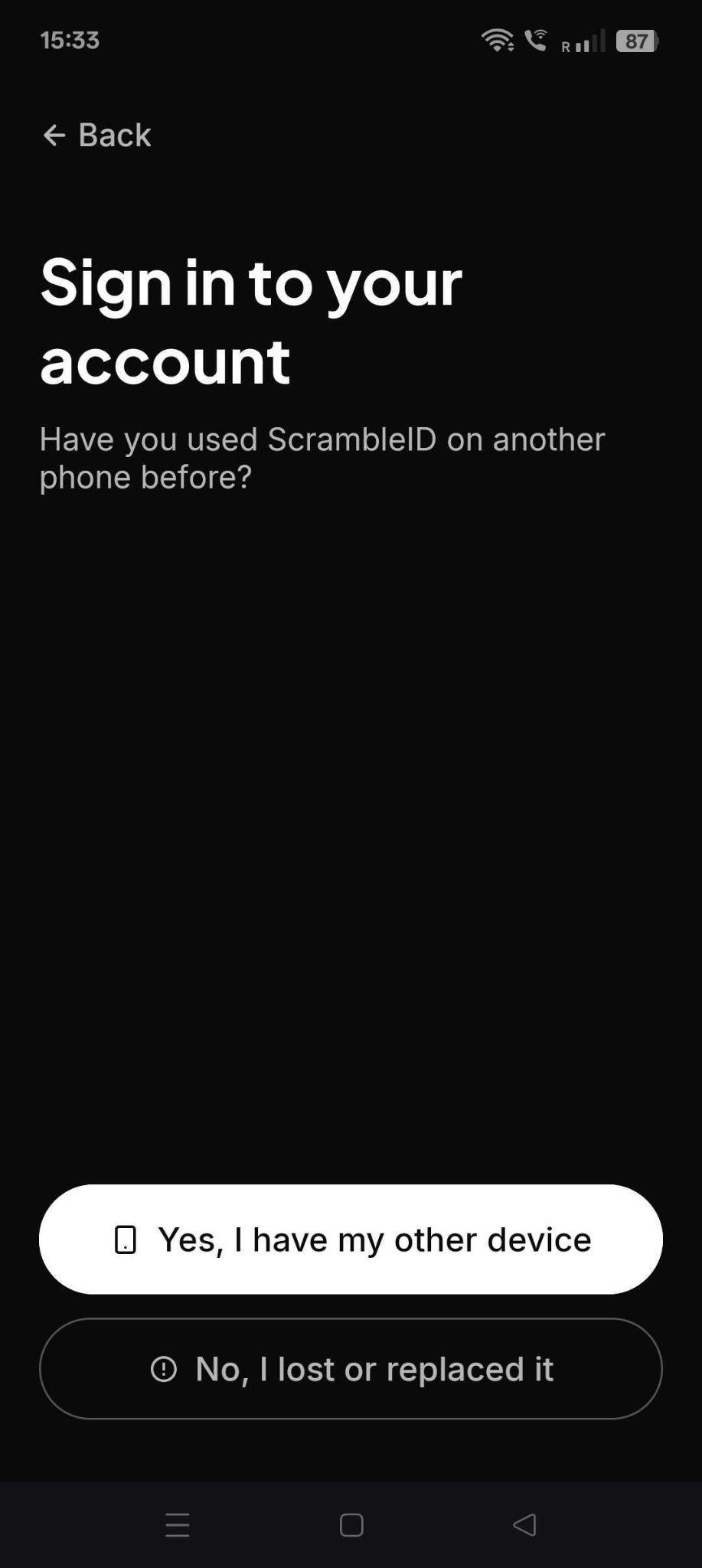
- The next screen opens
- When asked Have you used ScrambleID on another phone before*?,* tap Yes, I have my other device.
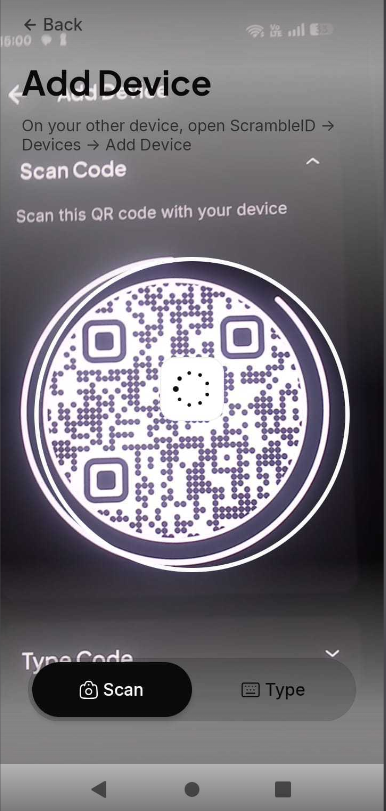
- The Add Device screen opens with QR scanning by default.
- From this screen, scan the QR code displayed on your existing device or enter your Activation Code.
- Your existing device asks you to confirm that you are trying to add a new device.
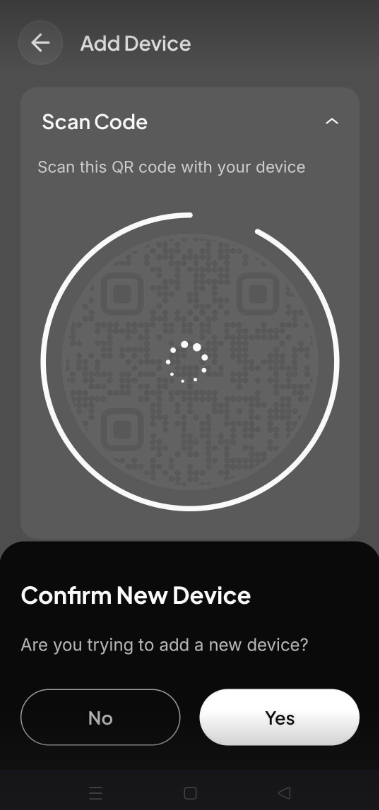
- Tap Yes to confirm, and the Device Activated Successfully message appears
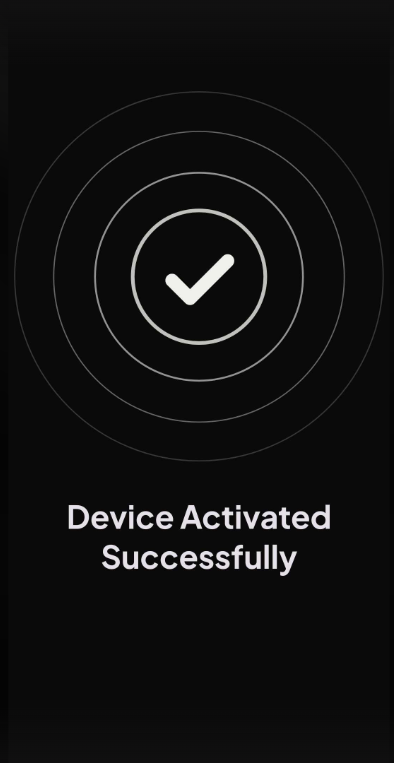
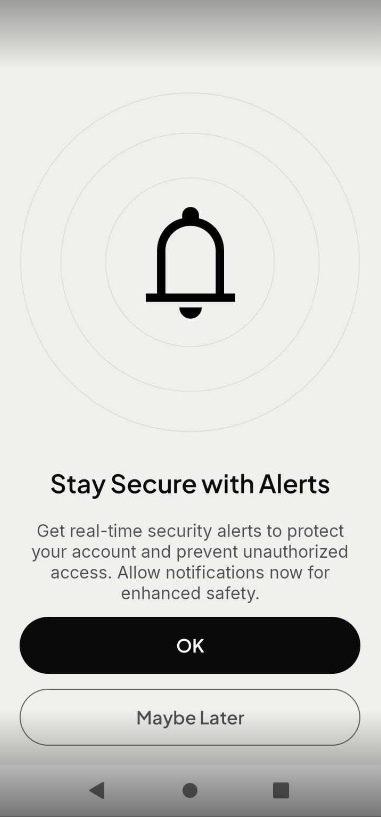
Your new device is now authorized and can be used interchangeably with your existing devices!
Select OK to get real time security alerts on your device.
Select Maybe Later option, If you do not wish to receive notifications at this point.
Adding a new device using the self-service portal
You can add a new device to your ScrambleID account using your organization’s self-service portal.
Log in to the ScrambleID self-service portal provided by your organization.
- From the Dashboard, select Add Device in the top-right corner.
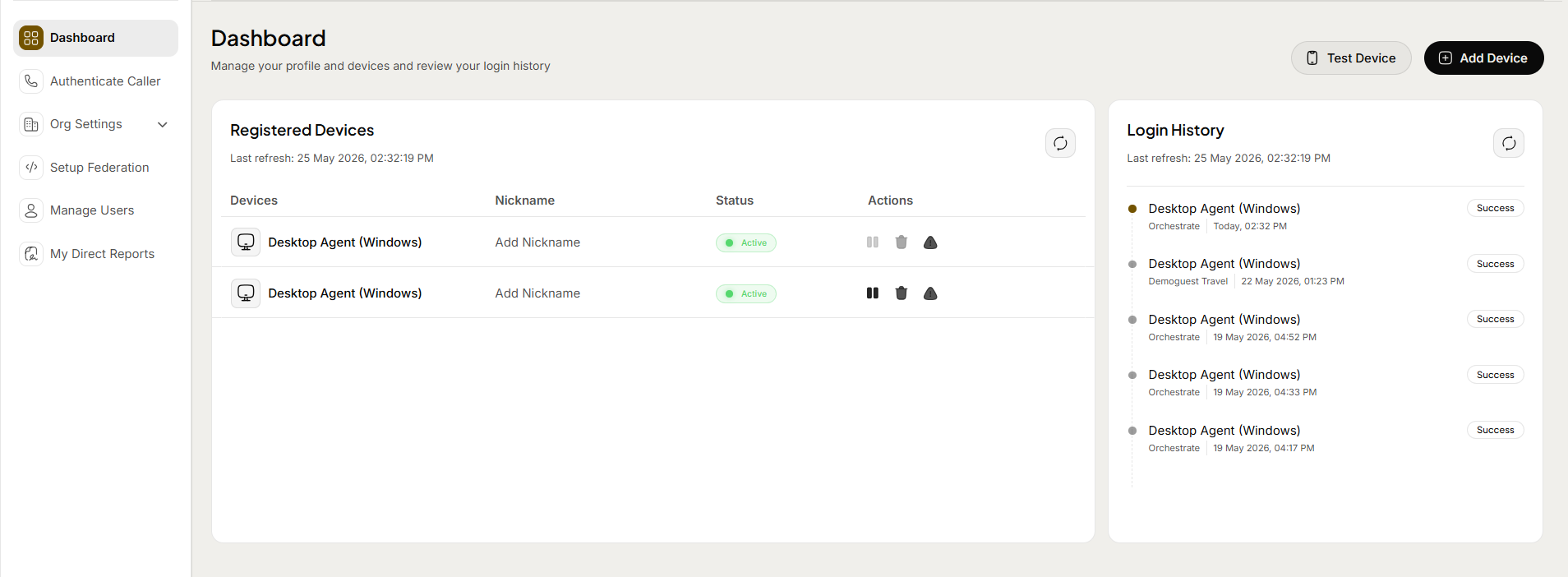
- The Add Device window opens and prompts you to choose a device type
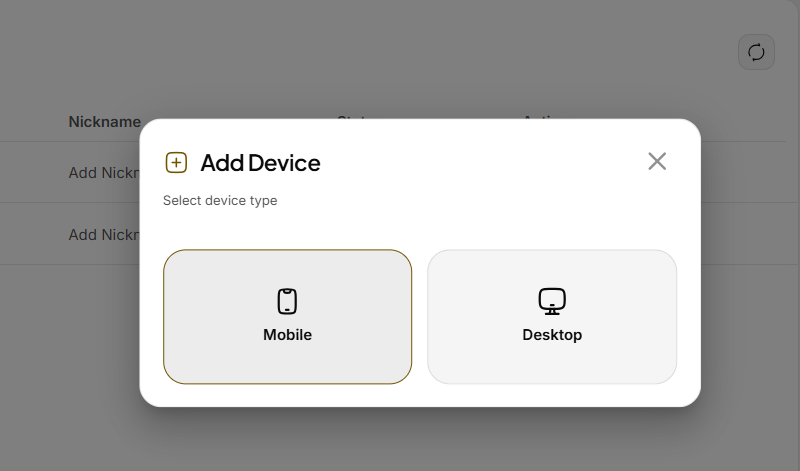
- Click on Mobile and a QR code is displayed.
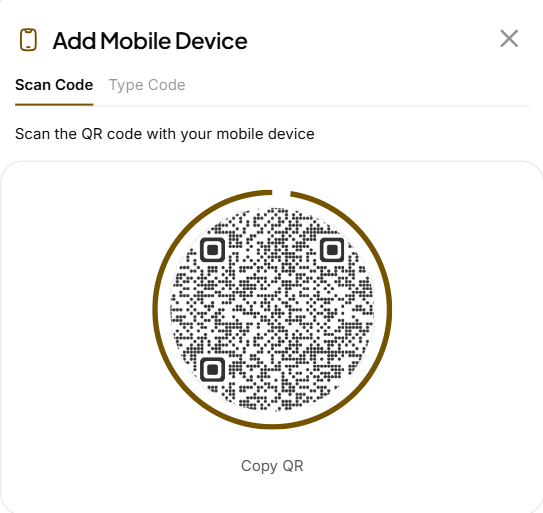
- Alternatively, select Type Code to display a six-digit code instead.
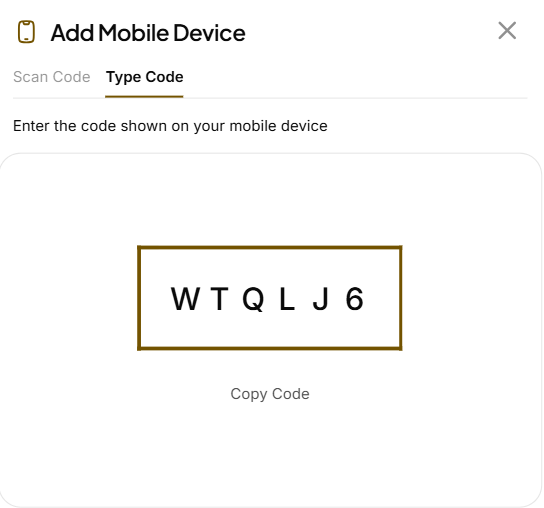
On your new or unregistered device, open the ScrambleID mobile app and follow these steps:
- On the Welcome screen, select I already have ScrambleID .
- When asked Have you used ScrambleID on another phone before?
- Select Yes, I have my other device
- The Add Device screen opens with QR scanning enabled by default.
- Scan the QR code displayed in the self-service portal, or enter the six-digit activation code.
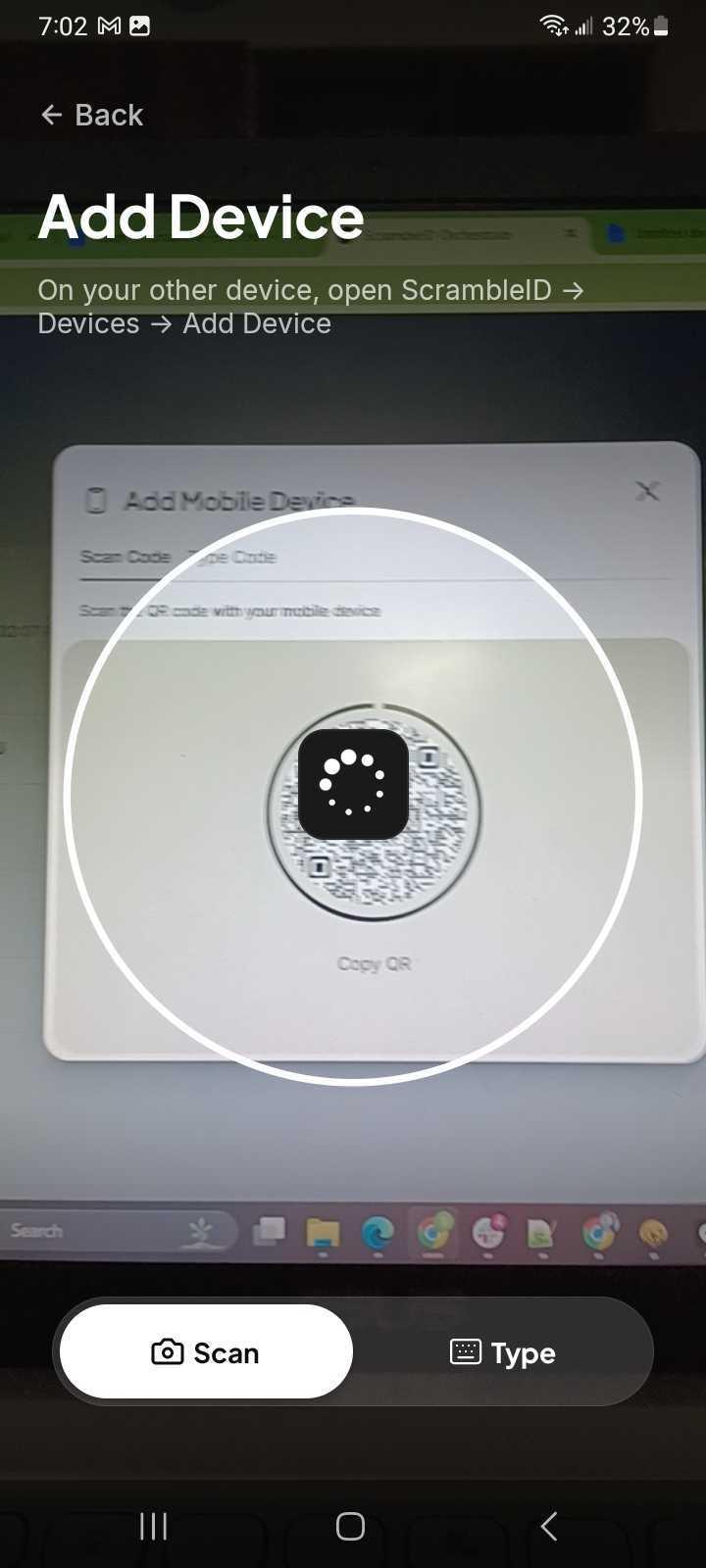
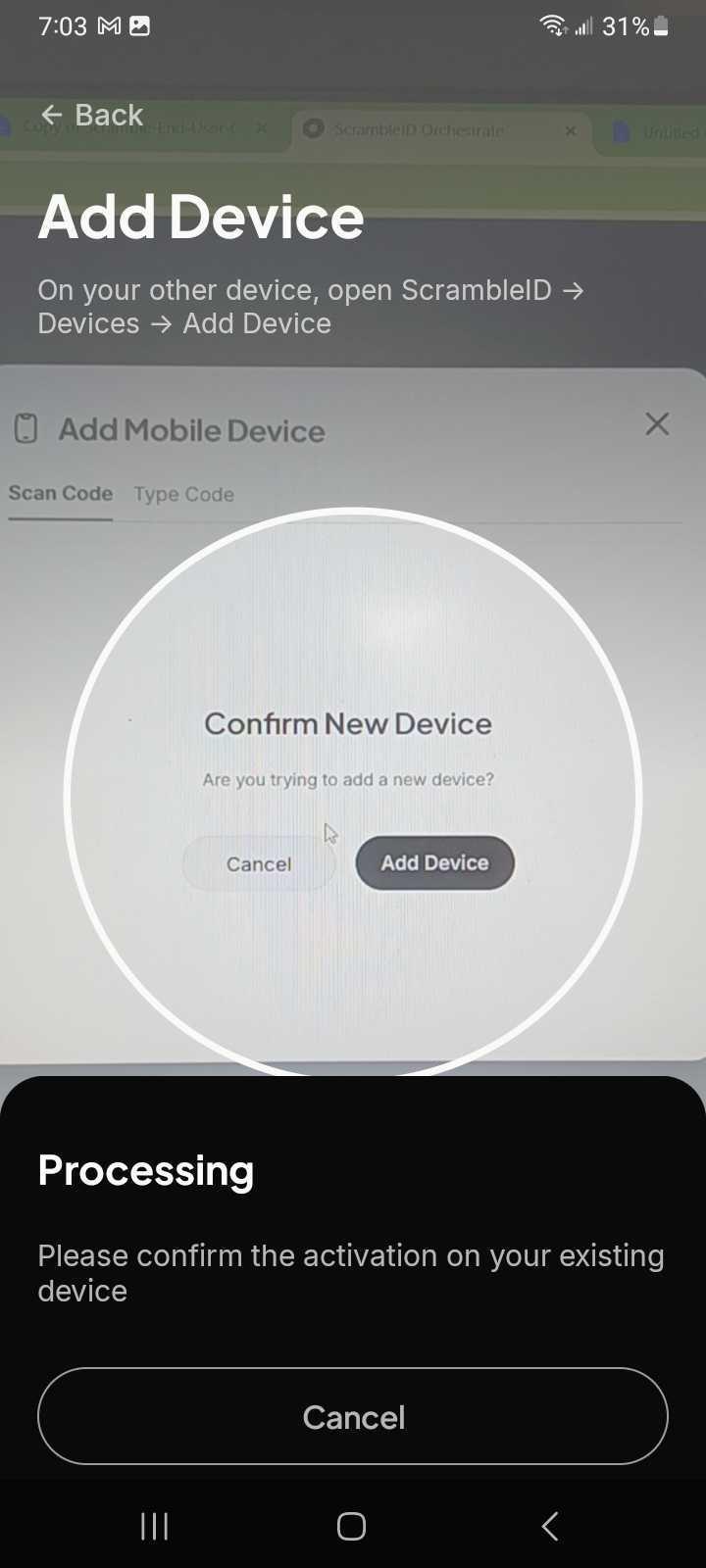
- The self-service portal will prompt you to confirm that you are adding a new device.
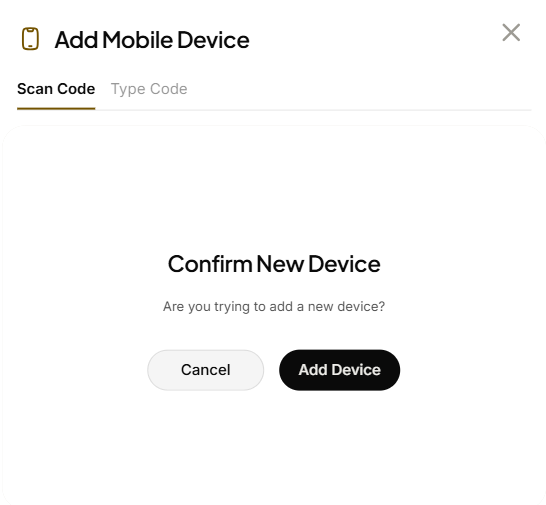
- Tap Add Device to proceed. A Device Added Successfully confirmation message appears.
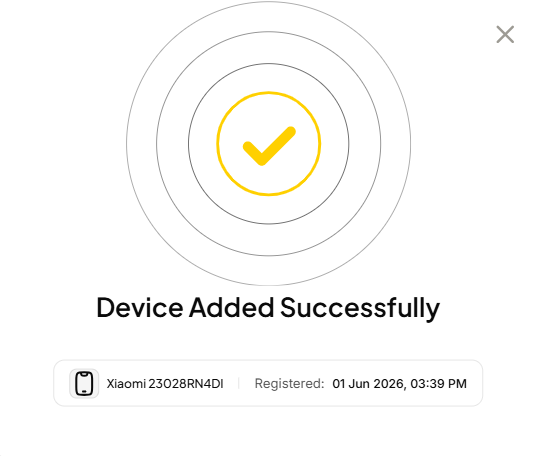
Your new device is now authorized and can be used interchangeably with your existing ScrambleID devices.
In the same manner, you can add new mobile devices by selecting the Type Code option.
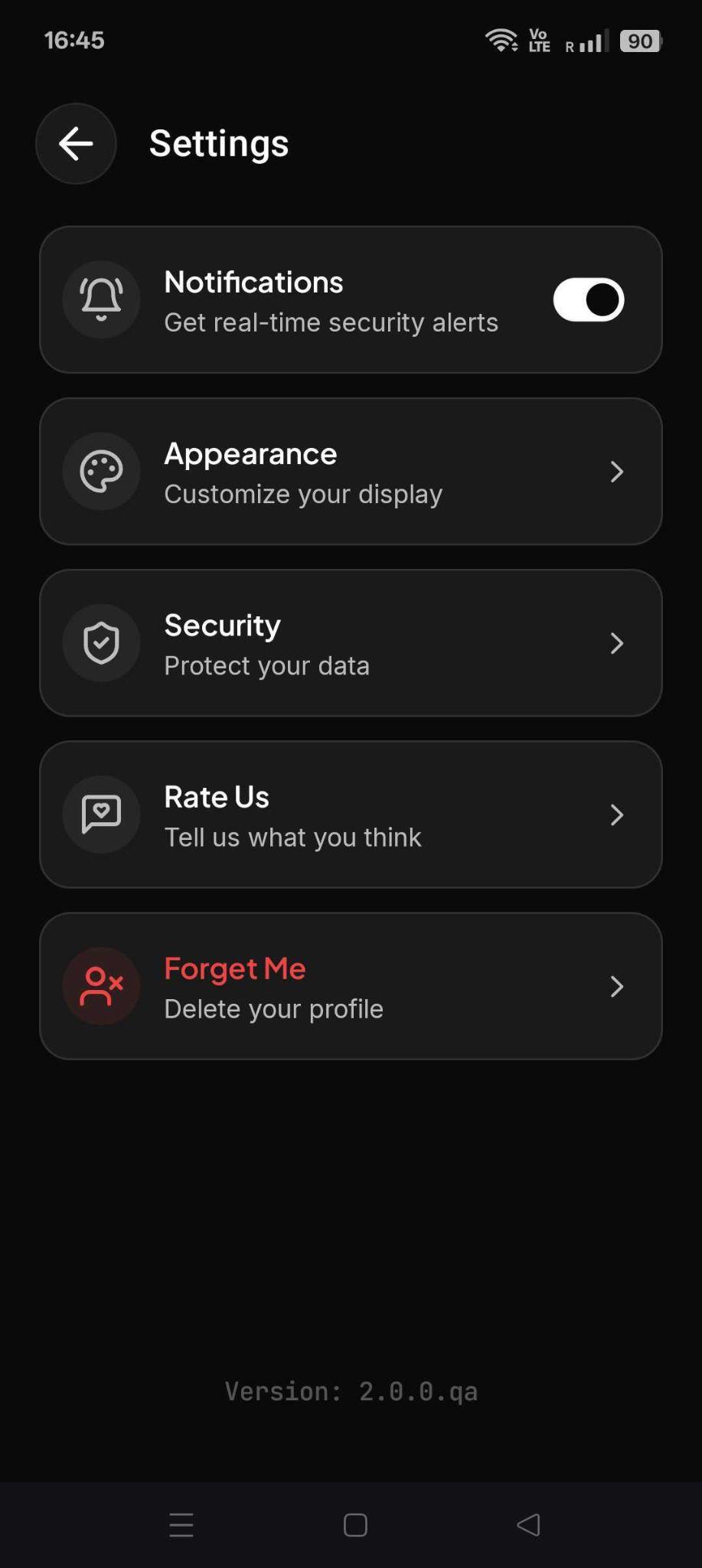
Profile > Settings > Notifications
On the Settings menu, enable the Notifications toggle to allow real time security alerts.
Profile > Settings > Appearance
On the Settings menu, go to Appearance to customize your display. .
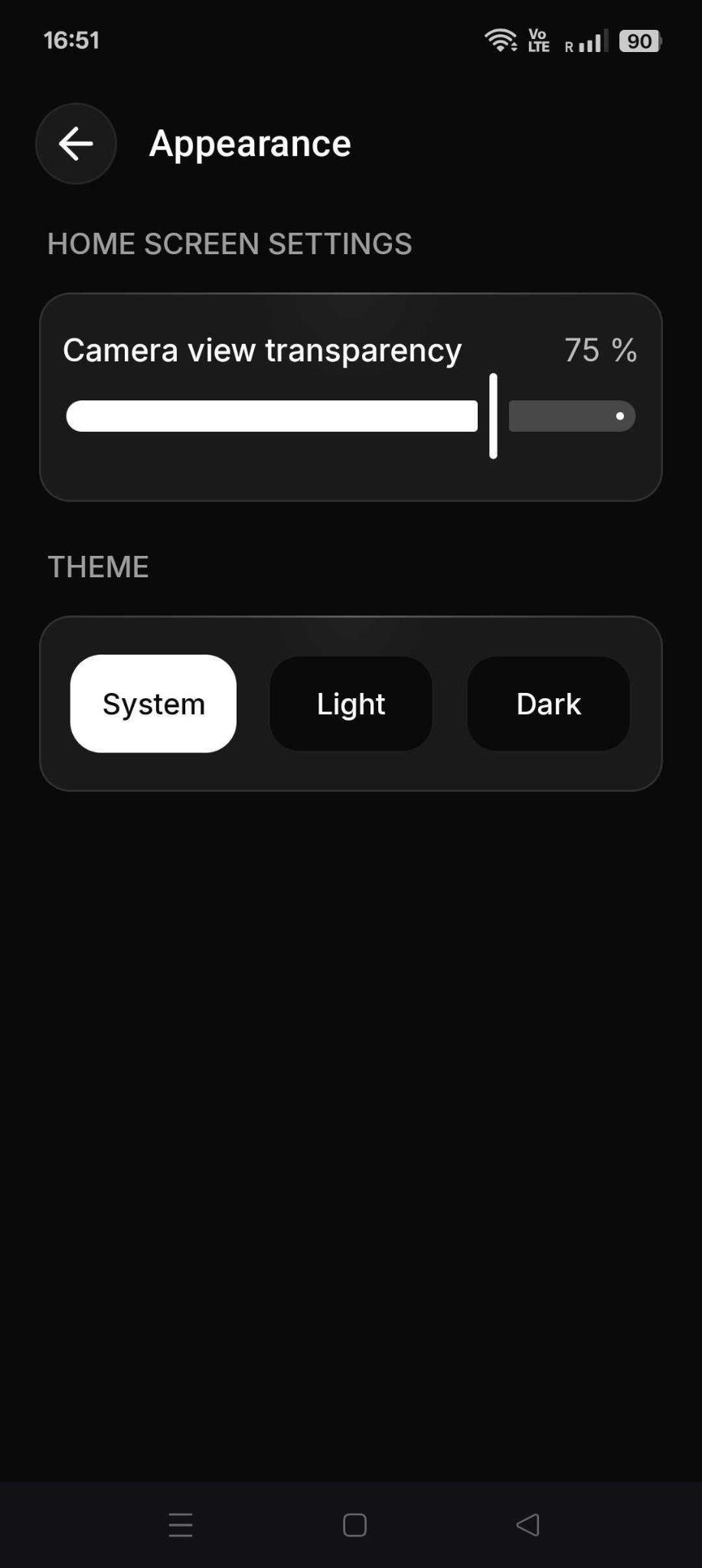
In the Home Screen Settings menu, drag the Camera View Transparency slider to adjust camera transparency on the QR scan screen between 0 to 100%. The default value is 75%. Lower transparency improves QR visibility in bright environments.
Within Theme, choosing the System option allows the app to mirror your mobile device appearance. Toggle the Light button to activate Light Mode, or select Dark to switch your interface to Dark Mode.
Profile > Settings > Security
Tap Security on the Settings menu to open the Security options page. It provides App security and Auth Security options.
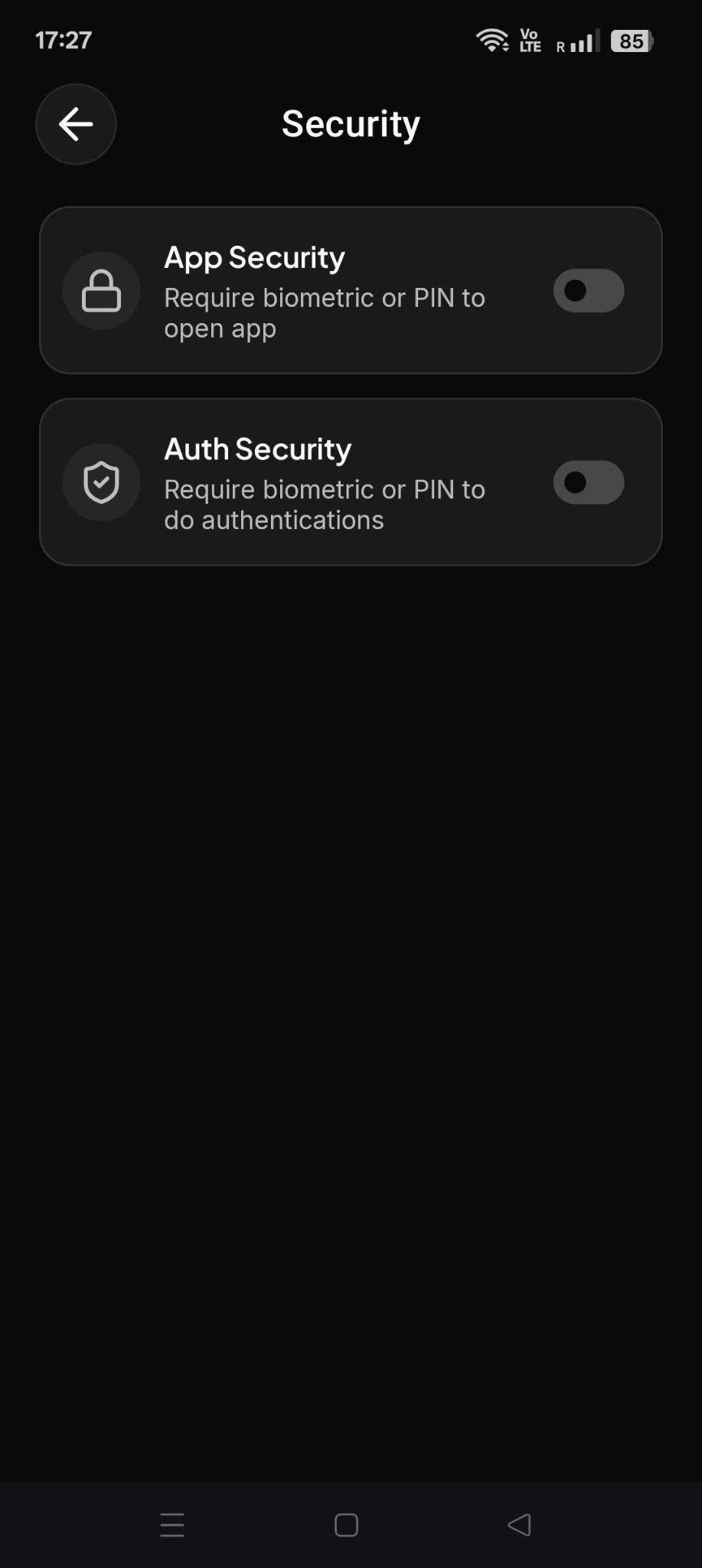
Tap App Security on the Settings menu to toggle screen unlock on app launch.
Tap Auth Security on the Settings menu to toggle screen unlock on login.
Profile > Settings > Forget me
Tap Forget Me from the Settings menu to delete both your profile and device data.
| WARNING! Forget Me deletes all devices, organizations, and historical data associated with your account. |
|---|
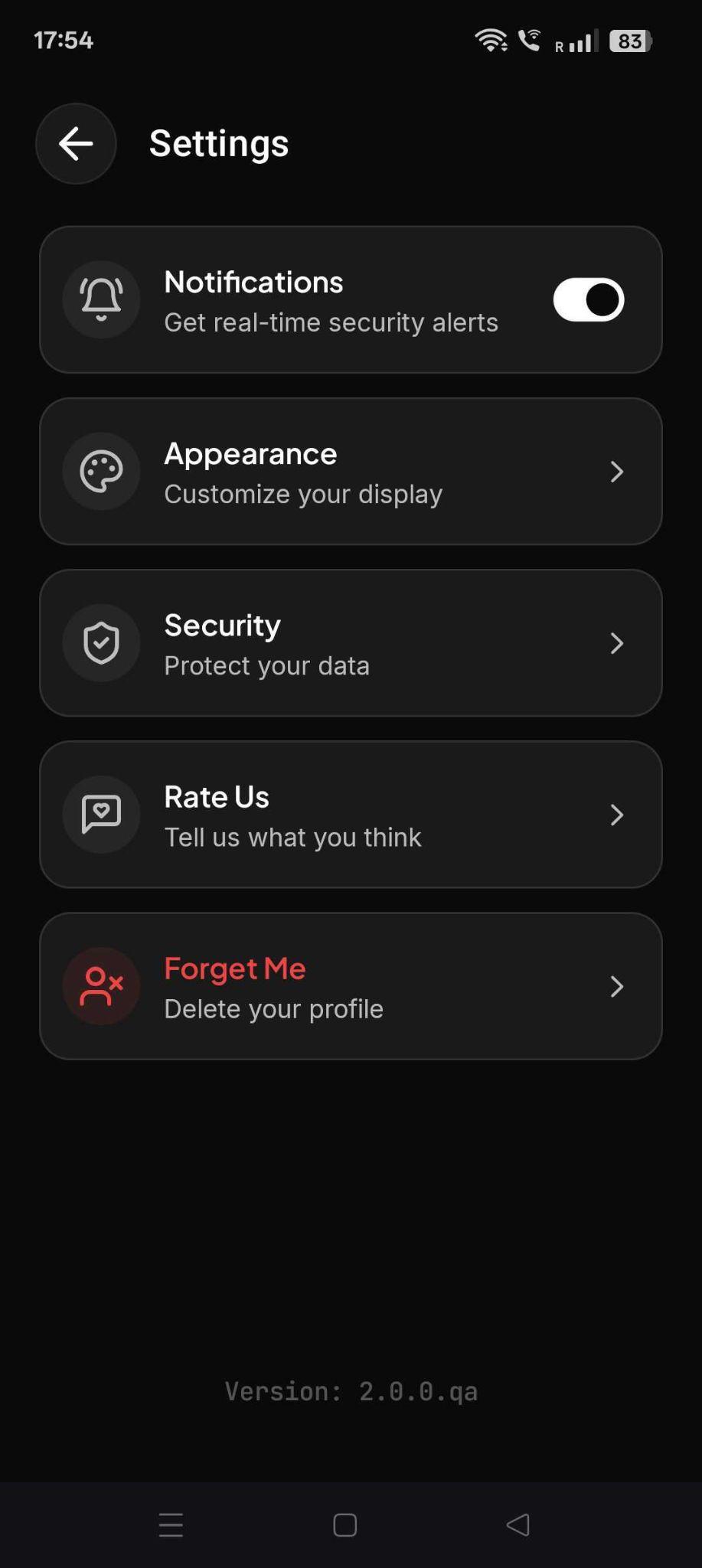
When you tap Forget Me, a new screen appears to confirm the deletion of your profile and device data.
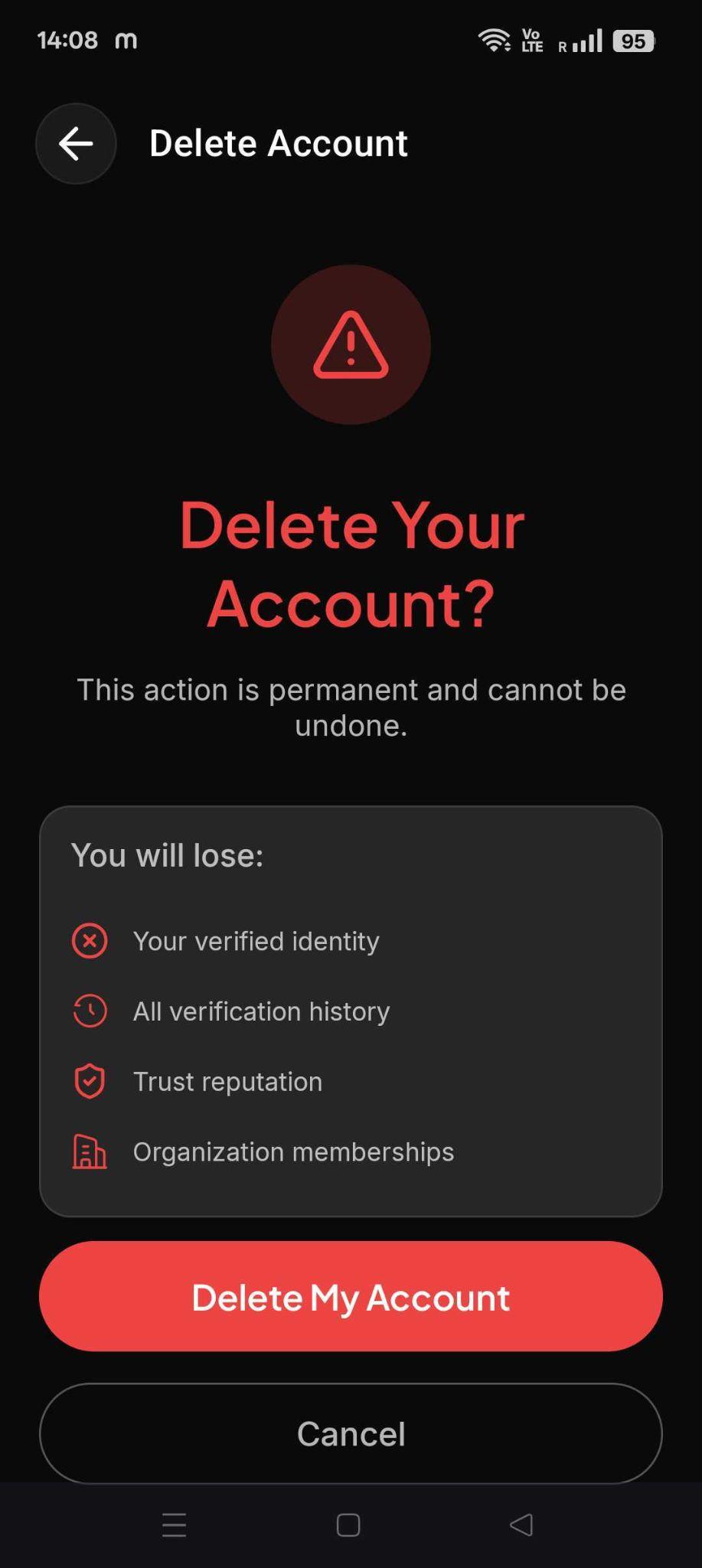
Tap Cancel to return to the previous screen without deleting any data.
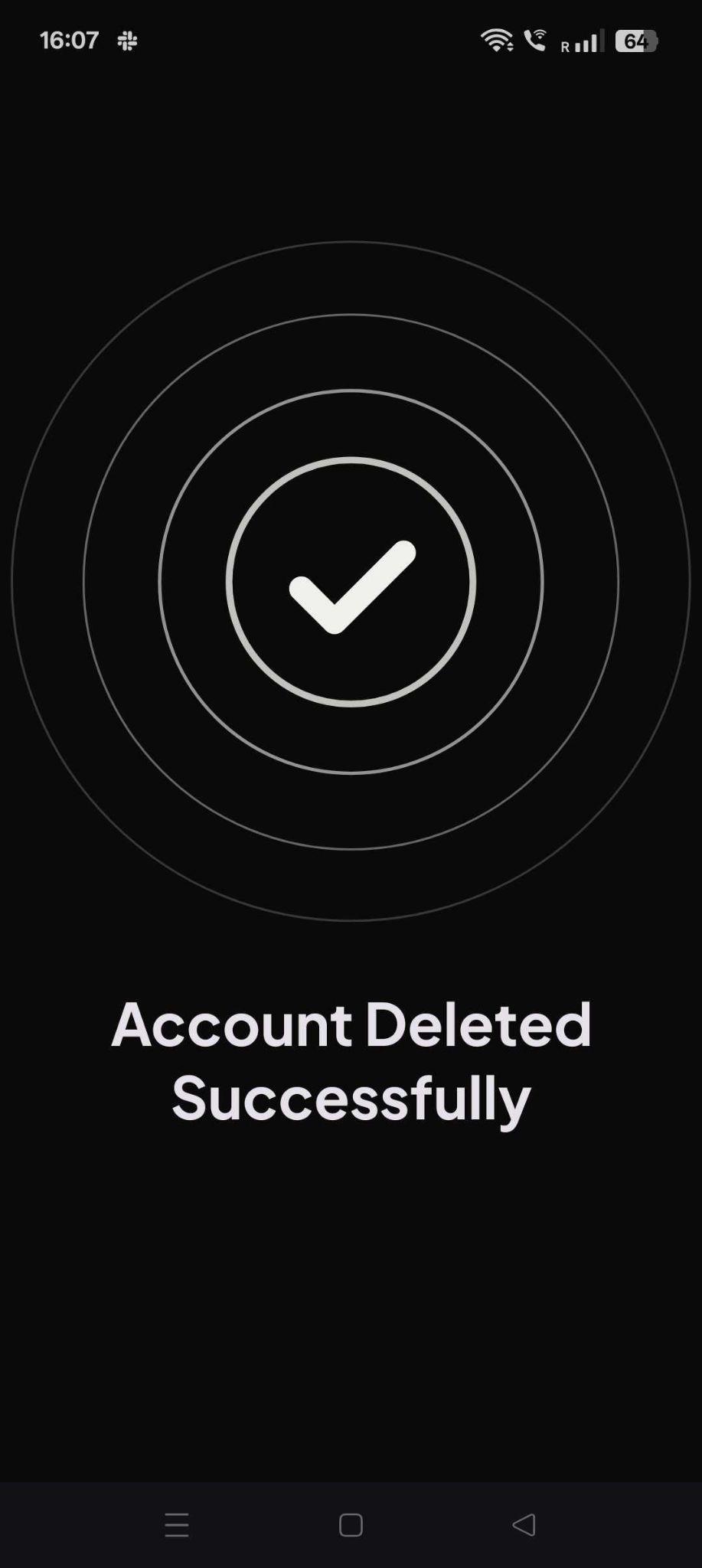
Otherwise, tap Delete My Account to permanently delete your device data and profile.
FAQ
Who do I contact if I have a question?
Your company’s help desk can always help answer questions, or provide a six-digit activation code to help you register for the first time. .
What if I get an error during activation?
Ensure that the business email and activation code you entered is correct, and retry the operation. Contact your company’s help desk if the error continues.
Can I use more than one device to access the same organization?
Yes. Once you register, you can use the registered device to add more devices. A maximum of five devices is supported per user.
Can I use a single device to access multiple organizations?
Yes, you can use any of your devices to access all organizations you have added to your profile.
Why does ScrambleID ask for my alternate email?
A user can have multiple organizations associated with them. Alternate email is used by ScrambleID to notify users of any account changes that are not organization specific, rather related to the ScrambleID user profile itself. An example would be add/remove devices.
**I lost my only registered device, how do I register a new device to my ScrambleID profile?**Contact your manager or call helpdesk and get an activation code. Register on your new device using the Existing option and the activation code provided by your help desk.
Will uninstalling the ScrambleID app on my device delete my ScrambleID profile?
No, your ScrambleID profile is not deleted. If you have any other devices with ScrambleID installed, you can always add this device back to your profile using an existing device with ScrambleID on it.
Glossary
Activation code
Your activation code comes in an invitation email as a six-digit code.
Device
Any smartphone or tablet running iOS or Android with the ScrambleID app installed. Typically it’s something portable, with a built-in camera to use when scanning a QR code is an option for activation. But since you can always type in a code instead of scanning, any portable device with an Internet connection is fine.
End User
The end user is you! They’re the person using the ScrambleID app to access applications instead of having to remember and enter passwords.
Forget Me
A function in the ScrambleID app that deletes all your devices and organizations.
Six-digit code
The alphanumeric code that you can type into the ScrambleID app for authorization and activation, even when a QR code is also provided.
Contact Us
Need more help?
Your organization’s help desk can help resolve issues, assist in new registration, or provide an activation code for new and/or replacement devices.
Please also read through our Terms of Service and Privacy Policy.
© 2026 ScrambleID, Inc. All Rights Reserved.