Document Purpose
This guide details the process by which clients may enable passwordless authentication for legacy LDAP applications through the utilization of ScrambleID. It furnishes comprehensive, step-by-step directives for both end-users (leveraging the ScrambleID Chrome Extension) and administrators (configuration and integration).
End User Guide
Introduction
The ScrambleID Chrome Extension facilitates user authentication into LDAP-based applications without requiring password recall. Instead, ScrambleID produces ephemeral, dynamic credentials associated with the user's organization, thereby furnishing a frictionless, passwordless login experience.
Installing the Chrome Extension
1. Access the Chrome Web Store and search for ScrambleID Chrome Extension, or open it directly via this link. Then click “Add to Chrome”.

Note: The temporary username and password expire after 2 minutes.
2. Select "Continue to Install," and then "Add Extension."

3. Confirm the installation and verify the ScrambleID icon's presence in the Chrome toolbar.


Logging into LDAP Applications
1. Proceed to the login page of the LDAP application.

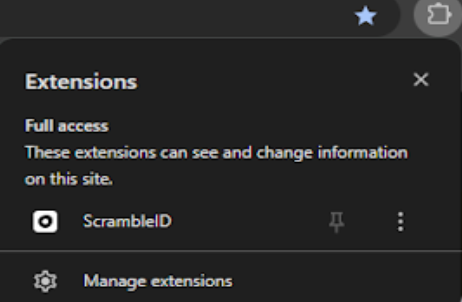
2. To access the ScrambleID Chrome Extension, users are presented with the option to log in via QR code or by typing a code. A toggle switch located at the bottom of the Chrome Extension window allows users to alternate between these two authentication methods.


3. Utilize the ScrambleID mobile application (available on Android or iOS) to scan the provided QR code or input the corresponding code manually.
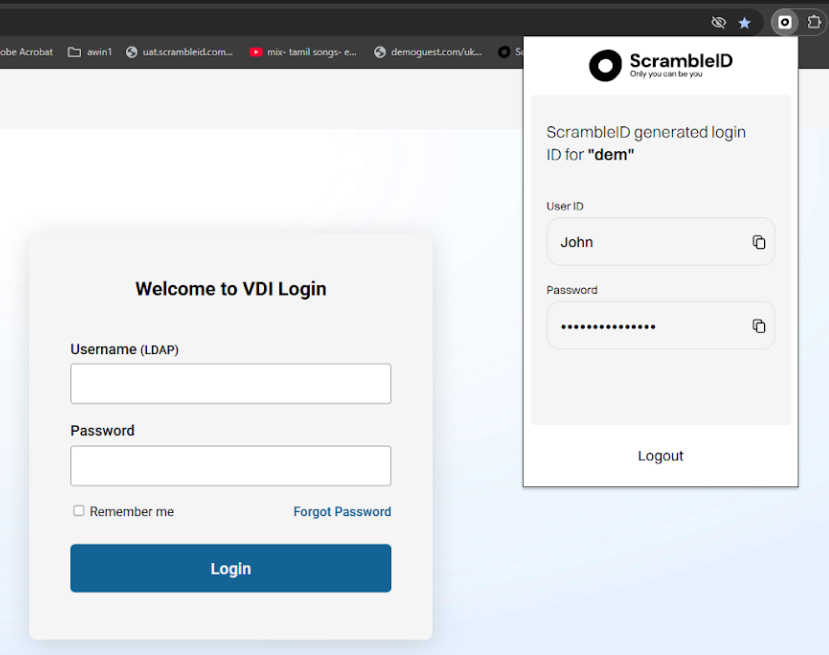
4. Copy the temporary username and password generated by the extension and paste them into the login fields of the LDAP application you wish to access.
Note: The temporary username and password expire after 2 minutes. A new one will subsequently be loaded into the ScrambleID Chrome Extension. Attempts to use the expired credentials after this 2-minute window will result in an invalid login. Users are required to copy and paste the newly generated user ID and password to successfully log in.

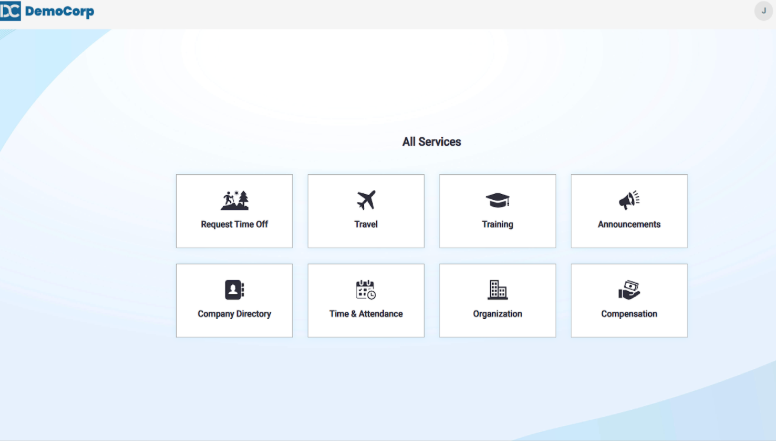
5. You will now be securely logged in to the application.
Using ScrambleID Chrome Extension with Multiple Organizations
Should your account be affiliated with multiple organizations, the initial login to any application utilizing the ScrambleID Chrome Extension will automatically establish a link to the organization selected during your first extension login. Subsequent logins will then default to routing through that primary organization. Should a change in organization be required, a reset of the extension is necessary (refer to the "Change / Reset Organization" section below).
Logging in with a QR Code
- Access the ScrambleID Chrome Extension and scan the displayed QR Code.
- Should multiple organizations be available, the ScrambleID mobile app will prompt the user to make a selection.
- The chosen organization will be registered and retained.
- If only a single organization is associated with your account, it will be registered automatically.
- Upon completion of registration, credentials will be generated for authentication purposes.
- Subsequent to logout, the previously selected organization will remain saved for future login attempts.
Logging in with a Type Code
- Enter the 9-digit Type Code displayed in the extension upon initial login.
- Input the 2-digit Validation Code when prompted.
- Should multiple organizations be available, the mobile application will prompt the user for selection.
- The selected organization will be registered and retained.
- If only one organization is linked to your account, it will be registered automatically.
- Subsequently, credentials will be furnished for authentication purposes.
- Following logout, the previously entered organization code will persist.
- Subsequent logins will require the user to input a 6-digit Type Code and a 2-digit Validation Code to acquire new access credentials.
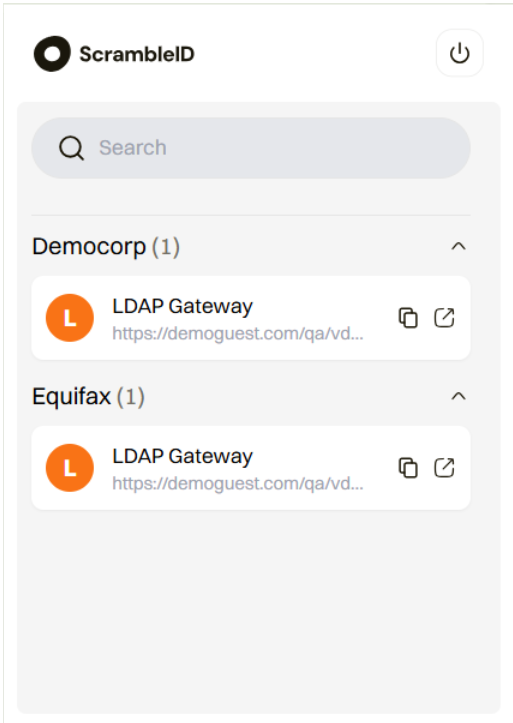
The organization selection page displays when a user belongs to more than one organization.
Change / Reset Organization
Should you be a member of multiple organizations and wish to switch between them, a reset of the extension is necessary. The ScrambleID extension defaults to the organization utilized during the initial login. To modify your active organization, please follow these steps.
1. To access the options, right-click the ScrambleID extension icon.
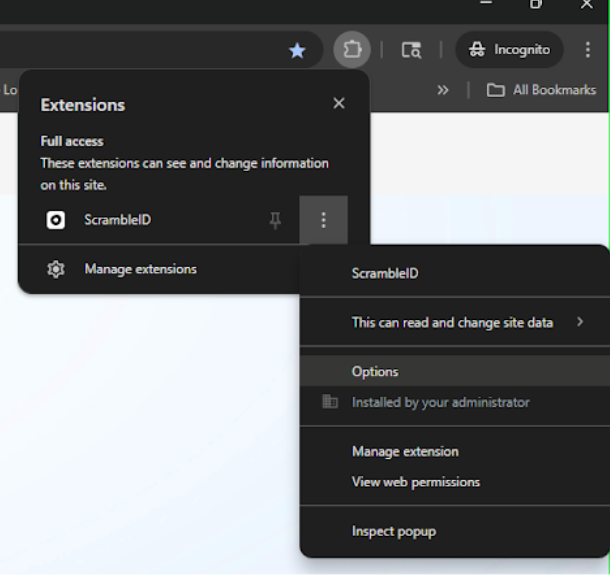
2. To clear the extension, select "Reset" on the options screen.
Note: Power Users and Administrators may utilize this screen to switch environments (e.g., QA/Testing). If you are not a Power User, please disregard this field and use the Reset button to reset your organization.
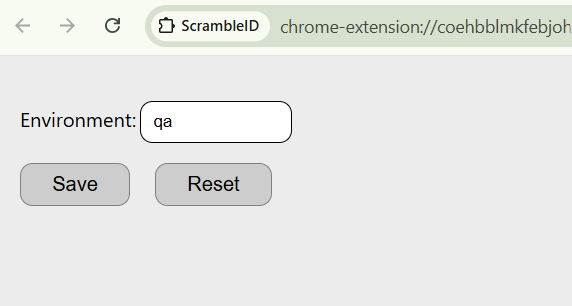
3. Upon subsequent login, the ScrambleID mobile application will request the selection of the desired organization for access. Once an organization has been selected and the login process completed, the extension will retain this organizational preference until it is explicitly reset.
Troubleshooting
- QR code not loading: Close and reopen the ScrambleID Chrome Extension.
- Login failed: Verify you are using the latest temporary credentials. (⚠️ Temporary credentials expire after 2 minutes.)
- Extension not responding: Perform a hard refresh of the Chrome page or reinstall the extension.
- Unknown error in mobile app while scanning: This typically occurs if the lidIdentifier is not configured for the user. Contact your administrator or help desk for assistance.
Best Practices
- Ensure that the most recent version of the ScrambleID Chrome Extension is utilized.
- Verify that the ScrambleID mobile application has been updated to version 1.8.1 or later.
Admin Guide
Admin Overview
ScrambleID facilitates LDAP authentication through the generation of ephemeral, temporary credentials subsequent to successful user verification. These credentials are then utilized by a Proxy LDAP Application, enabling seamless login without the need for static passwords.
The ensuing sections offer comprehensive guidance on the configuration options and administrative settings necessary for the deployment and management of this integration.
Configuring Attributes for Temporary Credentials
The attributes detailed below can be configured at both the Organization and Application levels for temporary credentials:
- Password Length
- Password Prefix
The password length attribute defines the length of the generated temporary LDAP password. The password prefix attribute defines the prefix of the password. This prefix can serve to identify that a given login originates from ScrambleID, enabling the implementation of additional configurations or logical flows on the LDAP side.

To facilitate access to the ScrambleID Chrome extension, an additional attribute, lidIdentifier, must be configured for the user at the organizational level. This attribute's value from SCIM will serve as the LDAP login username.
Password length and prefix configurations adhere to the following hierarchy:
- Application Level: Possesses the highest priority.
- Organization Level: Utilized if no application-level configuration is present.
- Default Values: Applied if neither application-level nor organization-level configurations exist (refer to the preceding table for default values).
Setting LDAP Base DN
Every organization utilizing LDAP authentication is required to establish a Base Distinguished Name for LDAP bind/search operations. This configuration must be applied at the organizational level for each respective organization.

The Base DN configuration for an organization with the Base DN “demoguest” is illustrated below:
ldapBaseDN = "dc=demoguest"
Proxy LDAP App Integration
To enable LDAP authentication, integrate with the Proxy LDAP Application by configuring the Proxy LDAP URL and using the temporary username and password generated by the extension.
Proxy LDAP URLs
Production : ldap://ldap.prod..scrambleid.com
UAT : ldap://ldap.uat.scrambleid.com
Authentication Workflow
- The client dispatches an LDAP bind request to the Proxy, utilizing temporary credentials.
- The Proxy subsequently forwards this request to ScrambleID for validation.
- If the credentials are deemed valid, the Proxy returns a success notification.
- Conversely, if the credentials are found to be invalid, the Proxy issues an LDAP error.
Testing with ldapsearch:
ldapsearch -H ldap://ldap.prod.scrambleid.com \
-D "uid=userName,dc=democrp,dc=com" \
-w "yourPasswordHere" \
-b "uid=userName,dc=democrp,dc=com"
Force-Installing the ScrambleID Chrome Extension via PowerShell
Within managed enterprise environments, administrators may be required to silently deploy and configure the ScrambleID Chrome Extension without necessitating manual installation by end-users. This can be accomplished through the utilization of PowerShell scripts in conjunction with Chrome policy settings.
Prerequisites
Before you begin, please ensure the following:
- You have administrator privileges on the designated machine.
- Google Chrome is installed.
- The extension has been published to the Chrome Web Store.
- The extension ID has been obtained from the Chrome Developer Dashboard.
Installation Steps
- Save the provided installationScript.ps1 file to a local directory.
- Open PowerShell as Administrator.
- Navigate to the folder containing the script:
Example:
cd C:\Users\<YourUsername>\Downloads- Run the script:
.\InstallChromeExtension.ps1- Close and reopen Chrome, or visit chrome://policy and click Refresh Policy to confirm installation.
- Once complete, the ScrambleID extension will be installed and available for all users on the machine.
Installation Script
The installation script is available at the following GitHub URL:
https://github.com/scramble-id/chrome-extension/blob/master/installationScript.ps1Removing the Extension
To uninstall the extension:
- Execute the provided removalScript.ps1 file.
.\removalScript.ps1- Subsequently, restart Chrome or navigate t0 chrome://policy and refresh the policies.
The script removes entries from both the ExtensionInstallForcelist and ExtensionSettings registry keys to ensure a clean uninstall.
As an alternative, administrators can manually remove the policy via the Registry Editor by identifying and deleting the corresponding extension ID.
Uninstallation Script
The uninstallation script is available at the following GitHub URL:
https://github.com/scramble-id/chrome-extension/blob/master/removalScript.ps1Resetting the Extension
End-users are able to reset the default organization utilized with the Chrome plugin (refer to "Using ScrambleID Chrome Extension with Multiple" within the End User Guide). Additionally, administrators possess the capability to switch between various environments (e.g., production, quality assurance, user acceptance testing).
Steps to reset/change the organization or environment
1. Right-click the ScrambleID extension icon in Chrome and select Options from the menu.
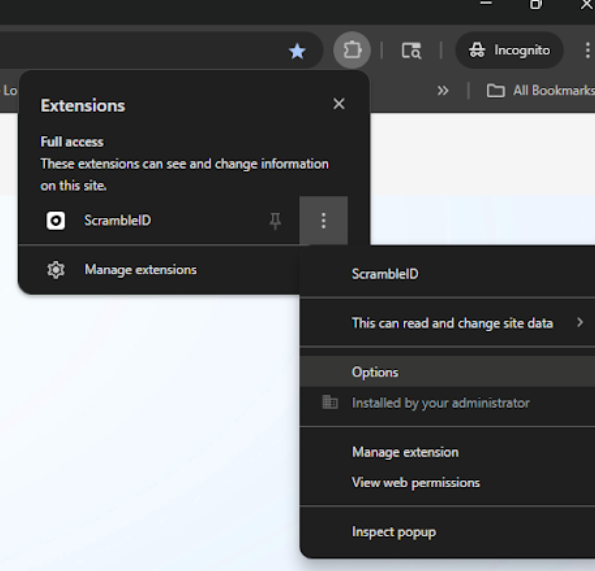
2. To clear the current organization, click Reset on the Options page. Upon the subsequent login, the ScrambleID mobile application will prompt the user to select an organization if the user is affiliated with multiple organizations.

3. To change environments, set the environment value to one of the following: prod, qa, or uat, and then click Save to apply the changes.